New Phone Setup: Keep All Your App Accounts
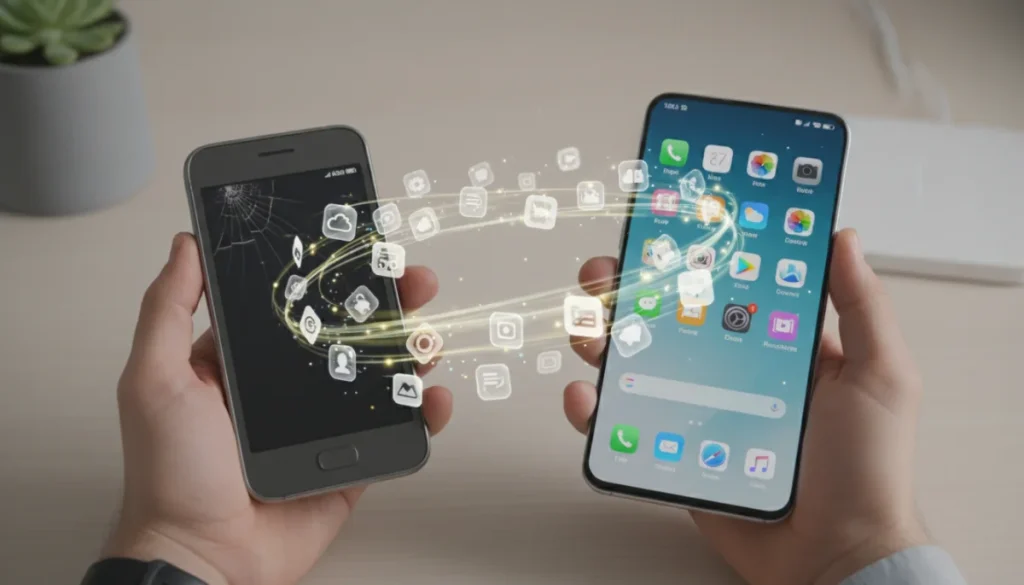
Setting up a new phone can be daunting, especially when trying to retain access to all your crucial app accounts. This guide provides a comprehensive roadmap to ensure a seamless transition, covering essential steps for data migration, password security, and account recovery, so you don’t miss a beat.
Getting a new phone is exciting, but the thought of losing access to your digital life can be a major headache. Learning how to set up a new phone without losing access to important app accounts is crucial for a smooth transition, ensuring all your contacts, photos, and app data come along for the ride.
Preparing Your Old Phone for Migration
Before you even unbox your new device, a thorough preparation of your old phone is essential. This initial phase lays the groundwork for a successful and stress-free data transfer, minimizing the risk of losing valuable information or access to critical applications. Taking the time to organize and secure your data now will save you considerable effort later.
Backup Everything Important
Creating a comprehensive backup of your old phone is the single most important step. This backup acts as your safety net, ensuring that even if something goes wrong during the transfer, your data is still recoverable. Consider both local and cloud-based backup options for maximum security and flexibility.
- Cloud Backups: For Android users, Google Drive is the primary solution, backing up app data, call history, device settings, and SMS messages. iOS users rely on iCloud for similar comprehensive backups, including photos, videos, app data, and device settings.
- Local Backups: Connect your old phone to a computer and use software like iTunes for iOS or a manufacturer-specific tool for Android to create a full backup. This provides an offline copy that can be invaluable in certain situations.
- Manual Photo/Video Transfer: While cloud services often handle media, consider manually transferring particularly cherished photos and videos to a computer or external hard drive as an extra precaution.
Ensure your backup is recent and complete. Verify that all essential data, including contacts, messages, photos, and app data, is included. This proactive approach ensures that your digital memories and functional app data are securely stored before you proceed with the new phone setup.
Understanding the nuances of your phone’s backup system is key. Different operating systems and phone manufacturers offer varying levels of backup detail. Familiarize yourself with these options to choose the best strategy for your needs, ensuring that no stone is left unturned in safeguarding your information.
Documenting Your App Account Information
One of the biggest hurdles when migrating to a new phone is regaining access to all your various app accounts. Many people underestimate the sheer number of services they use daily, from social media and banking to streaming and productivity tools. A systematic approach to documenting this information is vital.
Creating a Comprehensive Account Inventory
Before wiping your old phone or even starting with the new one, make a list of every app you use regularly that requires a login. This isn’t just about social media; think about banking apps, email clients, streaming services, productivity suites, and even less frequently used but important utilities. For each app, note down the username or email associated with the account.
Next, focus on passwords. If you don’t use a password manager, this is an excellent time to start. A password manager securely stores all your login credentials, often generating strong, unique passwords for each service. This not only simplifies the migration process but also significantly enhances your online security. If you don’t have one, consider using a physical notebook for temporary documentation, but transition to a digital, encrypted solution as soon as possible.
Beyond usernames and passwords, note any critical recovery information. This includes security questions and answers, backup codes for two-factor authentication (2FA), and any associated recovery email addresses or phone numbers. This information can be a lifesaver if you get locked out of an account on your new device.
Many apps offer a ‘remember me’ or ‘stay logged in’ feature, which can make us forget our actual login details. This inventory process forces you to confront and record that information, preventing frustrating lockout situations on your new device. It’s a small investment of time that pays dividends in peace of mind.
Managing Two-Factor Authentication (2FA)
Two-Factor Authentication (2FA) is a critical security layer, but it can be a stumbling block during phone migration if not handled correctly. Improperly transferring 2FA settings can lead to being locked out of essential accounts, making careful planning paramount.
Transferring Authenticator Apps
If you use an authenticator app like Google Authenticator, Authy, or Microsoft Authenticator, you’ll need to migrate these accounts. Most modern authenticator apps offer a built-in export/import feature, often involving a QR code scan from your old phone to your new one. This is the most straightforward method.
- Google Authenticator: On your old phone, go to settings and look for ‘Transfer accounts’ or ‘Export accounts.’ This usually generates a QR code that your new phone can scan to import all your saved 2FA tokens.
- Authy: Authy is cloud-synced, making it easier. Ensure you have cloud backup enabled on your old device, then simply install Authy on your new phone and log in with your registered phone number. Your tokens should sync automatically.
- Microsoft Authenticator: Similar to Authy, Microsoft Authenticator supports cloud backup. Activate cloud backup on your old phone and then restore from backup on your new device.
For services where you receive 2FA codes via SMS, ensure your phone number is correctly transferred to your new device and your carrier service is active. This seems obvious, but a temporary service interruption can prevent you from receiving vital codes during the setup process.
It’s also a good practice to generate and save backup codes for your most critical accounts (email, banking, primary social media) before starting the transfer. These codes can be used as a one-time bypass if your authenticator app transfer fails or if you lose access to your phone entirely. Store these codes securely, preferably offline or in an encrypted document.
Transferring Data and Initial Setup
With your old phone prepared and account information documented, it’s time to begin the physical transfer of data and the initial setup of your new device. This stage involves moving your contacts, photos, and other files, as well as signing into your primary accounts.
Utilizing Built-in Migration Tools
Both Android and iOS offer robust tools to simplify the transfer process. These tools are designed to move a significant portion of your data, including apps, settings, messages, and media, from your old phone to your new one.
- iOS to iOS (Quick Start): If you’re moving from an iPhone to a new iPhone, Apple’s Quick Start feature is incredibly convenient. Simply place your new iPhone near your old one, and follow the on-screen prompts to transfer data wirelessly.
- Android to Android: Many Android manufacturers (Samsung Smart Switch, Google’s Data Transfer Tool) provide their own migration apps. These often allow you to connect your phones directly via a cable or wirelessly to transfer data. Google’s setup process also guides you through restoring from a Google Drive backup.
- Cross-Platform Migration: Moving from iOS to Android or vice-versa is more complex but manageable. Both Apple (Move to iOS app) and Google (Switch to Android app) offer tools to help transfer contacts, calendar events, photos, and videos. App data, however, usually doesn’t transfer directly across operating systems, meaning you’ll need to reinstall apps and log in manually.
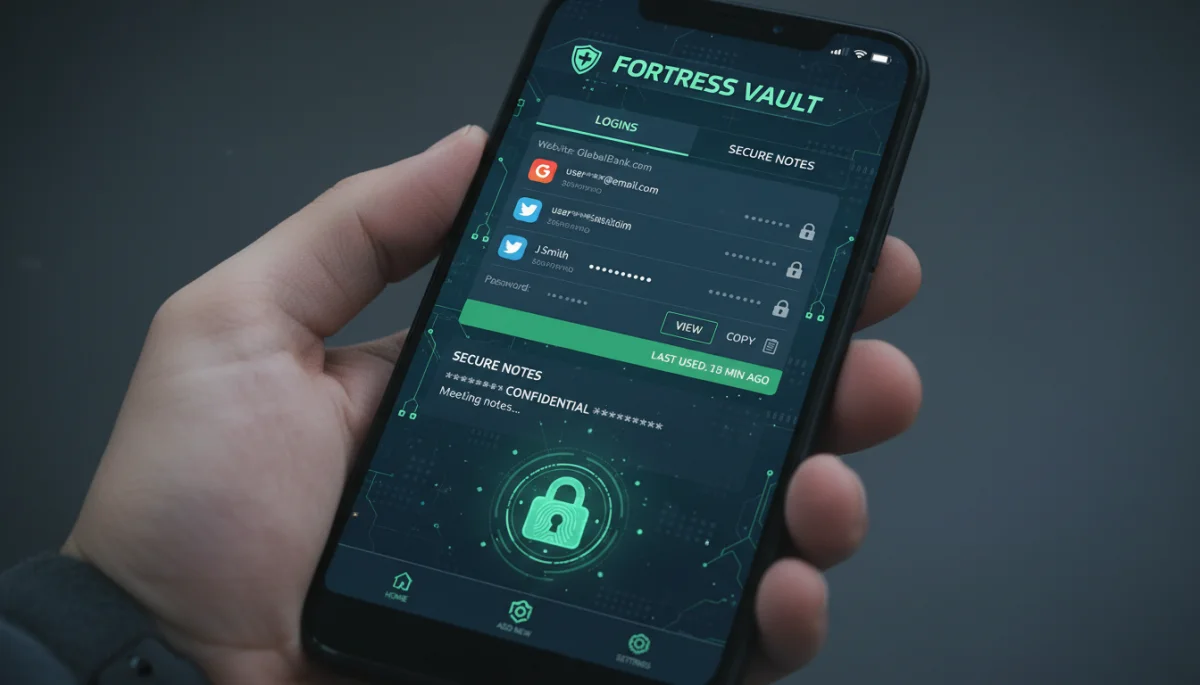
After the initial data transfer, proceed with the basic setup of your new phone. This includes connecting to Wi-Fi, signing into your primary Google or Apple ID, and setting up your fingerprint or facial recognition for security. These foundational steps are crucial before you start diving into individual app logins.
Remember that while these tools are powerful, they might not transfer every single piece of data or every app’s specific settings. Always double-check after the transfer to ensure everything you expected has moved over successfully.
Re-logging into Important App Accounts
Once your new phone is set up and your basic data is transferred, the next critical step is systematically re-logging into all your important app accounts. This is where your meticulously prepared account inventory comes into play.
Systematic Account Re-activation
Start with your most critical accounts: email, banking, and primary communication apps. These are often the gatekeepers to other services, as password resets or 2FA codes might be sent to your email or phone number. Ensure these are fully functional before moving on.
- Email Accounts: Log into your primary email accounts first. This is often the first step in recovering or verifying other accounts.
- Banking and Financial Apps: These require strict security. Be prepared for additional verification steps, such as SMS codes or calls to a registered number. Ensure your new phone number is updated with your bank if it has changed.
- Social Media and Communication Apps: Log into platforms like Facebook, Instagram, WhatsApp, and Telegram. For WhatsApp, ensure your chat backups (Google Drive for Android, iCloud for iOS) are restored.
- Streaming and Entertainment: Services like Netflix, Spotify, and YouTube are usually straightforward logins.
- Productivity and Work Apps: Reconnect to Slack, Microsoft 365, Google Workspace, and any other work-related applications.
Use your password manager to auto-fill login credentials whenever possible. This not only saves time but also reduces the risk of typos. If you encounter an issue, refer to your documented recovery information. If you’re locked out, use the ‘forgot password’ or ‘account recovery’ options provided by the service, which often involve sending a link to your recovery email or phone.
Be patient during this process. Some apps might require re-authorizing devices or completing additional security checks. It’s better to take your time and ensure each account is securely re-established than to rush and face potential lockouts later. This methodical approach will prevent frustration and ensure you regain full functionality of your digital life.
Security Best Practices Post-Migration
After successfully transferring your data and logging into all your app accounts, it’s crucial to reinforce your digital security. A new phone setup is an opportune moment to review and enhance your security practices, ensuring your personal information remains protected.
Reviewing and Enhancing Security Settings
Start by reviewing the security settings on your new device. Ensure you have a strong screen lock (PIN, pattern, or biometric), and that device encryption is enabled. Check app permissions to ensure that only necessary apps have access to your location, camera, microphone, and contacts.
- Update Passwords: Even if you used a password manager, consider updating passwords for your most critical accounts. This is a good habit to adopt periodically.
- Enable 2FA Everywhere: If any important accounts still don’t have 2FA enabled, now is the time to set it up. Use an authenticator app for stronger protection than SMS-based 2FA.
- Review Connected Devices: Many services allow you to view active sessions or connected devices. Log into your primary accounts (Google, Apple, social media) and review these lists. Remove any old or unfamiliar devices to ensure only your new phone and trusted devices have access.
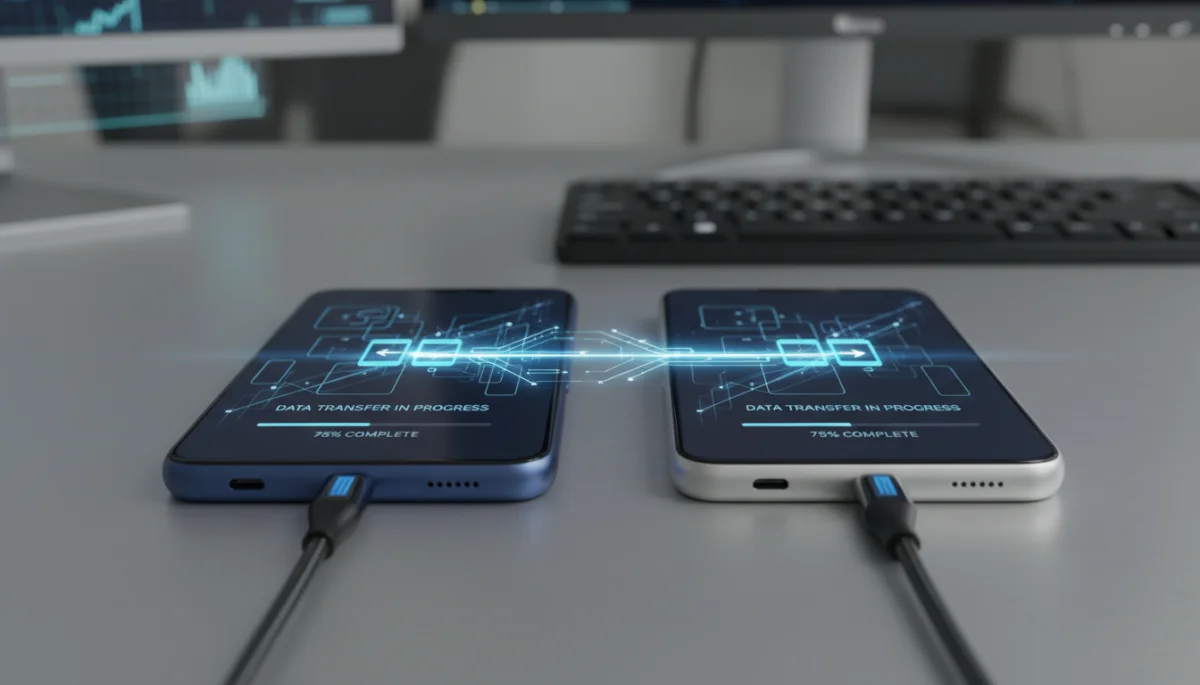
Next, consider what to do with your old phone. If you plan to sell or donate it, perform a factory reset. A factory reset wipes all data from the device, making it unrecoverable. For extra security, some experts recommend encrypting the device before the factory reset, making any remaining data even harder to retrieve.
Finally, stay vigilant against phishing attempts. Cybercriminals often target users during significant digital changes like phone migrations. Be wary of suspicious emails or messages asking for login credentials or personal information, even if they appear to be from legitimate services. Always verify the source before clicking links or providing data.
Troubleshooting Common Migration Issues
Even with careful preparation, issues can arise during a phone migration. Knowing how to troubleshoot common problems can save you a lot of time and frustration, ensuring you can quickly resolve any snags in the process.
Addressing Login Failures and Data Loss
One of the most common issues is being unable to log into an app account. If your password isn’t working, first double-check for typos. If that fails, immediately use the ‘forgot password’ or ‘account recovery’ option. Most services have a robust recovery process, often involving sending a link to your registered email or phone number. This is where having your recovery information documented becomes invaluable.
- 2FA Issues: If 2FA is preventing your login, ensure your authenticator app is correctly synced or that your new phone is receiving SMS codes. If all else fails, use your backup codes. If you don’t have them, you’ll need to go through the service’s account recovery process, which can sometimes be lengthy.
- App Data Not Transferred: If specific app data (e.g., game progress, chat history) didn’t transfer, check if the app itself offers an in-app backup and restore option. Many games and messaging apps have this feature, often linked to cloud storage.
- Missing Photos or Contacts: If photos or contacts are missing, revisit your old phone’s backup. Ensure the backup was complete and attempt to restore it again. Check your cloud services (Google Photos, iCloud) to see if the data is there and needs to be re-synced to your new device.
Sometimes, simply restarting your new phone can resolve minor glitches. If an app isn’t behaving correctly after installation, try uninstalling and reinstalling it. Ensure your phone’s operating system and all apps are updated to their latest versions, as updates often include bug fixes and improved compatibility.
If you’re still facing persistent issues, don’t hesitate to consult the support resources provided by your phone manufacturer or app developer. They often have detailed FAQs or customer support lines that can offer specific solutions to complex problems. Patience and systematic problem-solving are key to overcoming these migration challenges.
Optimizing Your New Phone Experience
Once your new phone is fully functional and all your app accounts are accessible, the final step is to optimize your device for daily use. This involves personalizing settings, organizing your apps, and ensuring peak performance and battery life.
Personalizing and Enhancing Performance
Begin by customizing your phone to your preferences. Set up your preferred wallpaper, ringtones, and notification sounds. Arrange your apps into folders on your home screen for easy access and a clutter-free interface. Take advantage of widgets for quick glances at information like weather, calendar, or news.
- Review Settings: Go through your phone’s settings menu. Adjust display brightness, notification preferences, privacy settings, and sound profiles. Turn off unnecessary background app refresh for apps you don’t need constantly running, which can save battery life.
- Battery Optimization: Explore your phone’s battery settings. Many devices offer adaptive battery features or power-saving modes that learn your usage patterns to extend battery life. Identify and restrict apps that consume excessive power.
- App Management: Uninstall any bloatware or pre-installed apps you don’t use. For apps you keep, review their permissions to ensure they only have access to what’s necessary. Regularly clear app caches to free up storage and improve performance.
Consider installing essential utility apps if you haven’t already, such as a reliable antivirus/malware scanner (especially for Android), a comprehensive file manager, and perhaps a VPN for enhanced privacy when using public Wi-Fi. These tools contribute to a more secure and efficient mobile experience.
Finally, take some time to explore any new features or improvements your new phone offers. Modern smartphones come packed with innovative functionalities, from advanced camera modes to productivity enhancements. Learning these can significantly enrich your daily interactions with your device, making the transition truly worthwhile. Enjoy your optimized new phone!
| Key Step | Brief Description |
|---|---|
| Backup Old Phone | Create comprehensive cloud and local backups of all data. |
| Document Account Info | List usernames, passwords, and 2FA recovery details. |
| Manage 2FA Transfer | Migrate authenticator apps or use backup codes. |
| Re-log Systematically | Sign into critical apps first, using your documented inventory. |
Frequently Asked Questions About New Phone Setup
The most crucial step is performing a complete backup of your old phone’s data. This includes photos, contacts, messages, and app data. Both cloud (Google Drive, iCloud) and local backups are recommended to ensure you have multiple recovery options in case of any issues during the transfer process.
For authenticator apps like Google Authenticator or Authy, use their built-in export/import features, often involving a QR code scan. For SMS-based 2FA, ensure your phone number is active on your new device. Always have backup codes saved for critical accounts as a contingency.
While contacts, photos, and some media can often be transferred across iOS and Android using dedicated migration apps, specific app data (like game progress or internal app settings) usually cannot be directly transferred. You will typically need to reinstall apps and log in manually on the new operating system.
After confirming all data and accounts are successfully transferred to your new phone, perform a factory reset on your old device. This will erase all personal data, making it safe to sell, donate, or recycle. For added security, encrypt the device before performing the factory reset.
If you forget a password, use the ‘forgot password’ or ‘account recovery’ option within the app or on the service’s website. This usually involves receiving a recovery link or code via your registered email or phone number. Having recovery information documented beforehand can significantly speed up this process.
Conclusion
Successfully navigating the transition to a new phone without losing access to your critical app accounts requires a methodical and well-planned approach. From meticulous preparation of your old device and comprehensive data backups to the careful documentation of login credentials and the strategic management of two-factor authentication, each step plays a vital role in ensuring a seamless migration. By following these guidelines, including systematic re-logging into accounts and implementing robust post-migration security practices, you can confidently embrace your new device. This detailed process not only safeguards your digital life but also enhances your overall mobile security, allowing you to enjoy your new phone with complete peace of mind and uninterrupted access to all your essential applications.
