WhatsApp Privacy: Set Up Without Sharing More Info
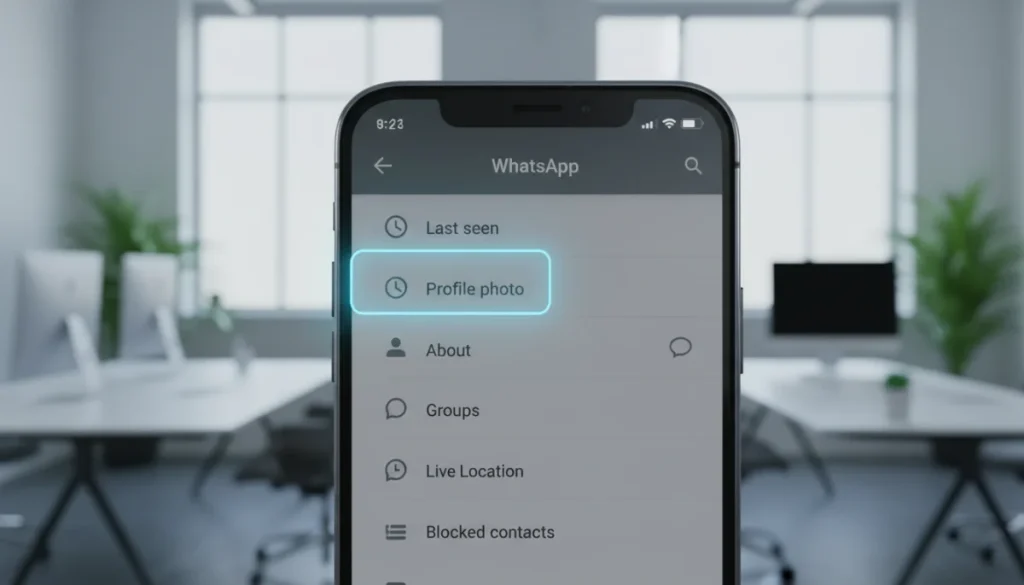
Setting up WhatsApp discreetly involves adjusting privacy settings during initial configuration and ongoing usage to control who sees your profile picture, last seen, status, and ‘about’ information, minimizing data sharing.
In today’s interconnected world, messaging apps like WhatsApp have become indispensable for communication. However, the convenience often comes with concerns about personal data. Learning how to set up WhatsApp without sharing more profile information than necessary is crucial for maintaining your digital privacy and ensuring a secure messaging experience.
Understanding WhatsApp’s Default Privacy Settings
Before diving into specific adjustments, it’s essential to grasp what WhatsApp’s default privacy settings entail. When you first install the app, certain information is often visible to a broader audience than you might prefer. This includes your profile picture, your ‘last seen’ status, and your ‘about’ section.
By default, WhatsApp typically sets these options to ‘Everyone,’ meaning anyone with your phone number who uses WhatsApp can view them. While this might be convenient for some, it can be a significant privacy concern for others, especially those who prefer to keep their online presence more guarded. Understanding these initial configurations is the first step toward taking control.
Initial Visibility: What’s Public by Default?
When you create a new WhatsApp account, several pieces of your profile information are set to be publicly visible or visible to your contacts by default. This includes your profile photo, your ‘About’ status, and your ‘Last Seen’ timestamp. Many users overlook these settings during the initial setup, inadvertently exposing more personal data than intended.
- Profile Photo: Often visible to ‘Everyone’ by default, meaning anyone who has your number can see your picture.
- Last Seen: Shows when you were last active on WhatsApp, commonly set to ‘Everyone.’
- About: A short description about yourself, also frequently visible to ‘Everyone’ by default.
- Status Updates: Shares temporary photos or videos, usually visible to ‘My Contacts.’
These default settings are designed for broad accessibility, but they don’t always align with individual privacy preferences. It’s important to actively review and modify them to suit your comfort level.
Understanding these defaults empowers you to make informed decisions about your digital footprint. The goal is to proactively manage what information is shared, rather than reacting to potential privacy breaches. Taking a few moments to review these settings can significantly enhance your privacy on the platform, ensuring your personal details remain private.
Configuring Your Profile Photo and About Section
Your profile picture and ‘About’ section are among the most visible elements of your WhatsApp profile. Controlling who sees them is a fundamental step in setting up WhatsApp without sharing more profile information than necessary. WhatsApp provides granular controls to manage this visibility effectively.
You can choose to make these visible to ‘Everyone,’ ‘My Contacts,’ ‘My Contacts Except…’ (allowing you to exclude specific contacts), or ‘Nobody.’ The choice depends entirely on your comfort level and who you wish to communicate with on the platform. Opting for ‘Nobody’ or ‘My Contacts’ offers a significantly higher degree of privacy than the default ‘Everyone’ setting.
Adjusting Profile Photo Visibility
Your profile picture is often the first visual identifier others see on WhatsApp. Limiting its visibility is a straightforward process within the app’s settings. This ensures that only trusted individuals or no one at all can see your chosen image.
- Open WhatsApp and navigate to ‘Settings’ (or ‘Options’ on some devices).
- Tap on ‘Account,’ then ‘Privacy.’
- Select ‘Profile photo.’
- Choose from ‘Everyone,’ ‘My Contacts,’ ‘My Contacts Except…,’ or ‘Nobody.’
For maximum privacy, selecting ‘Nobody’ prevents anyone outside your contacts from seeing your profile photo, while ‘My Contacts’ restricts it to people saved in your phone’s address book. The ‘My Contacts Except…’ option gives you even finer control, allowing you to hide your picture from specific individuals while still showing it to others.
Making an informed decision about your profile photo’s visibility is a key step towards a more private WhatsApp experience. It’s a simple change that can have a significant impact on who accesses your personal image.
Managing Your ‘Last Seen’ and Online Status
The ‘Last Seen’ and ‘Online’ indicators on WhatsApp tell others when you were last active and if you are currently using the app. These features, while seemingly innocuous, can reveal patterns of your activity and availability. For those prioritizing privacy, managing these settings is crucial to avoid inadvertently sharing too much about your daily routine.
WhatsApp offers specific privacy controls for both ‘Last Seen’ and ‘Online’ status. You can choose to hide your ‘Last Seen’ from everyone, specific contacts, or only show it to your contacts. Similarly, you can control who sees your ‘Online’ status, adding another layer of discretion to your messaging habits.
Controlling ‘Last Seen’ and ‘Online’ Visibility
The ‘Last Seen’ timestamp informs others about the last time you opened WhatsApp, while the ‘Online’ status indicates you are currently using the app. Both can reveal your availability and patterns of use. To maintain a lower profile, these should be adjusted.
- Go to WhatsApp ‘Settings’ > ‘Account’ > ‘Privacy.’
- Tap on ‘Last seen & online.’
- For ‘Who can see my Last Seen,’ choose ‘Nobody’ or ‘My Contacts.’
- For ‘Who can see when I’m online,’ select ‘Same as Last Seen’ or ‘Nobody.’
Choosing ‘Nobody’ for both options ensures that no one can track your activity on WhatsApp, providing a significant boost to your privacy. If you select ‘Same as Last Seen,’ your ‘Online’ status will follow the same visibility rules as your ‘Last Seen,’ offering a consistent privacy approach. This adjustment is essential for users who prefer to maintain a discreet presence on the platform.
Remember that if you hide your ‘Last Seen,’ you also won’t be able to see other users’ ‘Last Seen’ timestamps. This is a reciprocal privacy feature designed to ensure fairness. Carefully consider these options to balance your need for privacy with your desire to see the activity of your contacts.
Restricting Status Updates and Read Receipts
WhatsApp Status updates are ephemeral posts that disappear after 24 hours, similar to Instagram Stories. While they can be a fun way to share moments, they also expose your activities to your chosen audience. Similarly, read receipts, or ‘blue ticks,’ confirm when your messages have been read, which some users find intrusive. Managing these settings is key to a more private WhatsApp experience.
You have control over who views your Status updates, allowing you to share only with specific contacts or exclude others. Disabling read receipts, however, is a global setting that affects all your chats, both incoming and outgoing. These adjustments collectively contribute to a more controlled and private interaction within the app.
Customizing Status Privacy
Your WhatsApp Status allows you to share updates with your contacts. By default, it’s usually set to ‘My Contacts.’ However, you can refine this further to ensure only specific people see your updates, or to exclude certain individuals from viewing them.
- Navigate to WhatsApp ‘Settings’ > ‘Privacy.’
- Tap on ‘Status.’
- Choose from:
- My Contacts: All your contacts can see your status.
- My Contacts Except…: Share with all contacts except those you specify.
- Only Share With…: Share only with selected contacts.
The ‘My Contacts Except…’ and ‘Only Share With…’ options are particularly useful for tailoring your audience for each status update, ensuring that you maintain control over who sees your shared moments. This level of customization helps you avoid sharing personal information with unintended viewers and enhances your overall privacy on the platform.
Disabling Read Receipts
Read receipts, commonly known as blue ticks, indicate that your messages have been seen. While useful for confirmation, some users prefer to disable them for privacy reasons, or to avoid the pressure of an immediate response. Disabling read receipts is a global setting that affects all your conversations.
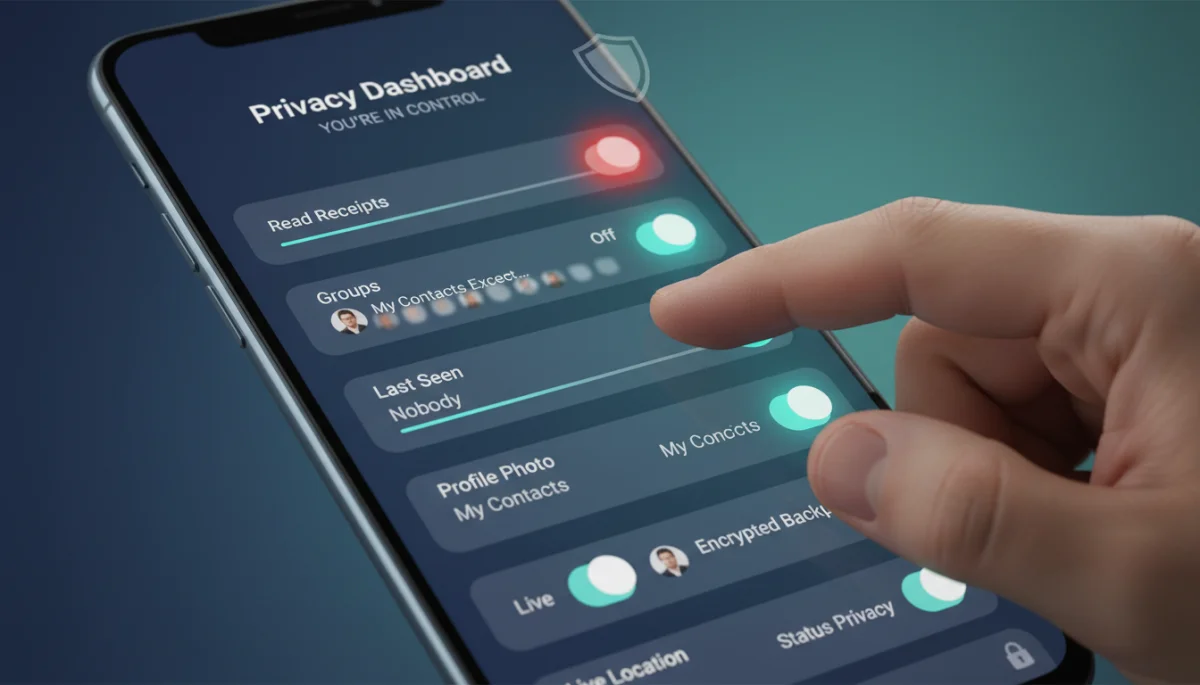
To turn off read receipts:
- Go to WhatsApp ‘Settings’ > ‘Account’ > ‘Privacy.’
- Toggle off the ‘Read receipts’ option.
Keep in mind that if you turn off read receipts, you also won’t be able to see when others have read your messages. This is a reciprocal feature. Additionally, read receipts are always sent for group chats, even if you have the setting disabled for individual conversations. This allows for a more private messaging experience, but it also means you lose the ability to confirm if your messages have been seen by others.
Carefully consider whether disabling read receipts aligns with your communication style and privacy needs. It’s a powerful tool for controlling information flow, but it comes with the trade-off of not knowing when your messages are read.
Managing Group Invitations and Live Location
Two often-overlooked privacy settings in WhatsApp are group invitations and live location sharing. Groups can lead to unexpected exposure to new contacts, while live location sharing, if not carefully managed, can reveal your whereabouts in real-time. Taking control of these features is crucial for maintaining your personal boundaries and physical safety.
WhatsApp allows you to restrict who can add you to groups, preventing unwanted additions. Similarly, live location sharing is an opt-in feature that you can control, ensuring it’s only shared with trusted individuals for a limited time. These settings are vital for a comprehensive approach to privacy on the platform.
Controlling Group Invitations
Being added to WhatsApp groups without your consent can be annoying and, in some cases, a privacy risk, as it exposes your contact information to other group members. WhatsApp provides a setting to control who can add you to groups.
- Access WhatsApp ‘Settings’ > ‘Account’ > ‘Privacy.’
- Tap on ‘Groups.’
- Choose from:
- Everyone: Anyone can add you to a group.
- My Contacts: Only people in your contacts can add you.
- My Contacts Except…: Only contacts you select can add you.
Selecting ‘My Contacts’ or ‘My Contacts Except…’ significantly reduces the chances of being added to unwanted groups, thus protecting your privacy and preventing your number from being shared with unknown individuals. This proactive measure ensures that you have control over your group participation, enhancing your overall WhatsApp experience.
Disabling Live Location Sharing
WhatsApp’s live location sharing feature allows you to share your real-time location with contacts for a specified duration. While useful in certain situations, it can be a significant privacy concern if left unchecked. It’s important to understand how to manage and disable this feature.

Live location sharing is always an opt-in feature, meaning you have to actively choose to share it. You can share your live location for 15 minutes, 1 hour, or 8 hours. To stop sharing your live location:
- Go to the chat where you are sharing your live location.
- Tap ‘Stop Sharing.’
- Alternatively, go to ‘Settings’ > ‘Account’ > ‘Privacy’ > ‘Live Location’ to see all active live location shares and stop them.
It’s crucial to be mindful of when and with whom you share your live location. Regularly checking the ‘Live Location’ section in your privacy settings ensures that you are not inadvertently sharing your whereabouts for longer than intended. This is a critical step in protecting your physical and digital privacy.
Utilizing Two-Step Verification and Security Alerts
Beyond profile visibility, securing your WhatsApp account itself is paramount. Two-step verification adds an extra layer of security, making it much harder for unauthorized individuals to access your account, even if they somehow obtain your SIM card. Security alerts, while not directly privacy settings, inform you of potential security changes to your chats, bolstering overall account protection.
These features, while not directly related to visible profile information, are fundamental to safeguarding your entire WhatsApp presence. Implementing them ensures that your private conversations and data remain exclusive to you, even in the face of sophisticated hacking attempts. They represent a proactive defense against unauthorized access and data breaches.
Enabling Two-Step Verification
Two-step verification (2FA) is a critical security feature that adds an extra layer of protection to your WhatsApp account. Once enabled, any attempt to verify your phone number on WhatsApp will require a six-digit PIN that you create, in addition to the SMS verification code.
- Open WhatsApp ‘Settings’ > ‘Account’ > ‘Two-step verification.’
- Tap ‘Enable.’
- Enter a six-digit PIN of your choice and confirm it.
- Provide an email address for recovery, which is optional but highly recommended.
This PIN acts as a personal password for your WhatsApp account, preventing others from activating your account on a new device without it. Even if someone manages to steal your SIM card or intercept the SMS verification code, they won’t be able to access your WhatsApp without your unique PIN. This significantly enhances the security of your account and the privacy of your conversations.
Activating Security Notifications
Security notifications provide alerts when a contact’s security code changes in an end-to-end encrypted chat. This can happen if a contact reinstalls WhatsApp or changes phones. While these notifications don’t prevent security breaches, they make you aware of potential security shifts, allowing you to take action if necessary.
To enable security notifications:
- Go to WhatsApp ‘Settings’ > ‘Account’ > ‘Security.’
- Toggle on ‘Show security notifications.’
Enabling these notifications provides an additional layer of awareness regarding the security of your communications. While it might not seem like a direct privacy setting, being informed about security code changes can help you identify and address potential security issues in your chats. This feature works in conjunction with end-to-end encryption to provide a more secure messaging environment.
Regular Privacy Audits and Best Practices
Setting up your WhatsApp privacy once is a good start, but maintaining it requires ongoing vigilance. Regular privacy audits and adherence to best practices ensure that your settings remain aligned with your preferences, especially as WhatsApp introduces new features or as your contact list evolves. This proactive approach is key to long-term digital privacy.
Beyond technical settings, adopting certain habits can further enhance your privacy. This includes being mindful of what you share, who you share it with, and understanding the implications of new features. A holistic approach to WhatsApp privacy involves both configuration and conscious usage.
Performing Periodic Privacy Checks
It’s advisable to periodically review your WhatsApp privacy settings. As the app updates and your personal circumstances change, your privacy needs might evolve. A quick check every few months can ensure everything is still configured to your liking.
- Review all privacy settings: Revisit ‘Privacy’ settings under ‘Account’ to ensure ‘Last seen & online,’ ‘Profile photo,’ ‘About,’ ‘Status,’ and ‘Groups’ are still set as desired.
- Check blocked contacts: Ensure any contacts you’ve blocked remain blocked.
- Update app regularly: Keep WhatsApp updated to benefit from the latest security patches and privacy enhancements.
These regular checks are crucial for maintaining an optimal level of privacy on WhatsApp. They help you stay informed about your digital footprint and quickly adapt to any changes in the app’s features or your personal preferences. Proactive management is the cornerstone of effective online privacy.
Adopting Smart Sharing Habits
Beyond configuring settings, your daily habits on WhatsApp play a significant role in your privacy. Being mindful of what you share and with whom can prevent unintentional oversharing. This includes being cautious about the content of your messages, status updates, and group interactions.
- Think before you share: Consider whether a piece of information is truly necessary to share, especially in group chats.
- Avoid sensitive data in statuses: Refrain from posting sensitive personal information in your status updates, even if restricted to ‘My Contacts.’
- Be wary of unknown contacts: Exercise caution when interacting with new or unknown contacts, and avoid sharing personal details until trust is established.
Developing smart sharing habits complements your privacy settings, creating a robust defense against unwanted exposure. It’s about cultivating a conscious approach to digital communication, ensuring that your interactions on WhatsApp are both secure and respectful of your personal boundaries. This holistic strategy is essential for a truly private messaging experience.
| Key Privacy Area | Recommended Setting for Maximum Privacy |
|---|---|
| Profile Photo & About | ‘My Contacts’ or ‘Nobody’ to restrict visibility. |
| Last Seen & Online | ‘Nobody’ or ‘My Contacts’ for both to control activity exposure. |
| Read Receipts | Turn off to prevent others from knowing you’ve read messages. |
| Group Invitations | ‘My Contacts’ or ‘My Contacts Except…’ to avoid unwanted groups. |
Frequently Asked Questions About WhatsApp Privacy
No, WhatsApp requires a phone number for registration and it is inherently linked to your account. While you can control who sees your profile picture, status, and ‘last seen,’ your phone number remains visible to anyone you chat with or who has your number saved. There is no direct feature to hide it within the app’s privacy settings.
WhatsApp, owned by Meta (Facebook’s parent company), does share certain data with other Meta companies. This includes information like your phone number, device identifiers, and how you interact with the service. However, your personal conversations remain end-to-end encrypted, meaning WhatsApp and Meta cannot read them.
Yes, you can absolutely use WhatsApp without setting a profile picture. If you choose not to upload one, a default gray avatar will be displayed. Additionally, even if you have a profile picture, you can set its visibility to ‘Nobody’ in your privacy settings, ensuring no one sees it, effectively achieving the same privacy outcome.
If you disable your ‘Last Seen’ and ‘Online’ status, other users will not be able to see when you were last active or if you are currently using WhatsApp. The reciprocal nature of this setting means you also won’t be able to see the ‘Last Seen’ or ‘Online’ status of your contacts. This enhances your privacy by reducing visibility.
You can prevent strangers from adding you to WhatsApp groups by adjusting your group privacy settings. Navigate to ‘Settings’ > ‘Account’ > ‘Privacy’ > ‘Groups.’ Here, you can change the setting from ‘Everyone’ to ‘My Contacts’ or ‘My Contacts Except…’ This ensures only trusted individuals can add you to groups, protecting your privacy.
Conclusion
Navigating the privacy settings on WhatsApp can seem daunting, but taking the time to understand and configure them is an essential step towards safeguarding your personal information. By diligently adjusting who sees your profile picture, ‘last seen’ status, ‘about’ section, and status updates, you gain significant control over your digital footprint. Furthermore, enabling features like two-step verification and carefully managing group invitations add robust layers of security to your account.
The goal is to create a WhatsApp experience that serves your communication needs without compromising your privacy. Regularly auditing your settings and adopting mindful sharing habits will ensure that you are always in charge of what information you share and with whom. In an era where digital privacy is increasingly valuable, empowering yourself with these controls is not just a recommendation, but a necessity for secure and private online interactions.
