How to Check App Download Links for Official Store Listings
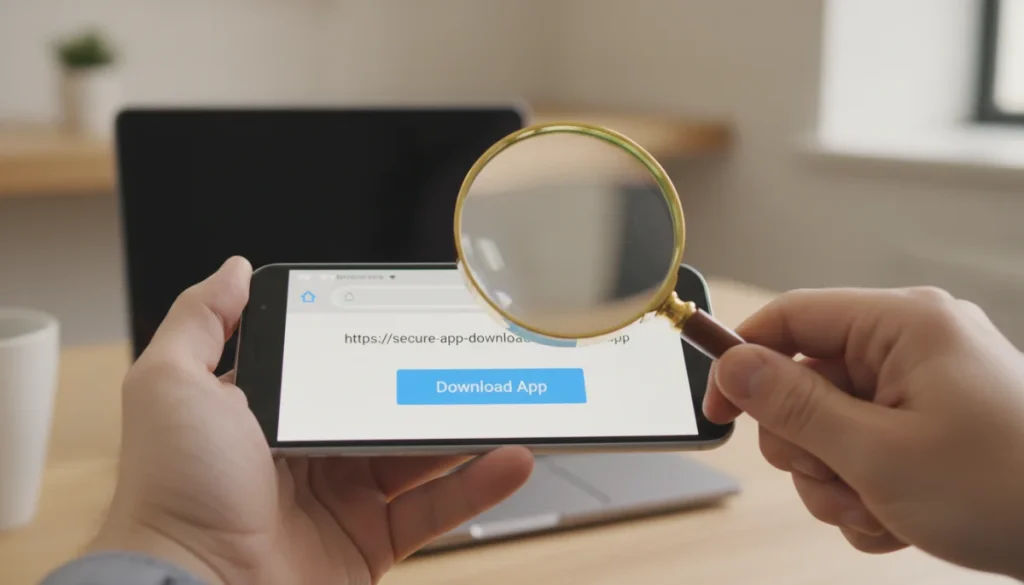
Verifying if an app download link directs to an official store listing is crucial for digital safety, preventing malware and ensuring legitimate software installations from trusted sources like Google Play or Apple App Store.
In today’s digital landscape, knowing how to check whether an app download link leads to an official store listing is more critical than ever. With the proliferation of mobile applications, the risk of encountering malicious software disguised as legitimate apps has significantly increased. Ensuring your downloads originate from trusted sources is paramount to protecting your device, personal data, and overall digital security.
Understanding the Risks of Unofficial App Downloads
Downloading applications from unofficial or untrusted sources can expose your device to a multitude of threats, ranging from minor annoyances to severe security breaches. These risks underscore the importance of vigilance when clicking any download link.
Malware, spyware, and ransomware are common dangers associated with unofficial app stores or direct download links. These malicious programs can steal your personal information, hijack your device, display unwanted advertisements, or even lock your files until a ransom is paid. Furthermore, unofficial apps often lack the rigorous security checks that official app stores implement, making them fertile ground for cybercriminals.
Common Threats from Unverified Sources
It’s not just about malware; unverified apps can also lead to other issues. They might:
- Contain vulnerabilities that hackers can exploit.
- Request excessive permissions, gaining access to sensitive data unnecessarily.
- Be poorly coded, leading to system instability, crashes, and battery drain.
- Serve intrusive ads that disrupt your user experience.
Understanding these potential dangers is the first step in adopting safer download practices. Always question the origin of an app before proceeding with installation, and prioritize official channels whenever possible.
Identifying Official App Store Links
The most straightforward way to ensure a safe app download is to verify that the link leads directly to an official app store. For Android devices, this is typically the Google Play Store, and for iOS devices, it’s the Apple App Store. These platforms have established security protocols and review processes designed to filter out malicious applications.
When you encounter an app download link, pay close attention to the URL. Official app store URLs follow specific patterns that are relatively easy to recognize. Familiarizing yourself with these patterns can help you quickly distinguish legitimate links from deceptive ones.
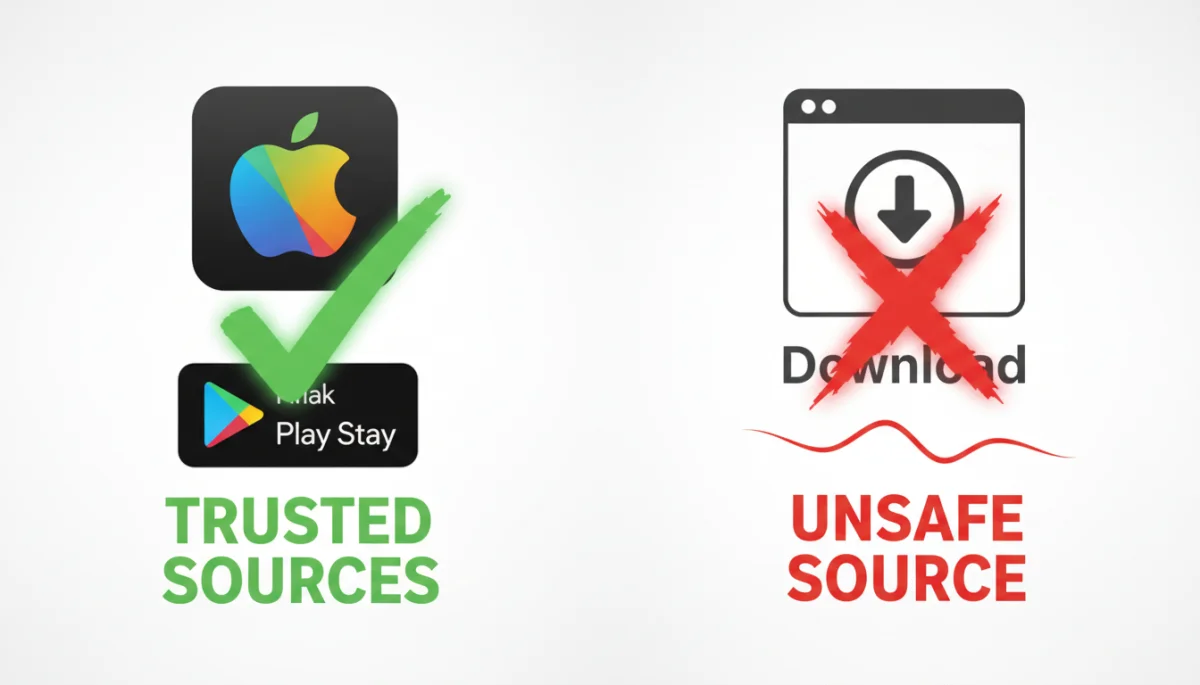
Here are the primary indicators for official app store links:
Google Play Store Links
Google Play Store links typically start with play.google.com/store/apps/details?id= followed by the app’s unique package name. For example, a legitimate link might look like https://play.google.com/store/apps/details?id=com.whatsapp. Always check for the https:// prefix, indicating a secure connection, and ensure the domain is exactly play.google.com.
Apple App Store Links
Apple App Store links usually begin with apps.apple.com/us/app/ (or a different country code like /gb/ for Great Britain) followed by the app’s name and a unique identifier. An example would be https://apps.apple.com/us/app/facebook/id284882215. Similar to Google Play, verify the https:// and the exact domain apps.apple.com.
If a link directs you to a different domain, or if the URL looks suspiciously altered or shortened, it’s a strong indicator that the source might not be official. Always err on the side of caution and navigate directly to the official app store to search for the app manually if you have any doubts.
Using Direct Search within Official App Stores
When in doubt about the authenticity of a download link, the safest and most reliable method is to bypass the link entirely and search for the app directly within the official app store on your device. This approach eliminates the risk of being redirected to a malicious site or downloading a compromised version of an application.
Both Google Play Store and Apple App Store have robust search functionalities. Simply open the respective app store on your smartphone or tablet and type the name of the app you wish to download into the search bar. This will present you with results directly from the official catalog.
Steps for Direct App Search
- Open the Google Play Store (for Android) or the Apple App Store (for iOS) app on your device.
- Locate the search bar, usually at the top or bottom of the screen.
- Type the exact name of the app you are looking for.
- Review the search results carefully. Look for the official developer name and the app’s icon to ensure it’s the correct application.
- Once you’ve identified the legitimate app, proceed with the download and installation.
This method guarantees that you are accessing the app through a verified channel, benefiting from the security measures and update mechanisms provided by the official store. It’s a simple yet effective strategy to safeguard your device against potential threats.
Verifying Developer Information and App Reviews
Even when downloading from an official app store, it’s wise to conduct a quick verification of the app’s developer and user reviews. Cybercriminals sometimes manage to slip fake or malicious apps into official stores by mimicking legitimate ones. Checking developer details and user feedback can provide additional layers of security.
On both Google Play and Apple App Store, each app listing includes information about the developer. Look for well-known developers for popular apps. If the developer name seems generic or doesn’t match the expected publisher of the app, exercise caution. For instance, if you’re downloading a banking app, ensure the developer is the bank itself, not an unknown entity.
What to Look For in Developer Information and Reviews
- Developer Name: Does it match the official company or individual? Are there any subtle misspellings?
- Developer Website: Official app listings often include a link to the developer’s website. Verify this website is legitimate and corresponds to the app.
- Number of Downloads/Ratings: Popular apps usually have millions of downloads and a high volume of ratings. A new app with very few downloads but glowing reviews might be suspicious.
- User Reviews: Read recent reviews. Look for comments that mention functionality issues, suspicious behavior, or concerns about privacy. Be wary of reviews that seem overly generic or repetitive, which could indicate bots.
- App Permissions: Before installing, review the permissions the app requests. Does a flashlight app really need access to your contacts or microphone? If permissions seem excessive for the app’s stated function, it could be a red flag.
These checks, though seemingly minor, can significantly reduce your risk of downloading a fraudulent or harmful application. Diligence in these areas is a cornerstone of safe app usage.
Leveraging Browser Security Features and Extensions
Modern web browsers come equipped with security features designed to warn you about potentially malicious websites. Additionally, various browser extensions can enhance your ability to identify and avoid dangerous download links. Utilizing these tools can add an extra layer of protection when you’re browsing the web for apps.
Most browsers, such as Chrome, Firefox, and Safari, include built-in safe browsing technologies that check websites against lists of known phishing and malware sites. If you click a suspicious link, your browser might display a warning page, advising you not to proceed. Always heed these warnings.
Beyond built-in features, consider installing reputable browser extensions that specialize in security. These extensions can identify phishing attempts, block malicious scripts, and provide real-time warnings about dangerous URLs. Examples include Web of Trust (WOT), URLVoid, or specific antivirus extensions that integrate with your browser.
Tips for Browser Security
- Keep Your Browser Updated: Ensure your browser is always running the latest version. Updates often include critical security patches.
- Check for HTTPS: Always look for
https://in the URL, indicating a secure, encrypted connection. While not foolproof, its absence on a download page is a major red flag. - Hover Over Links: Before clicking, hover your mouse cursor over the link to see the full URL in the browser’s status bar. This allows you to inspect the destination without actually navigating there.
- Use a URL Scanner: If a link looks suspicious, copy it and paste it into an online URL scanner service (like VirusTotal or Sucuri SiteCheck) before visiting the page.
By combining your own vigilance with these browser-based tools, you can significantly enhance your ability to safely navigate the digital world and avoid unofficial app download links.
Configuring Device Security Settings for App Installations
Your mobile device’s operating system offers critical security settings that can prevent unauthorized or unsafe app installations. Properly configuring these settings is a fundamental step in protecting your device from malicious applications, regardless of how you encounter their download links.
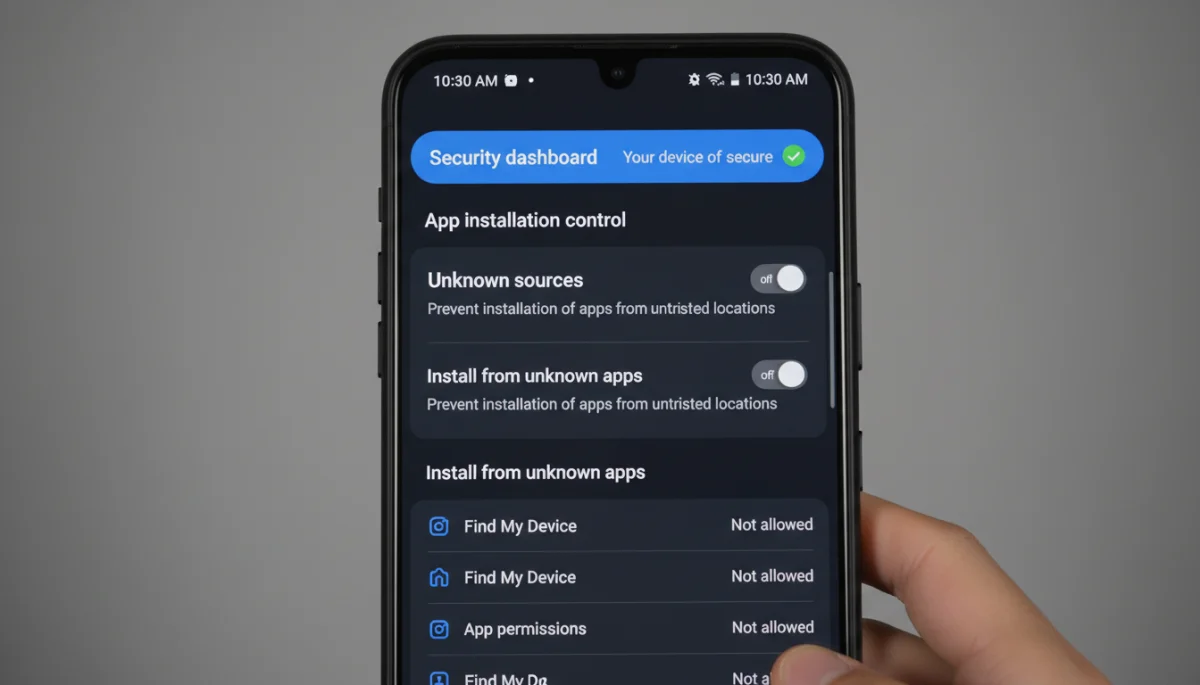
For Android users, the most important setting is ‘Install unknown apps’ or ‘Unknown sources.’ By default, Android devices block installations from sources other than the Google Play Store. While you might occasionally need to enable this for specific, trusted applications (e.g., enterprise apps), it’s crucial to disable it immediately afterward or only grant permission on a per-app basis for trusted sources.
Managing App Installation Permissions
On Android:
- Go to ‘Settings’ > ‘Apps & notifications’ > ‘Special app access’ > ‘Install unknown apps’.
- Review the list of apps and ensure that permissions for installing unknown apps are disabled for all browsers and messaging apps, unless absolutely necessary for a specific, trusted purpose.
- If you enable it for a specific app, remember to disable it once the installation is complete.
For iOS devices, the ecosystem is more closed, making it inherently more secure against sideloading apps from unknown sources. However, users should still be cautious of phishing attempts that try to trick them into installing configuration profiles or trusting certificates that could compromise security.
Regularly reviewing your device’s security settings and understanding what each option controls empowers you to maintain a robust defense against unofficial and potentially harmful app downloads. This proactive approach significantly reduces your vulnerability to cyber threats.
| Key Verification Method | Brief Description |
|---|---|
| Check URL & Domain | Ensure the download link’s URL starts with ‘https://’ and matches official store domains (e.g., play.google.com, apps.apple.com). |
| Direct Store Search | Search for the app directly within the official Google Play Store or Apple App Store on your device. |
| Verify Developer & Reviews | Examine the app developer’s legitimacy and read user reviews for any red flags or suspicious activity mentions. |
| Device Security Settings | Configure your device to block installations from unknown sources and review app permissions before installation. |
Frequently Asked Questions About App Download Security
Downloading from official stores like Google Play or Apple App Store ensures apps undergo security checks, reducing the risk of malware, privacy breaches, and device instability. These platforms act as gatekeepers, providing a safer environment for app installations and updates.
Common signs include unfamiliar domains in the URL, lack of ‘https://’, misspellings in the URL or app name, excessive pop-ups, or requests for unusual permissions. Always hover over links to inspect the full URL before clicking.
While rare, malicious apps can sometimes bypass official store security. It’s crucial to always check developer information, read recent user reviews, and review requested permissions, even for apps within official stores, to ensure legitimacy.
Navigate to Settings > Apps & notifications > Special app access > Install unknown apps. Here, you can disable permission for specific apps, such as browsers, preventing them from installing apps from non-Play Store sources.
Immediately uninstall the app, run a full scan with a reputable antivirus program, and change passwords for any accounts accessed while the app was installed. Monitor your device for unusual activity and consider a factory reset if issues persist.
Conclusion
Navigating the digital world requires a keen eye and a proactive approach, especially when it comes to downloading applications. By consistently applying the strategies discussed – from meticulously checking URLs and domains to leveraging direct app store searches, verifying developer credentials, and optimizing device security settings – you significantly bolster your defense against digital threats. The collective effort of these practices ensures that your device remains secure and your personal information protected, allowing you to enjoy the full benefits of mobile technology without compromising your safety.
