Zoom Waiting Rooms & Passcodes: Personal Call Security
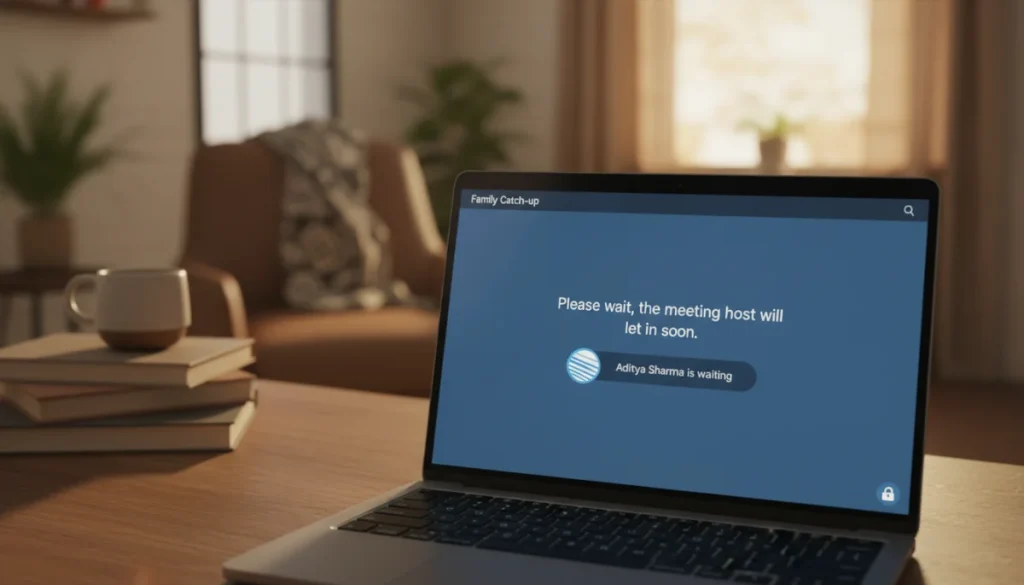
Securing your personal Zoom calls with waiting rooms and passcodes is essential to prevent unauthorized access, ensuring privacy and control over who joins your intimate online gatherings.
In today’s digital age, connecting with loved ones, friends, and colleagues often happens through video calls. Zoom has become a ubiquitous platform for these interactions, but ensuring the privacy and security of your personal conversations is paramount. Understanding and utilizing features like Zoom waiting rooms and meeting passcodes explained for personal calls can transform your video chats from potentially vulnerable spaces into secure, private environments. This guide will walk you through how these essential tools work, why they matter, and how to implement them effectively to safeguard your online interactions.
Understanding Zoom Waiting Rooms for Personal Calls
Zoom waiting rooms act as a virtual lobby, allowing the host to control when participants join a meeting. Instead of joining directly, attendees are placed in this waiting area until the host manually admits them. This feature is particularly valuable for personal calls, where you might only want specific individuals to join, ensuring no uninvited guests disrupt your conversation.
Implementing a waiting room adds an extra layer of scrutiny, giving you the power to verify identities before granting access. This simple step can significantly enhance the security of your private meetings, preventing ‘Zoom-bombing’ and other unwanted intrusions that have unfortunately become common in less secured online spaces.
How Waiting Rooms Enhance Privacy
The primary benefit of a waiting room is privacy. For personal calls, whether it’s a family reunion or a chat with close friends, you want to ensure that only trusted individuals are present. A waiting room makes this possible by creating a gatekeeper function.
- Identity Verification: You can see who is attempting to join and cross-reference their name with your guest list.
- Controlled Entry: No one can sneak into your meeting; every participant must be explicitly allowed in by the host.
- Preparation Time: It gives you a moment to prepare for the call, knowing participants are waiting patiently.
Setting Up a Waiting Room for Your Personal Meetings
Configuring a waiting room is straightforward and can be done either before scheduling a meeting or during an active call. For consistent security, it’s best to enable it as a default setting for all your personal meetings. This proactive approach ensures that every call benefits from this protective measure without requiring last-minute adjustments.
To enable a waiting room, navigate to your Zoom account settings on the web portal or within the desktop application. Under the ‘Security’ section, you’ll find the option to ‘Enable Waiting Room.’ You can also customize the waiting room screen with a logo and a personalized message, making the experience more welcoming for your approved guests.
In conclusion, waiting rooms are an indispensable tool for anyone using Zoom for personal interactions. They provide robust control over meeting entry, significantly boosting privacy and security by ensuring only intended participants can join your conversations. This feature is a cornerstone of a secure personal Zoom experience.
The Importance of Meeting Passcodes for Secure Access
Meeting passcodes, often referred to as passwords, are another critical component of securing your Zoom personal calls. A passcode requires participants to enter a specific string of characters before they can even access the waiting room or join the meeting directly, depending on your other security settings. This acts as a digital key, ensuring that only those with the correct credentials can attempt to enter your private space.
Without a passcode, anyone with the meeting link could potentially access your call. This makes passcodes a fundamental layer of defense against unauthorized access, complementing the waiting room feature to create a truly fortified meeting environment for your personal discussions.
Why Passcodes are Non-Negotiable for Personal Privacy
For sensitive personal conversations, relying solely on a meeting link is risky. Links can be accidentally shared or even guessed, exposing your private call to unintended audiences. A strong passcode acts as a barrier, ensuring that even if the link falls into the wrong hands, access remains restricted.
- Restricted Entry: Only individuals who know the passcode can initiate joining the meeting.
- Prevents Link Sharing Abuse: Reduces the risk of unauthorized participants joining even if the meeting link is widely distributed.
- Compliance and Trust: Instills confidence among participants that their conversations are private and protected.
Setting and Sharing Meeting Passcodes Effectively
When scheduling a new meeting, Zoom automatically generates a passcode by default. While this is convenient, you have the option to customize it to something easier for your trusted participants to remember, or a more complex string for higher security. It’s crucial to share this passcode securely with your intended attendees, preferably through a private channel rather than embedding it directly in a public calendar invite.
Consider using a messaging app or email to send the passcode separately from the meeting link. This ‘two-factor’ approach to sharing information adds another layer of security. Ensure your passcode is unique and not easily guessable, avoiding common phrases or personal dates. The strength of your passcode directly impacts the security of your meeting.
In summary, meeting passcodes are an indispensable security measure for personal Zoom calls. They provide a vital authentication step, ensuring that only individuals who possess the correct credentials can even attempt to join your private discussions, thereby upholding the integrity and confidentiality of your personal interactions.
Combining Waiting Rooms and Passcodes for Maximum Security
While both waiting rooms and passcodes offer significant security benefits individually, their true power lies in their combined use. When both features are enabled, a participant must first enter the correct passcode to gain access, and then they are directed to the waiting room, where the host can manually admit them. This dual-layer approach creates an almost impenetrable barrier for unauthorized individuals, making your personal Zoom calls exceptionally secure.
This layered security model is ideal for highly sensitive personal discussions, such as virtual family therapy sessions, confidential support groups, or private chats where absolute discretion is required. It ensures that every single person entering your meeting has been explicitly vetted, both by possessing the secret key (passcode) and by host approval (waiting room).
The Synergy of Dual Security Features
Think of it like a secure building: the passcode is the key to the main entrance, and the waiting room is the reception area where a guard (the host) verifies your identity before allowing you into the inner chambers. Neither step alone offers the same level of protection as both combined.
- Pre-screening with Passcode: Filters out casual or accidental joiners who stumble upon a link.
- Host Vetting with Waiting Room: Allows for real-time identification and admission of known participants.
- Enhanced Control: Gives the host ultimate authority over who enters the meeting at all times.
Best Practices for Dual-Layer Security
To maximize the effectiveness of combined waiting rooms and passcodes, establish clear communication with your participants. Inform them beforehand about both requirements and how to navigate them. Provide instructions on entering the passcode and advise them to use a recognizable name in the waiting room so you can easily identify and admit them.
Regularly review your Zoom security settings to ensure these features remain enabled, especially if you frequently host personal calls. Avoid sharing meeting links and passcodes on public platforms. For recurring meetings, consider changing the passcode periodically to enhance security against stale or compromised credentials. This proactive management solidifies your meeting’s defenses.
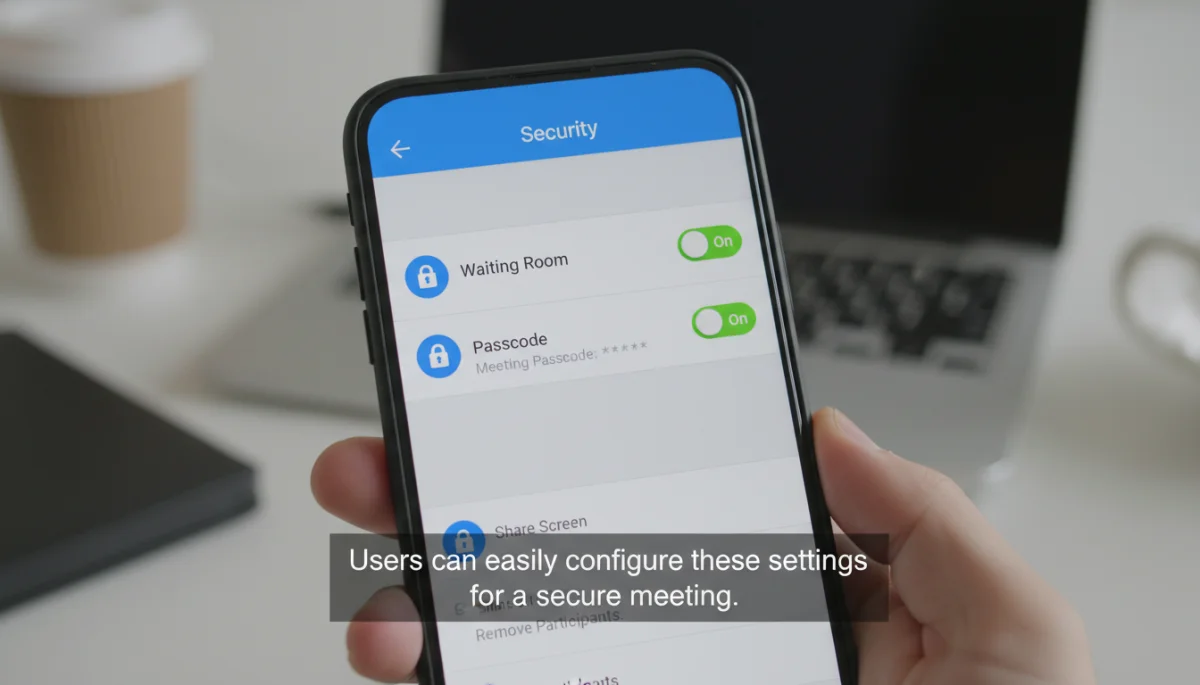
The combination of waiting rooms and passcodes is the gold standard for securing personal Zoom calls. It provides an unmatched level of control and privacy, ensuring that your most intimate digital interactions remain exclusively for your intended audience. This dual approach is highly recommended for anyone prioritizing robust security.
Managing Participants in the Waiting Room
Once you’ve enabled a waiting room, managing participants becomes a key part of your host duties. This process is generally intuitive within the Zoom interface, allowing you to see who is waiting, communicate with them, and admit them into the main meeting. Effective management ensures a smooth entry experience for your guests while maintaining strict control over who joins.
The host receives a notification when someone enters the waiting room. From there, you can view a list of waiting participants and choose to admit them individually or all at once. This granular control is what makes the waiting room feature so powerful for personal calls, allowing you to curate your guest list in real-time.
Admitting and Removing Participants
When a participant is in the waiting room, you’ll see their name listed. You have several options:
- Admit: Grants them access to the main meeting.
- Remove: Permanently removes them from the waiting room and prevents them from rejoining the current meeting. This is useful for unknown or unwanted participants.
- Message: Allows you to send a private message to a waiting participant, perhaps to ask for their identity or to inform them of a slight delay.
Customizing Waiting Room Experience
Zoom also allows you to customize the waiting room experience. You can add a title, a logo, and a description that participants will see while they wait. For personal calls, this could be a friendly welcome message or specific instructions, making the waiting period more informative and less frustrating for your guests.
Consider using a message like, “Welcome! Please wait for [Host Name] to admit you. We’ll start shortly!” This small touch can make a big difference in how your participants perceive the security and professionalism of your personal meeting. Personalizing the waiting room adds a layer of warmth even while maintaining strict security protocols.
In summary, actively managing your waiting room is crucial for a secure and user-friendly personal Zoom call. It allows for real-time vetting of participants, ensuring only approved individuals join, while also providing options to communicate or remove unwanted guests, all contributing to a seamless and protected experience.
Advanced Security Options Beyond Waiting Rooms and Passcodes
While waiting rooms and passcodes are foundational for securing personal Zoom calls, the platform offers several other advanced security features that can further fortify your meetings. These options provide additional layers of control, allowing you to tailor your security posture to the specific needs and sensitivity of your personal interactions. Understanding and utilizing these extra tools can provide an even more robust defense against potential privacy breaches.
These advanced settings range from in-meeting controls that restrict participant actions to broader account-level configurations that apply security measures by default. Implementing a combination of these features ensures a comprehensive security strategy for all your personal video communications.
In-Meeting Security Controls
Once a meeting has started, hosts have access to a ‘Security’ icon in the meeting toolbar. This menu provides immediate controls that can be toggled on or off during the call:
- Lock Meeting: Prevents anyone new from joining, even if they have the passcode and are in the waiting room. Ideal once all expected participants have joined.
- Disable Participant Screen Sharing: Restricts screen sharing to the host only, preventing unwanted content from being displayed.
- Remove Participant: Kicks an unwanted participant out of the meeting. They cannot rejoin.
- Suspend Participant Activities: Stops all video, audio, and screen sharing, and locks the meeting, allowing the host to address disruptions.
Account-Level Security Settings
Beyond individual meeting settings, you can configure security defaults for your entire Zoom account via the web portal. This ensures that certain security measures are automatically applied to all meetings you host, reducing the chance of forgetting to enable them for a specific call.
Options include requiring a passcode for all meetings, embedding the passcode in the meeting link (use with caution for personal calls), and enabling waiting rooms by default. Regularly reviewing these account-level settings helps maintain a consistent and high standard of security across all your personal Zoom interactions.
In conclusion, leveraging advanced security options in Zoom, alongside waiting rooms and passcodes, offers a comprehensive defense for personal calls. From real-time in-meeting controls to default account settings, these features empower you to create a highly secure and private environment for all your sensitive online interactions.
Troubleshooting Common Security Issues
Even with waiting rooms and passcodes enabled, you might occasionally encounter security-related issues during your personal Zoom calls. Understanding how to quickly diagnose and resolve these common problems is crucial for maintaining a smooth and secure experience. Proactive troubleshooting can prevent minor glitches from escalating into significant privacy concerns, ensuring your calls remain private and uninterrupted.
Many issues stem from simple oversights or misunderstandings of how Zoom’s security features interact. A systematic approach to troubleshooting can help you identify the root cause and implement an effective solution, restoring confidence in your meeting’s security protocols.
Participants Can’t Join or Are Stuck in Waiting Room
If participants are struggling to join, first verify they have the correct meeting ID and passcode. Ensure you’ve admitted them from the waiting room. Sometimes, a participant might be using an older version of the Zoom app, which could cause connectivity issues. Advise them to update their client.
- Check Passcode: Confirm the shared passcode matches the meeting’s current passcode.
- Admit Manually: Remember to admit participants from the waiting room if it’s enabled.
- App Updates: Encourage participants to update their Zoom client to the latest version.
Unwanted Guests or ‘Zoom-Bombing’
Despite your best efforts, an unwanted guest might occasionally slip through. If this happens, immediate action is necessary. Utilize the in-meeting security controls to quickly remove the participant. If the meeting is compromised, consider ending the call and restarting with new security settings and a new meeting ID/passcode.
To prevent recurrence, review how the meeting link and passcode were shared. Was it on a public forum? Ensure all future shares are private and direct. Enabling ‘Only authenticated users can join’ for personal calls can also add an extra layer, requiring participants to be logged into a Zoom account.
In conclusion, effective troubleshooting of security issues is an essential skill for any Zoom host. By understanding common problems and their solutions, you can quickly address disruptions, reinforce your meeting’s security, and ensure a consistently private and enjoyable experience for all your personal calls.
Educating Your Participants on Security Best Practices
The effectiveness of Zoom’s security features, especially for personal calls, isn’t solely dependent on the host’s configuration. It also relies heavily on participants understanding and adhering to certain security best practices. Educating your friends and family on how to interact with waiting rooms and passcodes, and why these measures are in place, fosters a collective responsibility for privacy and helps prevent unintentional security breaches.
Clear communication regarding your security protocols can significantly reduce confusion and streamline the joining process, making the overall experience smoother for everyone involved. When participants understand the ‘why’ behind the security, they are more likely to cooperate and appreciate the efforts to protect their privacy.
Pre-Call Communication is Key
Before your personal Zoom call, send out clear instructions to all participants. Explain that there’s a waiting room and that they will need to be admitted. If a passcode is required, provide it explicitly and advise them not to share the meeting link or passcode with anyone else. A simple email or message outlining these steps can prevent delays and frustration.
- Waiting Room Notice: Inform them they’ll be in a waiting room and need to be admitted.
- Passcode Instructions: Clearly state the passcode and how to enter it.
- Privacy Reminder: Emphasize not to share meeting details with unauthorized individuals.
Encouraging Good Digital Citizenship
Beyond specific meeting instructions, encourage general good digital citizenship among your participants. This includes using strong, unique passwords for their Zoom accounts, keeping their Zoom client updated, and being wary of suspicious links or requests. When everyone plays a part in maintaining security, the entire online community benefits.
Remind them that while Zoom provides powerful tools, ultimate security often comes down to user behavior. By fostering an environment where privacy is valued and understood, you empower your personal network to navigate the digital world more safely and confidently, extending the protective benefits of your Zoom security practices.
To conclude, educating your participants about security best practices is as vital as implementing the features themselves. By clearly communicating expectations and fostering a shared understanding of digital safety, you create a more secure and harmonious environment for all your personal Zoom calls, benefiting everyone involved.
| Key Security Feature | Brief Description and Benefit |
|---|---|
| Waiting Room | Acts as a virtual lobby, allowing hosts to manually admit participants, ensuring only approved guests join personal calls. |
| Meeting Passcode | Requires participants to enter a secret key to access the meeting, preventing unauthorized entry even with the link. |
| Combined Use | The most robust security, requiring both a passcode and host admission, creating a dual-layer defense for maximum privacy. |
| In-Meeting Controls | Host options like ‘Lock Meeting’ or ‘Remove Participant’ provide real-time control over meeting security and participant actions. |
Frequently Asked Questions About Zoom Personal Call Security
While not strictly mandatory, it’s highly recommended. A passcode significantly enhances security by preventing unauthorized individuals from joining your personal calls, even if they somehow obtain the meeting link. It’s a crucial first line of defense for privacy.
Yes, Zoom allows hosts to customize the waiting room screen. You can add a personalized title, logo, and a brief description or message that participants will see while they await admission. This can make the waiting experience more informative and welcoming.
You can enable a waiting room during an active meeting via the ‘Security’ icon in the toolbar. For passcodes, you can’t add one mid-meeting, but you can lock the meeting to prevent new entries and then restart with a new, secured meeting if necessary.
As the host, click the ‘Security’ icon in your meeting controls. From there, select ‘Remove Participant’ and choose the individual you wish to eject. They will be immediately removed and cannot rejoin the current meeting.
Sharing via private text message or email is generally safer than public platforms. However, always ensure you’re sending it to the correct recipient. For maximum security, share the link and passcode separately, if possible, to reduce the risk of a single point of failure.
Conclusion
Securing your personal Zoom calls is no longer an optional extra but a fundamental necessity in our interconnected world. By diligently implementing Zoom waiting rooms and meeting passcodes explained for personal calls, you gain invaluable control over who enters your virtual space, protecting your privacy and ensuring your conversations remain confidential. These features, when used effectively and in combination, provide a robust defense against unwanted intrusions, allowing you to connect with confidence. Remember, a little proactive security goes a long way in safeguarding your personal digital interactions. Stay informed, stay secure, and enjoy your private conversations on Zoom.
