Host Family Video Calls: Clear Joining Instructions Guide

Hosting a family video call requires careful planning, from choosing the right platform to providing explicit joining instructions, ensuring everyone can connect seamlessly for a joyful virtual reunion.
Connecting with loved ones across distances has become simpler than ever, thanks to video calls. Learning how to host a family video call with clear joining instructions is key to ensuring everyone, regardless of their tech savviness, can participate effortlessly and enjoy the virtual gathering.
Choosing the Right Video Call Platform
Selecting the appropriate video call platform is the foundational step for a successful family virtual gathering. Different platforms offer varied features, ease of use, and participant limits, making it crucial to pick one that best suits your family’s needs and technical comfort levels. Consider factors such as accessibility on various devices, the need for account creation, and specific functionalities like screen sharing or virtual backgrounds.
Many popular platforms are available, each with its own advantages. For instance, Zoom is widely used for its robust features and ability to host large groups, though it often requires participants to download an application. Google Meet is integrated with Google accounts, offering a straightforward experience for those already in the Google ecosystem. FaceTime is excellent for Apple-only households, providing high-quality video with minimal setup. WhatsApp and Messenger are convenient for quick calls, especially if most family members already use these apps for messaging.
Popular Platform Features to Consider
When evaluating platforms, think about what features will enhance your family’s experience. Some platforms offer breakout rooms for smaller conversations, while others have polling features for fun activities. Security and privacy settings are also paramount, especially when discussing personal family matters. Ensure the platform allows you to control who joins the call and whether recordings are enabled.
- Participant Limit: How many family members will be joining? Some free versions have limits.
- Device Compatibility: Can everyone join from their preferred device (smartphone, tablet, computer)?
- Ease of Use: Is the interface intuitive for all age groups, including older relatives?
- Account Requirement: Do participants need to create an account, or can they join as guests?
Ultimately, the best platform is one that minimizes barriers to entry and maximizes participation. A quick poll or discussion with key family members beforehand can help gauge preferences and technical capabilities, leading to a more informed decision. Prioritizing simplicity and reliability will pay dividends in a stress-free video call experience.
Preparing for Your Family Video Call
Once you’ve chosen your platform, thorough preparation is vital to ensure everything runs smoothly. This includes setting up your own environment, testing your equipment, and planning the agenda for the call. A little foresight can prevent technical glitches and awkward silences, allowing for a more engaging and enjoyable interaction for everyone involved.
Begin by ensuring your internet connection is stable. A weak signal can lead to dropped calls, frozen screens, and frustrating delays. If possible, use a wired connection for your computer or sit close to your Wi-Fi router. Check your camera and microphone to confirm they are working correctly. Most video call platforms have a test feature that allows you to preview your audio and video before joining a meeting. This simple step can save a lot of hassle.
Optimizing Your Environment
Your physical environment plays a significant role in the quality of your video call. Choose a well-lit area, preferably with natural light illuminating your face. Avoid sitting with a bright window directly behind you, as this can silhouette you and make it difficult for others to see you clearly. A tidy and appropriate background is also important, as it minimizes distractions for other participants.
- Lighting: Ensure your face is well-lit, avoiding harsh backlighting.
- Background: Choose a clean, uncluttered, and appropriate background.
- Audio: Minimize background noise; consider using headphones for better sound quality.
- Notifications: Silence phone and computer notifications to avoid interruptions.
Consider the timing of your call, especially if family members are in different time zones. Use a time zone converter to find a time that works best for the majority. Planning a few conversation starters or activities can also help keep the call lively, especially if there are younger participants or those who might be shy on camera. Having a loose agenda can guide the conversation without making it feel overly structured.
Crafting Clear Joining Instructions
The success of your family video call heavily relies on how clearly you communicate the joining instructions. Many family members, especially older ones, might not be accustomed to navigating video conferencing tools. Providing step-by-step, easy-to-understand guidance will significantly reduce frustration and ensure everyone can connect without a hitch.
Start by sending out the invitation well in advance, ideally a few days before the call. This gives everyone ample time to read the instructions, ask questions, and even do a test run if they feel unsure. Use a method that all family members are familiar with, such as email, a group chat, or even a phone call for those who prefer verbal instructions.
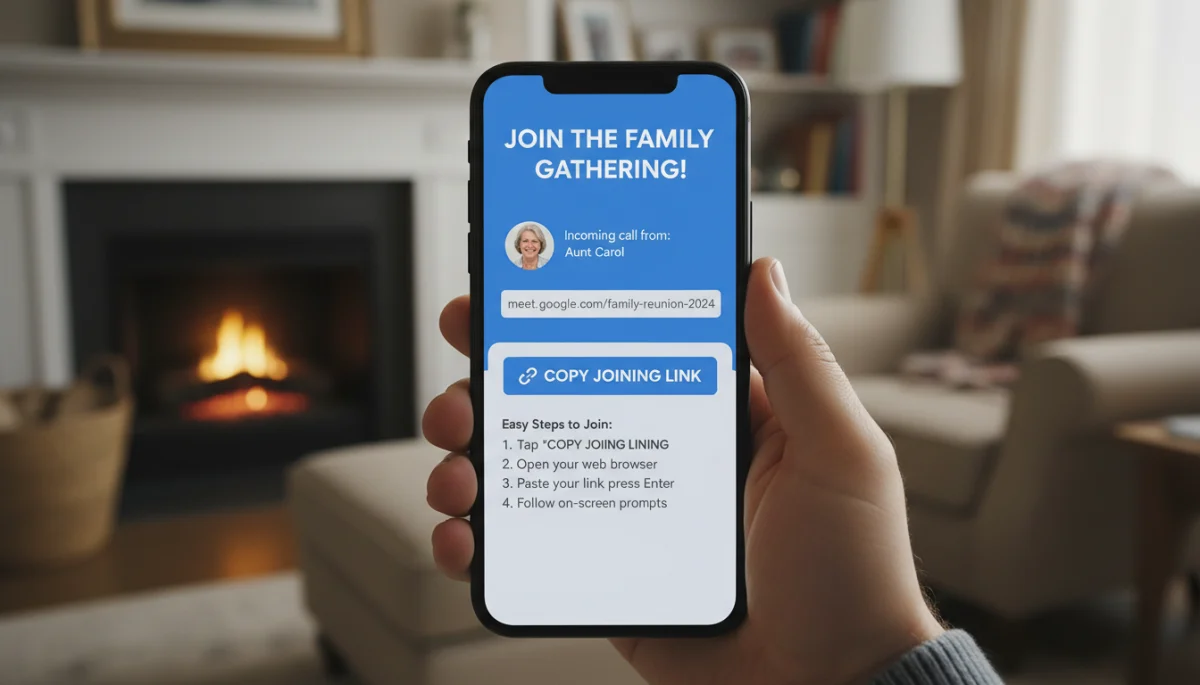
When writing the instructions, assume no prior knowledge. Break down each step into simple, actionable points. Avoid technical jargon where possible, or explain it clearly if it’s unavoidable. Include the direct link to join the meeting prominently, perhaps even bolded or on its own line, to make it easy to spot and click.
Essential Elements of Clear Instructions
- Date and Time: Clearly state the date, time, and time zone of the call.
- Direct Link: Provide the exact meeting link that participants need to click.
- Platform Name: Specify which platform you are using (e.g., Zoom, Google Meet).
- Prerequisites: Mention if they need to download an app or create an account beforehand.
- Step-by-Step Guide: Outline the exact actions they need to take, e.g., “1. Click the link. 2. If prompted, download the app. 3. Enter your name.”
- Audio/Video Check: Advise them to check their microphone and camera.
- Contact Person: Provide a phone number or contact for immediate assistance.
Consider creating a short, simple video tutorial if you have family members who are very new to video calls. A visual guide can often be more effective than written instructions. Always offer to do a quick practice call with anyone who feels nervous or unsure. This personal touch can make a huge difference in their confidence and willingness to join.
Distributing and Confirming Invitations
Once your clear joining instructions are ready, the next critical step is to effectively distribute them and ensure everyone has received and understood them. A well-crafted invitation is only useful if it reaches its intended audience and is easily digestible. This stage involves strategic communication and proactive follow-up to guarantee maximum participation.
Utilize multiple communication channels to distribute the invitations. While email is standard, consider sending a text message with the link to those who primarily use smartphones. For older family members who might not check email regularly, a phone call to walk them through the instructions or confirm receipt can be invaluable. The goal is to meet your family members where they are most comfortable and accessible.
Effective Communication Strategies
When sending out your invitations, personalize the message where possible. A friendly greeting and a brief explanation of why you’re hosting the call can make it feel more welcoming. Reiterate the key details like date, time, and the direct joining link at the beginning and end of your message for emphasis. Avoid burying crucial information in long paragraphs.
- Multiple Channels: Use email, text, or even phone calls for distribution.
- Personalized Messages: Add a personal touch to make the invitation more engaging.
- Key Info Upfront: Place date, time, and link prominently.
- Follow-Up: Send a reminder a day or a few hours before the call.
- Confirmation: Ask recipients to confirm they received and understood the instructions.
A day or a few hours before the call, send a gentle reminder. This helps jog memories and gives anyone who might have overlooked the initial invitation a chance to prepare. In this reminder, you can re-include the direct link and a brief mention of who to contact for assistance. Actively ask family members to confirm they’ve received the instructions and if they have any questions. This proactive approach allows you to address any confusion before the call even begins, preventing last-minute technical emergencies.
Managing the Video Call Session
As the host, your role extends beyond just setting up the call; actively managing the session ensures a smooth, engaging, and inclusive experience for everyone. This involves technical oversight, facilitating conversation, and being prepared to troubleshoot common issues that may arise during the call. A well-managed call feels effortless to participants, even if it requires a bit of effort from the host.
Start the call a few minutes early to greet early birds and help anyone struggling to connect. Once most participants have joined, take a moment to welcome everyone and briefly outline any informal ‘house rules,’ such as muting microphones when not speaking to reduce background noise. You might also mention how to use features like raising a hand if someone wants to speak, or how to use the chat function.
Facilitating Smooth Interactions
Encourage participation, especially from quieter family members. You can do this by asking open-ended questions or gently inviting specific individuals to share updates. Be mindful of potential audio and video delays, allowing for natural pauses in conversation. If multiple people are trying to speak at once, politely intervene to ensure everyone gets a turn.
- Early Start: Be online before the scheduled time to welcome and assist.
- Mute Management: Encourage participants to mute themselves when not speaking.
- Conversation Flow: Facilitate discussion, ensuring everyone has a chance to speak.
- Technical Check-ins: Periodically ask if everyone can hear and see clearly.
- Activity Integration: Introduce planned games or topics to keep engagement high.
Keep an eye on the chat window if your platform has one, as some family members might prefer to type questions or comments there. If you’ve planned any activities, introduce them naturally to maintain engagement. Remember to keep the atmosphere light and fun. Your calm and organized presence as the host will set the tone for the entire call, making it a pleasant experience for all.
Troubleshooting Common Video Call Issues
Even with the best preparation, technical issues can sometimes arise during a family video call. As the host, being able to quickly identify and help resolve these common problems can save the day and keep the family connection flowing. Anticipating potential snags and having a few solutions ready will make you the family’s tech hero.
One of the most frequent issues is audio problems – either someone can’t hear others, or others can’t hear them. First, advise them to check their microphone and speaker settings within the video call application. Often, the wrong device is selected. A quick fix is to suggest they leave the call and rejoin, which often resets audio connections. Also, remind them to check their physical volume controls on their device.

Quick Fixes for Common Problems
Video issues, such as a frozen screen or a camera not working, are also common. For a frozen screen, it’s usually an internet connection problem; advise them to try moving closer to their router or restarting their Wi-Fi. If their camera isn’t working, ensure it’s not covered and that the app has permission to access the camera in their device settings. Sometimes, simply restarting the device can resolve a multitude of issues.
- No Audio/Mic Issues: Check in-app settings, device volume, and try rejoining.
- No Video/Camera Not Working: Ensure camera isn’t covered, check app permissions, restart device.
- Frozen Screen/Lag: Suggest checking internet connection, moving closer to Wi-Fi, or restarting router.
- Can’t Join: Re-send the direct link, confirm they’ve downloaded the app if required.
- Echo/Feedback: Advise participants to use headphones or mute when not speaking.
It’s helpful to have one or two designated ‘tech support’ family members who are more tech-savvy and can offer one-on-one assistance to those struggling. This offloads some of the burden from the main host and ensures everyone gets the help they need without interrupting the main call too much. Patience and clear communication are your best tools when troubleshooting.
| Key Aspect | Brief Description |
|---|---|
| Platform Choice | Select a user-friendly platform compatible with all family devices. |
| Clear Instructions | Provide simple, step-by-step joining instructions with direct links. |
| Pre-Call Prep | Test equipment, optimize environment, and plan a loose agenda. |
| Troubleshooting | Be ready to assist with common audio/video issues proactively. |
Frequently Asked Questions About Family Video Calls
Platforms like Google Meet or Apple’s FaceTime are often easiest due to their simplicity and integration with existing devices. Zoom is also popular, but might require a quick app download. Prioritize platforms that don’t demand account creation for guests.
Distribute the link through multiple channels: email, text message, and even a direct phone call for less tech-savvy relatives. Send a reminder a few hours before the call and ask for confirmation of receipt to ensure no one is left out.
First, advise them to check their microphone and speaker settings within the app. Ensure device volume is up and the mic isn’t muted. Often, leaving and rejoining the call or restarting their device can resolve most audio issues effectively.
While not strictly necessary, a loose agenda or a few planned conversation starters can help keep the call engaging, especially for larger groups or if there are long silences. It ensures everyone feels included and the conversation flows smoothly.
It’s best to send the invitation at least a few days before the scheduled call. This gives family members ample time to read the instructions, ask any questions, and prepare their devices, reducing last-minute stress for everyone involved.
Conclusion
Successfully hosting a family video call with clear joining instructions transforms a potentially stressful technical challenge into a joyful opportunity for connection. By carefully selecting the right platform, meticulously preparing your environment, crafting unambiguous invitations, and being ready to offer patient assistance, you lay the groundwork for a seamless and memorable virtual gathering. These efforts ensure that every family member, regardless of their technical comfort, can easily join in and share in the warmth of your collective presence, bridging distances with ease and fostering stronger bonds.
