How to Move WhatsApp Chats to a New Phone: Official Methods
Transferring WhatsApp chats to a new phone is crucial for preserving your digital memories and conversations. Official methods ensure a smooth and secure migration of your chat history and media, whether you’re switching between platforms or staying within the same ecosystem.
Upgrading to a new phone is exciting, but the thought of losing your WhatsApp chat history can be daunting. Thankfully, WhatsApp provides several official and reliable methods to help you move WhatsApp chats to a new phone, ensuring your conversations, photos, and videos make the journey with you. This guide will walk you through each official option, making your transition seamless and stress-free.
Understanding WhatsApp Chat Transfer Essentials
Before diving into the specifics of transferring your WhatsApp chats, it’s essential to understand the foundational principles that govern this process. WhatsApp, recognizing the critical role chat history plays in user experience, has developed robust mechanisms to facilitate migration. These methods are designed to be secure, preserving your data’s integrity while making the transition as straightforward as possible.
The primary consideration often revolves around the operating systems involved: are you moving from an Android to another Android, an iPhone to another iPhone, or making a cross-platform switch? Each scenario presents unique challenges and, consequently, specific official solutions.
Why Official Methods Matter
While third-party tools might promise quick fixes, relying on WhatsApp’s official transfer methods is paramount for several reasons. Firstly, they are directly supported by WhatsApp, meaning they are designed to work seamlessly with the application’s current architecture and security protocols. This significantly reduces the risk of data corruption, loss, or privacy breaches.
- Data Integrity: Official methods ensure that your messages, media, and attachments remain intact and uncorrupted during transfer.
- Security: WhatsApp’s end-to-end encryption is maintained, protecting your private conversations from unauthorized access.
- Reliability: These methods are tested and proven, offering a higher success rate compared to unofficial alternatives.
- Support: Should you encounter issues, official channels can provide assistance, which is typically not available for third-party solutions.
Understanding these essentials sets the stage for a successful transfer. It empowers you to choose the correct method and approach the process with confidence, knowing your valuable chat history is in safe hands.
Moving Chats Between Android Phones
For users staying within the Android ecosystem, WhatsApp offers a remarkably straightforward way to transfer chat history. This method primarily leverages Google Drive backups, providing a convenient cloud-based solution. It’s a process that has been refined over time to be as user-friendly as possible, requiring minimal technical expertise.
Google Drive Backup Method
The most common and recommended way to move your WhatsApp chats between Android devices is by utilizing Google Drive. This involves backing up your chats from your old phone to Google Drive and then restoring them to your new device. The process is initiated directly within WhatsApp’s settings.
- On Your Old Android Phone:
- Open WhatsApp and navigate to Settings > Chats > Chat backup.
- Ensure you’re logged into the Google account you wish to use for the backup.
- Tap ‘Back up to Google Drive’ and select a backup frequency (daily, weekly, monthly, or only when you tap ‘Back up’).
- Tap ‘Back up’ to perform an immediate backup. Wait for the process to complete, ensuring the backup includes videos if desired.
It’s crucial to ensure that your Google Drive backup is up-to-date before you proceed with setting up WhatsApp on your new phone. An outdated backup means you might lose recent conversations. Always double-check the last backup date and time.
Restoring on Your New Android Phone
Once your chats are securely backed up to Google Drive, restoring them to your new Android device is a simple procedure. This usually happens during the initial setup of WhatsApp on the new phone.
- On Your New Android Phone:
- Install WhatsApp from the Google Play Store.
- Open WhatsApp and verify your phone number. Make sure it’s the same number used on your old device.
- WhatsApp will detect the Google Drive backup associated with your number and Google account. Tap ‘Restore’ when prompted.
- Allow the restoration process to complete. This might take some time, depending on the size of your backup.
- Once chats are restored, your media files will begin to download in the background.
This method offers a robust and secure way to transfer your entire chat history, including media, between Android devices. It simplifies the transition, allowing you to pick up conversations right where you left off without missing a beat.
Transferring Chats Between iPhones
For iPhone users, the process of transferring WhatsApp chats to a new iPhone is equally streamlined, primarily leveraging Apple’s iCloud backup service. This integration provides a familiar and secure environment for data migration, mirroring the ease of use found in the Android ecosystem with Google Drive.
iCloud Backup for Seamless Migration
Similar to Google Drive for Android, iCloud serves as the cloud-based solution for backing up and restoring WhatsApp chats on iPhones. This method ensures that your conversations and media are safely stored and easily accessible when you set up WhatsApp on your new device.
- On Your Old iPhone:
- Open WhatsApp and navigate to Settings > Chats > Chat Backup.
- Ensure you are signed in to iCloud with your Apple ID.
- Tap ‘Back Up Now’ to create an immediate backup. You can also configure ‘Auto Backup’ for automatic, scheduled backups.
- Verify that the backup is complete and includes videos if you wish to transfer them.
It is crucial to use the same Apple ID and phone number on both your old and new iPhones for the iCloud backup and restore process to work correctly. Discrepancies in these details can prevent WhatsApp from recognizing your backup.
Restoring Chats on Your New iPhone
Once your WhatsApp chats are successfully backed up to iCloud from your old iPhone, the restoration process on your new iPhone is straightforward, occurring during the initial WhatsApp setup.
- On Your New iPhone:
- Download and install WhatsApp from the App Store.
- Open WhatsApp and verify your phone number. This must be the same number used on your previous device.
- WhatsApp will detect the iCloud backup associated with your phone number and Apple ID. Tap ‘Restore Chat History’ when prompted.
- Wait for the restoration to complete. The time taken will depend on your internet speed and the size of your backup.
- After chats are restored, your media files will begin downloading, allowing you full access to your history.
This method is highly reliable for iPhone users, ensuring that all your precious WhatsApp memories and essential communications are transferred without hassle. It’s designed to provide a continuous user experience across your iOS devices.
Cross-Platform WhatsApp Chat Transfer: iOS to Android
Historically, moving WhatsApp chats between iOS and Android was a complex endeavor, often requiring third-party tools or convoluted workarounds. However, WhatsApp has significantly improved this experience by introducing official support for cross-platform transfers, making it much safer and more accessible. This feature is particularly welcomed by users making the switch between Apple and Google ecosystems.
Official Method: Using a USB-C Cable
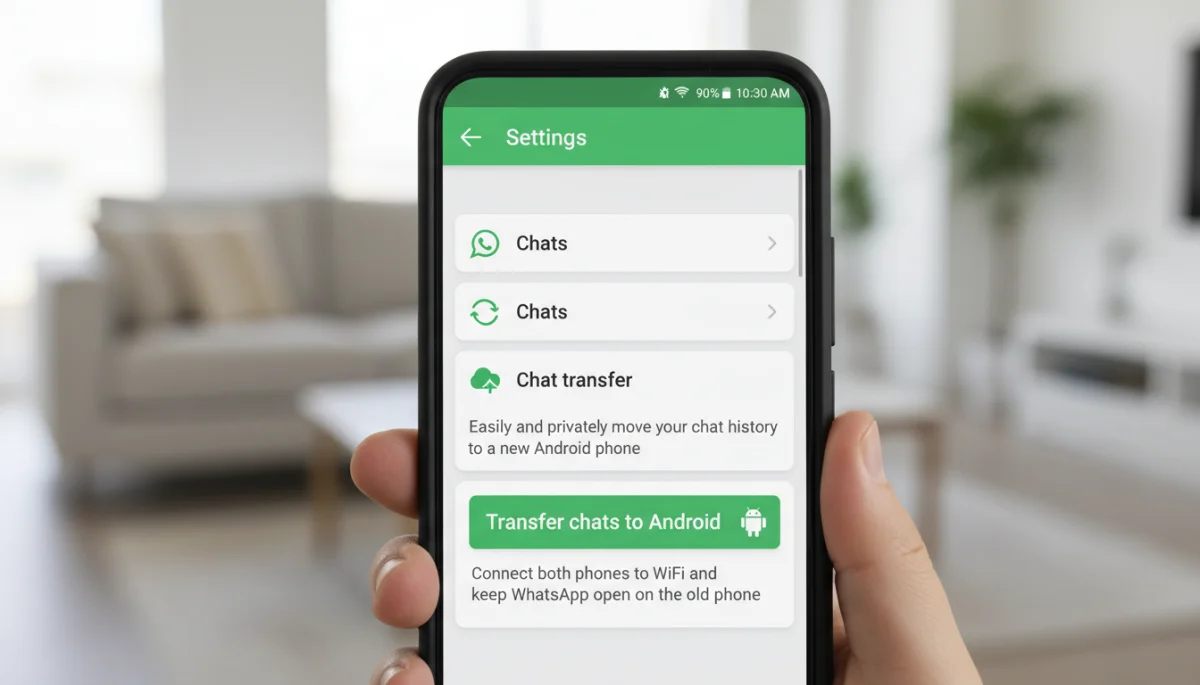
WhatsApp now facilitates direct chat migration from iPhone to Android using a USB-C to Lightning cable. This method bypasses cloud backups and relies on a direct connection, providing a secure and efficient transfer.
- Requirements:
- Your new Android device must be either a Samsung, Google Pixel, or a device running Android 12 or higher.
- A USB-C to Lightning cable.
- WhatsApp must be up-to-date on both devices.
- The Android phone must be new or factory reset to perform the initial setup and data transfer.
The Transfer Process
The transfer typically occurs during the initial setup of your new Android phone, making it an integral part of the device migration process.
- Start Android Setup: Begin setting up your new Android phone. When prompted to restore data, select to restore from an iPhone.
- Connect Devices: Connect your iPhone to your new Android phone using the USB-C to Lightning cable.
- Scan QR Code: On your iPhone, open WhatsApp, go to Settings > Chats > Move Chats to Android. You will be prompted to scan a QR code displayed on your new Android phone.
- Start Transfer: Follow the on-screen instructions to initiate the transfer. Keep both phones connected and WhatsApp open until the process is complete.
- Complete Android Setup: Once the transfer is done, finish setting up your Android phone. Install WhatsApp, verify your number, and your chats will be there.
This official direct transfer method is a game-changer for users switching from iOS to Android, eliminating the need for complex intermediate steps and ensuring a higher degree of data security and integrity. It represents a significant step forward in WhatsApp’s commitment to user convenience.
Cross-Platform WhatsApp Chat Transfer: Android to iOS
Just as WhatsApp has streamlined the process for moving chats from iOS to Android, it has also introduced an official, user-friendly method for migrating your chat history from an Android device to an iPhone. This feature addresses a long-standing demand from users who switch from Android to Apple devices, ensuring their valuable conversations and media are not left behind.
Official Method: Using ‘Move to iOS’ App
The official way to transfer WhatsApp chats from Android to iPhone involves Apple’s ‘Move to iOS’ app. This application is designed to help Android users migrate their data, including WhatsApp chat history, to a new iPhone during its initial setup. It requires a direct connection between the devices, ensuring a secure and efficient transfer.
- Requirements:
- Your Android phone must be running Android 5.0 or higher.
- Your iPhone must be new or factory reset to perform the initial setup.
- WhatsApp must be up-to-date on your Android device.
- The ‘Move to iOS’ app must be installed on your Android phone.
- Both devices should be connected to a power source and the same Wi-Fi network.
The Transfer Steps
The process is integrated into the initial setup of your new iPhone, making it a crucial step to follow carefully to ensure all data, including WhatsApp, is transferred.
- Prepare iPhone: Ensure your new iPhone is factory reset or new. If it’s already set up, you’ll need to erase it to start fresh (Settings > General > Transfer or Reset iPhone > Erase All Content and Settings).
- Start iPhone Setup: Begin setting up your new iPhone. When you reach the ‘Apps & Data’ screen, select ‘Move Data from Android’.
- Open ‘Move to iOS’ App: On your Android phone, open the ‘Move to iOS’ app. Follow the on-screen prompts until you see the ‘Enter Code’ screen.
- Enter Code: A code will appear on your iPhone. Enter this code on your Android phone.
- Select WhatsApp: On the ‘Transfer Data’ screen on your Android phone, select ‘WhatsApp’ from the list of data to transfer. Tap ‘Start’.
- Complete Transfer: Follow the prompts to complete the transfer from your Android phone. Keep both devices close and connected until the transfer is finished.
- Install WhatsApp on iPhone: Once the data transfer is complete, install WhatsApp from the App Store on your iPhone, verify your phone number, and your chat history will appear.
This method provides a robust and secure way to migrate your chat history from an Android device to an iPhone, significantly simplifying what used to be a complicated process. It underscores WhatsApp’s commitment to providing flexible solutions for its diverse user base.
Best Practices for a Smooth WhatsApp Transfer
While WhatsApp has made significant strides in simplifying chat transfers, adhering to certain best practices can further ensure a smooth and successful migration. These tips are designed to prevent common pitfalls and optimize the transfer process, regardless of the method you choose.
Pre-Transfer Checklist
Before you even begin the transfer, a little preparation goes a long way. This checklist helps you gather all necessary components and configure settings for an optimal transfer experience.
- Update WhatsApp: Ensure WhatsApp is updated to the latest version on both your old and new phones. Newer versions often contain improvements for the transfer feature.
- Stable Internet Connection: A strong and stable Wi-Fi connection is crucial, especially for cloud-based backups (Google Drive, iCloud) or direct transfers. Avoid using mobile data for large transfers.
- Sufficient Storage: Make sure both your old phone (for backup creation) and new phone (for data restoration) have enough free storage space for your chat history and media.
- Charge Devices: Ensure both devices are adequately charged or connected to a power source to prevent interruptions during the transfer.
- Same Phone Number: Always use the same phone number on your new device as you did on your old one. WhatsApp links chat history to the phone number.
- Google/Apple ID: For cloud backups, ensure you’re logged into the correct Google account (Android) or Apple ID (iPhone) on both devices.
Taking these preliminary steps can significantly reduce the chances of encountering issues during the transfer. Preparedness is key to a hassle-free experience.
Post-Transfer Verification and Troubleshooting
After the transfer is complete, it’s wise to verify that everything has been migrated correctly. Should you encounter any issues, a few troubleshooting steps can often resolve them.
- Verify Chats: Open WhatsApp on your new phone and scroll through your chat list to ensure all conversations are present.
- Check Media: Open a few chats to confirm that photos, videos, and documents have been successfully restored.
- Troubleshooting:
- If chats are missing, try deleting WhatsApp on your new phone, re-installing it, and attempting the restore process again. Ensure you select ‘Restore’ when prompted.
- Check your Google Drive or iCloud backup size to confirm it contains data.
- For cross-platform transfers, ensure all requirements (like specific Android versions or a factory-reset iPhone) were met.
By following these best practices, you can ensure that your WhatsApp chat transfer is not only successful but also smooth, allowing you to quickly get back to communicating with your contacts on your new device.
Addressing Common WhatsApp Transfer Challenges
Even with official methods, users occasionally encounter challenges when attempting to move WhatsApp chats to a new phone. Understanding these common issues and their potential solutions can help in proactively addressing problems or troubleshooting them effectively should they arise. The key is often in patience and methodically checking each step.
Backup Not Found or Corrupted
One of the most frequent issues is WhatsApp failing to detect a backup or reporting that the backup is corrupted. This can be particularly frustrating as it prevents the restoration of chat history.
- Possible Causes:
- Incorrect Google/Apple ID: You might be logged into a different cloud account than the one used for backup.
- Different Phone Number: The phone number on your new device does not match the one associated with the backup.
- Insufficient Cloud Storage: Your Google Drive or iCloud might be full, preventing a complete backup from being created.
- Unstable Internet: An interrupted backup due to poor internet connection can lead to a corrupted file.
To resolve these, ensure you’re using the correct credentials and phone number. Check your cloud storage space and try creating a fresh backup on a stable network. If a backup is corrupted, sometimes the only solution is to create a new one, potentially losing recent chats.
Slow Transfer Speeds or Stuck Progress
Large chat histories, especially those including numerous media files, can result in slow transfer speeds or the process getting stuck. This is more common with direct transfers or large cloud restores.
- Solutions:
- Stable Wi-Fi: Ensure both devices are connected to a strong, stable Wi-Fi network. Avoid public Wi-Fi that might be congested.
- Close Background Apps: Close all unnecessary applications on both phones to free up resources.
- Disable VPN: VPNs can sometimes interfere with direct data transfers. Temporarily disable them.
- Patience: For very large backups, the process can genuinely take hours. Ensure devices remain connected and powered.
- Restart Devices: Sometimes a simple restart of both devices can clear temporary glitches.
While these issues can be a setback, they are often resolvable with careful attention to detail and adherence to the recommended setup conditions. Proactive preparation can significantly minimize their occurrence.
The Future of WhatsApp Chat Migration
WhatsApp continues to evolve, and with it, the methods for managing and migrating chat data. The recent introduction of official cross-platform transfer options signals a clear direction towards greater flexibility and user control, reflecting the dynamic nature of smartphone usage. As users frequently switch devices and operating systems, the demand for seamless data migration solutions only grows.
Anticipated Developments and Trends
The trend in WhatsApp chat migration is clearly moving towards more integrated and less restrictive solutions. We can anticipate further enhancements that simplify the process even more.
- Enhanced Cloud Integration: While Google Drive and iCloud are primary, we might see more robust integrations with other cloud services or even direct WhatsApp cloud storage options.
- Simplified Cross-Platform Transfers: The current cross-platform methods, while official, still require specific conditions (e.g., new/factory reset phone). Future updates might remove some of these barriers, making it easier to transfer chats at any point.
- Direct In-App Solutions: WhatsApp may introduce more in-app features that allow users to manage and initiate transfers without relying heavily on external apps like ‘Move to iOS’ or requiring a physical cable connection for all scenarios.
- Improved Error Handling: As the system matures, we can expect more intuitive error messages and guided troubleshooting within the app itself, reducing user frustration.
These potential developments are aimed at making the user experience even smoother, recognizing that chat history is a critical part of the digital identity for billions of WhatsApp users worldwide. The focus will likely remain on security, data integrity, and ease of use.
Why Staying Updated is Key
The rapid pace of technological change means that keeping your WhatsApp application updated is not just about accessing new features, but also about ensuring the smooth operation of essential functions like chat migration. Updates often contain crucial bug fixes, security patches, and improvements to existing functionalities.
- Access to Latest Features: New transfer methods and improvements are rolled out through app updates.
- Security: Updates protect your data during transfer and daily use by patching vulnerabilities.
- Compatibility: Ensuring your app is current helps maintain compatibility with new operating system versions and device models.
By staying informed about WhatsApp’s official announcements and regularly updating the app, users can ensure they are always utilizing the most efficient and secure methods for managing their chat data. The future promises an even more integrated and user-friendly experience for chat migration, solidifying WhatsApp’s role as a central communication platform.
| Transfer Method | Description |
|---|---|
| Android to Android | Utilizes Google Drive backup and restore. Simple and cloud-based. |
| iPhone to iPhone | Leverages iCloud backup and restore. Integrated with Apple’s ecosystem. |
| iOS to Android | Direct transfer via USB-C cable during new Android phone setup. |
| Android to iOS | Uses Apple’s ‘Move to iOS’ app during new iPhone setup. |
Frequently Asked Questions About WhatsApp Chat Transfer
For same-OS transfers, Google Drive (Android) and iCloud (iOS) are the primary official methods. However, cross-platform transfers (iOS to Android, Android to iOS) use direct cable connections or the ‘Move to iOS’ app, which do not rely on these cloud services directly for the WhatsApp data itself.
WhatsApp chat history is tied to your phone number. To transfer chats, you must use the same phone number on your new device. If you change your number, you’ll need to use WhatsApp’s ‘Change Number’ feature first on your old device before backing up and restoring.
WhatsApp’s official transfer methods are designed to move your entire chat history. There isn’t an official built-in feature to selectively transfer individual chats directly to a new device in a restorable format. You can, however, export individual chats via email.
Third-party tools are not officially supported by WhatsApp and can pose significant risks. These include data corruption, loss of encryption, privacy breaches, and potential account bans. Always prioritize official methods to ensure the security and integrity of your data.
Yes, all official WhatsApp transfer methods are designed to include media files (photos, videos, audio, documents) along with your text messages. During the backup process, ensure that the option to include videos is selected if you wish for them to be transferred as well.
Conclusion
Navigating the world of new smartphones while ensuring your digital communication history remains intact can seem daunting, but WhatsApp has made significant strides in simplifying this process. By utilizing the official transfer options, whether you’re moving between Android devices, iPhones, or making a cross-platform leap, you can confidently preserve your precious conversations and media. Adhering to the recommended best practices, from ensuring stable internet connections to verifying your accounts, will pave the way for a smooth and successful migration. The continuous evolution of WhatsApp’s transfer capabilities underscores its commitment to user experience, making sure your chat history is never a barrier to upgrading your device. Embrace these official methods for a secure and seamless transition, keeping your digital life connected.
