How to Troubleshoot App Notifications: A Complete Guide
To effectively troubleshoot an app that stops sending notifications, systematically review device and app-specific settings, power optimization, and network connectivity to resolve the interruption of alerts.
It can be incredibly frustrating when an app you rely on suddenly goes silent. If you’ve found yourself asking, “How to troubleshoot an app that stops sending notifications?” you’re not alone. This common issue can disrupt your workflow, personal communication, and even critical alerts. Understanding the root causes and applying systematic solutions can quickly restore your app’s ability to keep you informed.
Understanding the Notification Ecosystem
Before diving into specific fixes, it’s helpful to grasp how notifications generally work. They are a complex interplay between your app, your device’s operating system, and often, server-side components. A hitch in any of these areas can prevent alerts from reaching you. Recognizing this ecosystem is the first step in effective troubleshooting.
Notifications are designed to be timely and informative. When they fail, it’s often due to a breakdown in this chain. This can be as simple as an accidentally toggled setting or as complex as a software bug. Knowing the different layers involved helps narrow down potential problems.
The Journey of a Notification
When you receive a notification, it typically follows a path: from the app’s server (if it’s an online app) to your device’s notification service (like Google’s Firebase Cloud Messaging or Apple Push Notification Service), then to your phone’s operating system, and finally, to the specific app itself. Any interruption along this path can lead to silent apps.
- App Server Issues: Sometimes, the problem isn’t with your device but with the app’s backend. Server outages can temporarily halt notifications.
- Device OS Interference: Operating systems have robust notification management, but aggressive battery optimization or ‘Do Not Disturb’ modes can block alerts.
- App-Specific Settings: Each app has its own notification preferences. These can be granular, allowing you to customize alerts for different types of events.
Understanding this journey empowers you to approach troubleshooting methodically, checking each potential point of failure. This systematic approach saves time and ensures you don’t overlook simple solutions.
Initial Checks: The Quick Fixes
Often, the solution to an app not sending notifications is surprisingly simple. Before delving into more complex troubleshooting, perform these quick checks. These steps address common oversights and can resolve the issue without much effort.
Many users overlook basic settings that can inadvertently disable notifications. A quick review of these fundamental areas can often bring your notifications back online instantly.
Device-Level Notification Settings
Your smartphone has overarching notification controls that can override individual app settings. It’s crucial to ensure these are configured correctly.
- Check ‘Do Not Disturb’ Mode: Ensure your phone isn’t in ‘Do Not Disturb’ (DND) or ‘Focus’ mode, which silences all or most notifications.
- Silent Mode/Volume: Verify that your phone’s volume isn’t turned down or on silent mode, as this affects notification sounds.
- Airplane Mode: Confirm that Airplane Mode is off, as it disables all wireless communication, including data necessary for notifications.
These device-level settings are powerful and can easily be toggled by accident. A quick glance at your phone’s status bar or quick settings panel can confirm their status.
Deep Dive into App-Specific Settings
If initial device checks don’t resolve the issue, the problem likely lies within the app itself or its permissions. This section guides you through the app-specific settings that commonly interfere with notification delivery. This is a critical step when you want to know how to troubleshoot an app that stops sending notifications effectively.
Each app has its own set of notification preferences, which can sometimes be quite detailed. Understanding and adjusting these settings is often the key to resolving notification problems.
Verifying App Notification Permissions
Modern operating systems require explicit permission for apps to send notifications. It’s possible these permissions were revoked or never granted.
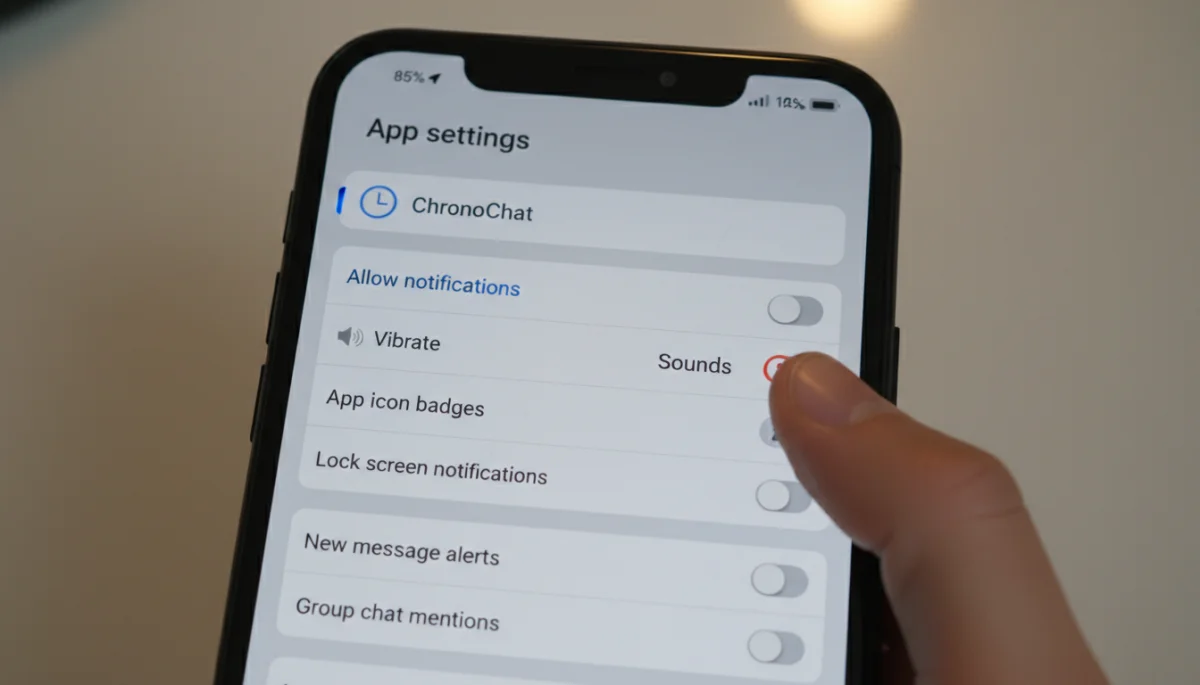
- Access App Info: Go to your phone’s Settings > Apps (or Apps & Notifications) > find the problematic app > Notifications.
- Enable All Categories: Ensure ‘Show notifications’ is toggled on, and check individual notification categories within the app (e.g., messages, comments, updates) to make sure they are also enabled.
- Background App Refresh: For some apps, especially on iOS, background app refresh is necessary for timely notifications. Confirm it’s enabled in General > Background App Refresh.
These permissions are often the first line of defense for users against spammy notifications, but they can also inadvertently block desired alerts. Double-checking them is a fundamental troubleshooting step.
Power Management and Background Restrictions
Aggressive battery optimization features, while beneficial for device longevity, can often hinder an app’s ability to send timely notifications. Your phone’s operating system might be restricting the app from running in the background, thus preventing it from receiving updates and sending alerts.
Manufacturers are constantly improving battery life, and sometimes these improvements come at the cost of background app activity. It’s essential to strike a balance between battery savings and app functionality, especially for apps where notifications are crucial.
Adjusting Battery Optimization Settings
Different operating systems have various ways to manage power, but the goal is usually the same: to prevent apps from consuming too much battery when not actively in use. For apps that need to send notifications, this can be counterproductive.
- Android Battery Optimization: Navigate to Settings > Apps & Notifications > (See all apps) > select the app > Battery > Battery optimization. Choose ‘Don’t optimize’ for the problematic app.
- iOS Low Power Mode: While iOS doesn’t have per-app battery optimization in the same way Android does, Low Power Mode can reduce background activity. Ensure it’s off if you’re experiencing notification delays.
- Background Data Usage: Some phones also allow you to restrict an app’s background data. Ensure this is enabled for the app in question, as notifications often rely on data to be pushed.
By adjusting these settings, you allow the app to run more freely in the background, increasing its chances of receiving and pushing notifications as intended. This is a common solution when you’re trying to figure out how to troubleshoot an app that stops sending notifications due to power-saving measures.
Network Connectivity and Server-Side Issues
Notifications, especially for online applications, are heavily reliant on a stable internet connection. If your device isn’t properly connected, or if the app’s servers are experiencing issues, notifications simply won’t come through. This often gets overlooked but is a fundamental component of the notification delivery chain.
It’s easy to assume your internet is working because other apps might function, but sometimes specific network configurations or server problems can impact individual applications differently. A thorough check of your connection is warranted.
Diagnosing Network Problems
A weak or intermittent internet connection is a frequent culprit for delayed or absent notifications. This applies to both Wi-Fi and mobile data.
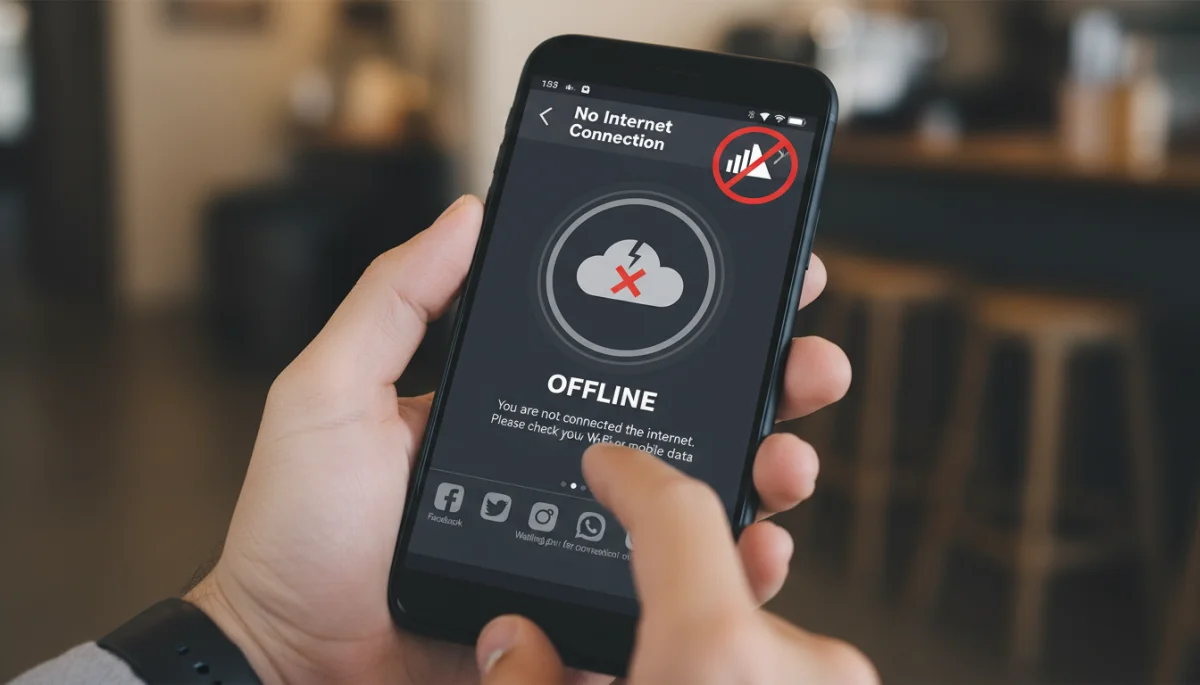
- Check Wi-Fi and Mobile Data: Toggle Wi-Fi off and on, and do the same for mobile data. Try switching between them to see if one connection type works better.
- Restart Router/Modem: If on Wi-Fi, reboot your home router. This can often resolve network glitches that affect connectivity.
- VPN and Proxy Settings: If you’re using a VPN or proxy, try disabling it temporarily. These can sometimes interfere with app connectivity and push notification services.
Beyond your local network, the app’s servers might be experiencing an outage. While less common, checking the app’s social media or status page can provide insights into widespread issues. If the problem is server-side, unfortunately, all you can do is wait for the developers to resolve it.
Advanced Troubleshooting and Last Resorts
If the previous steps haven’t resolved the issue, it’s time to consider more advanced troubleshooting. These steps involve more significant actions, such as clearing app data or reinstalling the app, and should be approached systematically to avoid losing important information.
When basic and intermediate fixes fail, it suggests a deeper problem with the app’s installation or cached data. These advanced steps aim to reset the app’s state, often resolving persistent issues.
Clearing Cache and Data
Over time, apps accumulate cache files and data that can become corrupted, leading to unexpected behavior, including notification failures. Clearing these can often provide a fresh start without needing to reinstall the entire app.
- Clear Cache: Go to Settings > Apps & Notifications > select the app > Storage & cache > Clear cache. This removes temporary files.
- Clear Data (Use with Caution): If clearing cache doesn’t work, try ‘Clear storage’ or ‘Clear data’ from the same menu. Be aware that this will delete all app data, including logins and preferences, essentially resetting the app to its initial state.
After clearing data, you’ll need to log back into the app and reconfigure any personal settings. This is a powerful step in how to troubleshoot an app that stops sending notifications, as it eliminates most app-specific software glitches.
Reinstalling the Application
If clearing data doesn’t work, a complete reinstallation is the next logical step. This ensures you have the latest version of the app and a clean installation, free from any corrupted system files or persistent bugs.
- Uninstall: Completely remove the app from your device.
- Restart Device: Reboot your phone before reinstalling to clear any residual processes.
- Reinstall from Store: Download and install the app again from the official app store (Google Play Store or Apple App Store).
Reinstalling often resolves issues that stem from corrupted installation files or incomplete updates. It’s a comprehensive reset that can fix many stubborn notification problems.
Contacting App Support
If all else fails, the problem might be unique to your device, account, or a broader app bug. At this point, reaching out to the app’s official support channel is the best course of action. They have specific knowledge of their application and can provide tailored solutions or identify if it’s a known issue.
When contacting support, provide as much detail as possible: your device model, OS version, app version, and all the troubleshooting steps you’ve already tried. This information helps them diagnose the problem more efficiently. Don’t underestimate the value of developer support when trying to figure out how to troubleshoot an app that stops sending notifications when all other methods have failed.
| Key Troubleshooting Step | Brief Description |
|---|---|
| Check Device Settings | Verify ‘Do Not Disturb,’ Silent Mode, and Airplane Mode are off. |
| Review App Permissions | Ensure app has permission to send notifications and background refresh is enabled. |
| Optimize Battery Usage | Set problematic apps to ‘Don’t optimize’ or disable Low Power Mode. |
| Clear App Cache/Data | Remove temporary files or reset app to default state (data loss possible). |
Frequently Asked Questions About Notification Issues
Apps can stop sending notifications for various reasons, including accidental changes in device or app settings, aggressive battery optimization, network connectivity issues, or even temporary server problems with the app itself. Recent software updates can also sometimes alter notification behaviors.
On Android, go to Settings > Apps (or Apps & Notifications) > select the specific app > Notifications. Here, you can see if ‘Show notifications’ is enabled and adjust individual notification categories. Ensure all relevant toggles are switched on for the desired alerts.
Yes, ‘Do Not Disturb’ (DND) mode is designed to silence most, if not all, notifications, calls, and alerts on your device. While you can often customize exceptions within DND settings, a general DND activation will prevent app notifications from appearing or making sounds.
Clearing an app’s cache is a safe first step, as it removes temporary files without affecting your personal data. Clearing an app’s data, however, will reset the app to its initial state, deleting all stored information, including logins. Only clear data if clearing cache doesn’t work and you’re prepared to re-log in.
If all troubleshooting steps fail, including checking settings, clearing cache/data, and reinstalling the app, it’s best to contact the app’s official support. There might be a specific bug, a compatibility issue with your device, or a server-side problem that only the developers can address.
Conclusion
Resolving notification issues can seem daunting, but by following a systematic approach, you can effectively troubleshoot an app that stops sending notifications. From basic device checks to deep dives into app settings, power management, and network connectivity, most problems can be identified and fixed. Remember to start with the simplest solutions and gradually move to more advanced steps like clearing data or reinstalling the app. With patience and a methodical mindset, you can restore your app’s ability to keep you informed, ensuring you never miss an important alert again. If all else fails, don’t hesitate to reach out to the app’s support team, as they are often best equipped to handle unique or complex issues.
