Signal Message Requests: Review, Accept, Block Conversations
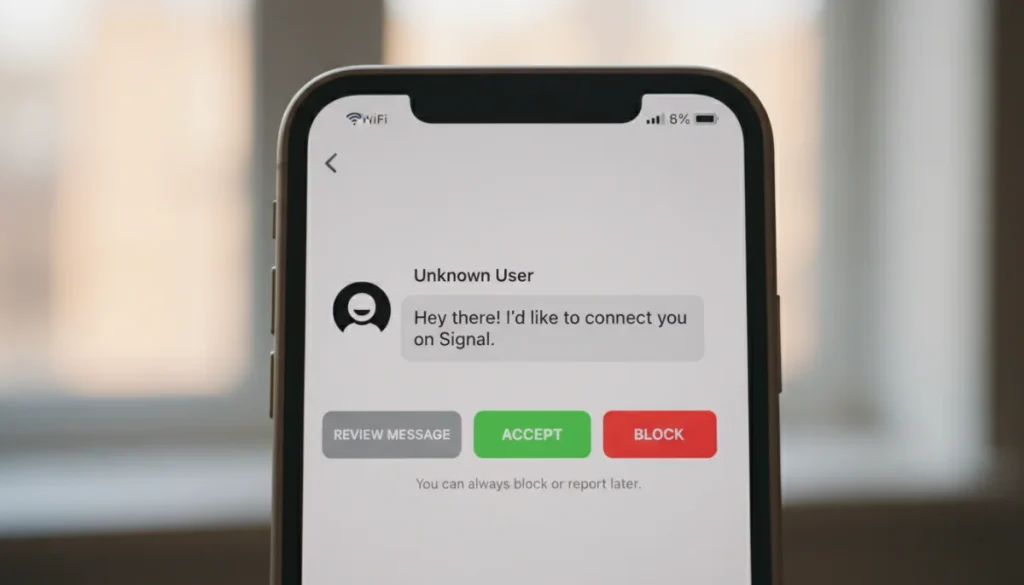
To manage Signal message requests, users can access the requests section within the app, review sender details for legitimacy, and then choose to accept the conversation to communicate or block the sender to prevent further contact.
In an increasingly connected world, managing digital communication is paramount for privacy and peace of mind. Signal, renowned for its strong encryption, introduces a feature that helps users maintain control: Signal message requests: how to review, accept and block conversations. This guide will walk you through the essential steps to handle these requests, ensuring your messaging experience remains secure and personal.
Understanding Signal Message Requests
Signal message requests are a fundamental privacy feature designed to give you control over who can initiate conversations with you. When someone who isn’t in your contacts sends you a message for the first time, it doesn’t immediately land in your main inbox. Instead, it appears as a request, allowing you to vet the sender before engaging.
This system acts as a crucial barrier against spam, unsolicited messages, and potential harassment. It empowers you to decide whether to open a line of communication with an unknown party, thereby safeguarding your personal space within the app. Without this feature, your Signal inbox could quickly become cluttered with messages from individuals you don’t know or wish to interact with, undermining the app’s privacy-focused ethos.
The core idea behind message requests is to prevent direct access to your chat list from anyone who simply has your Signal number. It ensures that only approved contacts or those you explicitly permit can start a direct conversation. This mechanism is especially vital in an era where digital identities can be easily compromised or exploited, offering an added layer of security and user autonomy.
In essence, Signal message requests are not just about filtering; they are about giving you the power to curate your digital interactions proactively. By understanding how this feature works, you take an active role in defining your communication boundaries, making Signal an even more secure and user-friendly platform.
Locating and Reviewing Incoming Requests
Once an unknown contact sends you a message, Signal will notify you that a new message request has arrived. Finding these requests is straightforward, yet crucial for effective management. This section will guide you through the process of locating and initially reviewing these incoming communications.
Accessing the Message Requests Section
To begin, open your Signal application. You will typically see a banner or a dedicated section at the top of your chat list indicating new message requests. Tapping on this notification will take you to a screen where all pending requests are displayed. It’s important to check this section regularly, especially if you anticipate messages from new contacts or are involved in public groups where your number might be shared.
- Open the Signal app on your device.
- Look for a banner labeled “Message Requests” or a similar prompt at the top of your chat list.
- Tap on this banner to view all pending requests.
Each request will typically show the sender’s name (if they have one set), their profile picture, and the initial message they sent. This preliminary information is vital for your first assessment. Signal prioritizes your privacy, so it doesn’t reveal extensive personal details about the sender at this stage, focusing instead on the message content and any publicly available profile information.
Initial Assessment of a Request
Before making a decision, take a moment to evaluate the request. Consider the sender’s profile picture and name. Do you recognize them? Is the message content clear and legitimate? Look for any red flags such as generic greetings, suspicious links, or urgent requests for personal information. Signal’s design encourages a cautious approach, and your initial review is the first line of defense.
If the message comes from someone you know but isn’t in your contacts, the context of their message should clarify their identity. If it’s an unexpected message from a completely unknown number, exercise extra caution. Remember, the goal of this feature is to empower you to distinguish between legitimate communication and potential spam or phishing attempts.
Careful review at this stage can prevent unwanted interactions and ensure that your Signal experience remains private and secure. Don’t rush the process; take your time to assess each request individually.
Accepting a Message Request
Once you’ve reviewed a message request and determined it’s from someone you wish to communicate with, accepting it is a simple process. Accepting moves the conversation from the requests section to your main chat list, allowing for seamless communication.
Steps to Accept a Request
After tapping on the message request, you will typically see options at the bottom of the screen. One of these options will be “Accept” or “Allow Conversation.” Tapping this button will integrate the new contact into your regular Signal chats. At this point, the sender will be able to see your read receipts (if enabled) and your online status, just like any other contact.
- Tap on the specific message request you want to accept.
- Locate and tap the “Accept” or “Allow Conversation” button.
- The chat will now appear in your main Signal chat list.
Once accepted, the conversation history with this individual will appear in your regular chat feed. You can then reply, send media, and utilize all of Signal’s features with them. It’s important to remember that accepting a request means you are granting this individual permission to communicate with you directly going forward.
What Happens After Acceptance?
Upon acceptance, the sender is added to your contact list within Signal (though not necessarily to your phone’s native contact list). This means all future messages from them will appear directly in your main inbox, without going through the request filter again. This streamlines communication with people you’ve vetted and approved.
It’s a good practice to consider adding accepted contacts to your phone’s address book if they are people you know personally, as this can help with identification across different platforms and ensures you don’t forget who they are. However, for casual connections, simply keeping them within Signal’s contact ecosystem might suffice.
Accepting a message request signifies your consent to engage in conversation. This action is easily reversible if circumstances change; you can always block a contact later if needed, which we will cover in the next section.
Blocking Unwanted Conversations
Not all message requests will be welcome. Signal provides robust tools to block unwanted conversations, ensuring your privacy and preventing future unsolicited contact. Blocking is a definitive action that stops all communication from a specific sender.
How to Block a Message Request
If, after reviewing a message request, you decide you do not wish to communicate with the sender, you have the option to block them directly from the request screen. There will be a “Block” or “Report and Block” option available. Tapping this will prevent the sender from sending you any further messages or seeing your Signal profile information.
- Tap on the specific message request you want to block.
- Select the “Block” or “Report and Block” option.
- Confirm your decision when prompted.
Blocking an individual ensures that they cannot send you any new messages, see your profile updates, or even know if you’ve seen their previous messages. From their perspective, their messages will appear to be sent but will never be delivered to you. This provides a strong privacy boundary.
Blocking an Existing Contact
Even if you’ve previously accepted a message request or have an existing contact in your chat list, you can still block them if their communication becomes unwanted. To do this, open the chat with the individual, tap on their name or profile picture at the top to view their chat settings, and then scroll down to find the “Block” option. Confirming this action will cease all future communication.
Signal’s blocking feature is comprehensive; once blocked, the individual will be unable to see your read receipts, typing indicators, or any changes to your profile. This is crucial for maintaining digital safety and personal boundaries, offering a clear way to disengage from any interaction that becomes uncomfortable or inappropriate.
Regularly managing your blocked contacts list can help maintain a clean and secure messaging environment. Signal prioritizes user control, and the blocking feature is a testament to its commitment to privacy and safety.
Reporting Spam and Abuse
Beyond simply blocking, Signal also offers the ability to report messages that constitute spam or abuse. This feature is vital for the community’s safety and helps Signal identify and address malicious actors on its platform.
When and How to Report
If a message request or an existing conversation contains content that is abusive, harassing, or clearly spam, you should consider using the “Report” function. This is often combined with the “Block” option, appearing as “Report and Block.” When you report a message, Signal receives an anonymous copy of the message and sender information, which they can use to investigate and take appropriate action.
- If a message is abusive, harassing, or spam, use the “Report and Block” option.
- Signal receives anonymous data to investigate the reported user.
- This helps improve the safety of the Signal community.
Reporting is an important step in contributing to a safer online environment. While Signal is end-to-end encrypted, meaning even Signal cannot read the content of your messages, the reporting feature allows them to act on metadata and patterns of abuse without compromising user privacy. It’s a balance between anonymity and community safety.
The Impact of Reporting
When you report someone, Signal reviews the report, and if they find violations of their terms of service, they may take action against the offending account. This could range from temporary restrictions to permanent bans, depending on the severity and frequency of the violations. Your reports help Signal maintain a healthy and secure platform for all users.
It’s important to use the reporting feature responsibly and only for legitimate instances of spam or abuse. Frivolous or false reports can dilute the effectiveness of the system. By understanding the power of reporting, you actively participate in making Signal a more trustworthy communication tool.
Remember that Signal’s commitment to user privacy means they handle reports carefully, ensuring that user data is protected while also addressing harmful behavior. This dual commitment makes reporting a powerful, yet secure, option for users facing unwanted interactions.
Best Practices for Managing Message Requests
Effective management of Signal message requests goes beyond simply accepting or blocking; it involves adopting proactive habits to enhance your overall security and privacy. Implementing best practices can significantly improve your experience on the platform.
Proactive Privacy Settings
Signal offers various privacy settings that can influence how message requests are handled and who can contact you. Regularly reviewing and adjusting these settings is a crucial step. For instance, you can control who can see your profile picture, “Read Receipts,” and “Typing Indicators.” While these don’t directly prevent message requests, they can influence your overall digital footprint and the information available to unknown senders.
Consider enabling the “Block Unknown Senders” option if you prefer a stricter approach, though this might mean manually adding new contacts before they can message you. This setting provides an even tighter filter, ensuring only those explicitly in your contacts can initiate a conversation.
Mindful Information Sharing
Be cautious about where you share your Signal number. While Signal is highly secure, sharing your number publicly or in less secure forums can lead to an increase in message requests from unknown individuals. Only share your Signal number with people you trust and in secure environments.
Also, be aware of group chats. If you are in a public or large group, other members may be able to see your number and send you direct messages. Adjusting your group privacy settings can help manage this exposure. By being mindful of information sharing, you reduce the likelihood of receiving unwanted message requests in the first place.
Regular Review and Cleanup
Make it a habit to regularly review your pending message requests and your blocked contacts list. Clearing out old requests helps keep your Signal app organized and ensures you don’t accidentally miss a legitimate message. Similarly, periodically reviewing your blocked list allows you to unblock someone if circumstances change or if a block was accidental.
This routine maintenance contributes to a cleaner, more secure, and more efficient messaging experience. By being proactive and attentive, you can fully leverage Signal’s privacy features and maintain control over your digital communications effectively.
Advanced Tips and Troubleshooting
While managing Signal message requests is generally straightforward, there might be situations where you need to delve deeper into settings or understand potential issues. These advanced tips and troubleshooting steps can help you optimize your experience.
Managing Blocked Contacts List
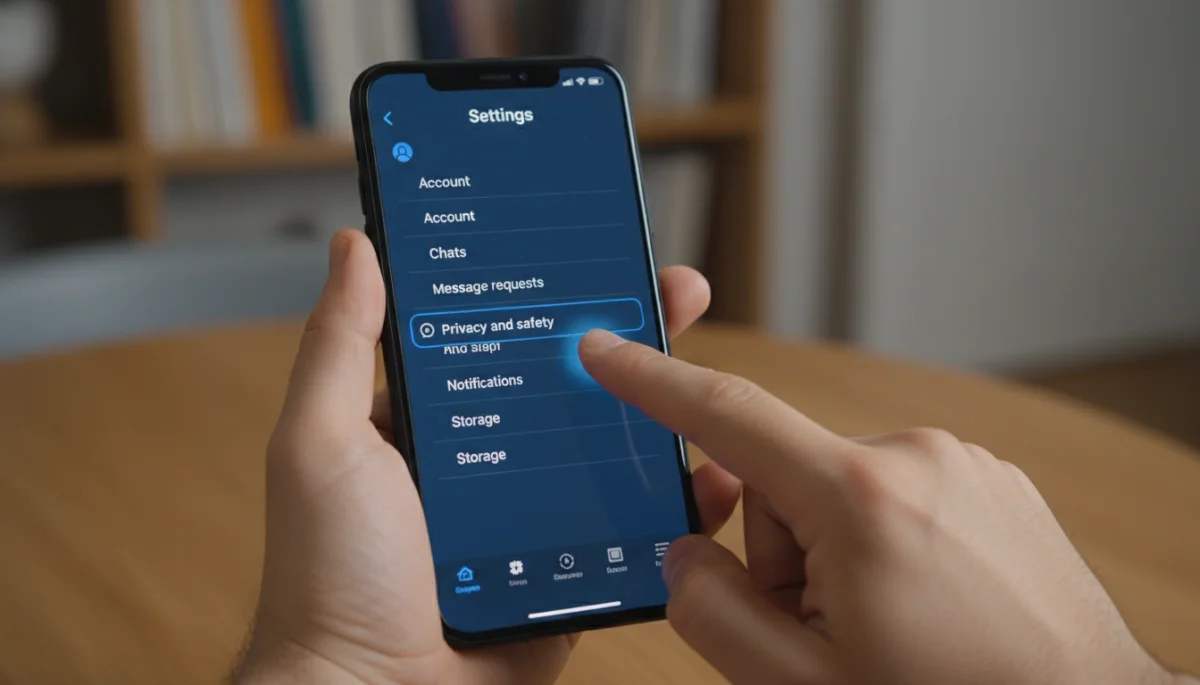
Sometimes, you might block someone accidentally or wish to unblock a contact after a period. Signal allows you to manage your blocked contacts easily. Navigate to your Signal settings, then to “Privacy,” and look for “Blocked users.” Here, you will see a list of all contacts you’ve blocked. You can tap on any contact to unblock them, allowing them to send you messages again.
Regularly reviewing this list ensures that you have full control over who can communicate with you. It’s a simple yet powerful feature for adapting your communication preferences over time. This flexibility is key to a personalized and secure messaging experience.
Troubleshooting Message Request Issues
If you’re not receiving message requests you expect, or if messages aren’t appearing correctly, there are a few troubleshooting steps you can take. First, ensure your Signal app is updated to the latest version, as bugs are frequently patched. Next, check your device’s notification settings for Signal to ensure they are enabled.
If issues persist, try clearing Signal’s cache (without clearing data, which would delete your messages) or reinstalling the app (after backing up your chat history, if desired). Sometimes, network issues can also interfere with message delivery, so ensure you have a stable internet connection. These steps can often resolve common issues related to message requests and notifications.
Understanding Group Message Requests
Signal also handles group message requests. If someone adds you to a group chat and you are not in their contacts, or if the group is set to require requests, you will receive a group message request. This works similarly to individual message requests, allowing you to preview the group members and purpose before joining. This prevents you from being automatically added to unwanted groups, further enhancing your privacy.
Managing group requests involves similar principles: review the group’s name and members, and decide whether to accept or decline. Declining a group request means you won’t be added to the chat, and the sender won’t be able to add you again without sending a new request. This granular control extends Signal’s privacy features to collective conversations, providing a comprehensive protective shield.
| Key Action | Description |
|---|---|
| Review Requests | Access the dedicated section in Signal to view new messages from unknown senders before engaging. |
| Accept Conversations | Allow a message request to move into your main chat list, enabling direct, ongoing communication. |
| Block Senders | Prevent specific users from sending you messages or seeing your online status and profile updates. |
| Report Abuse | Notify Signal of spam or abusive content to help maintain community safety and integrity. |
Frequently Asked Questions About Signal Message Requests
A Signal message request is a notification you receive when someone not in your contacts sends you a message. It allows you to review the sender and their initial message before deciding to accept the conversation or block them, thereby controlling who can directly communicate with you.
You can find pending message requests by opening the Signal app and looking for a dedicated “Message Requests” banner or section, usually at the top of your chat list. Tapping on this banner will display all incoming messages from unknown contacts awaiting your action.
When you accept a message request, the conversation moves from the requests section to your main chat list. The sender will then be able to communicate with you directly, and you will see their messages as regular chats. They will also be able to see your read receipts and online status.
Yes, you can block someone at any time, even if you’ve previously accepted their message request. To do so, open the chat with the person, tap their name at the top to access chat settings, and select the “Block” option. This will cease all future communication from them.
Absolutely. Signal provides a “Report and Block” option for message requests that are spam or abusive. Reporting helps Signal investigate and take action against malicious users, contributing to a safer community while maintaining your privacy and message encryption.
Conclusion
Effectively managing Signal message requests is a cornerstone of maintaining privacy and control over your digital interactions. By understanding how to review, accept, and block conversations, you empower yourself to curate your communication landscape. Signal’s robust features provide the tools necessary to filter out unwanted messages, protect against spam, and report abusive content, all while upholding its commitment to end-to-end encryption and user autonomy. Embracing these practices ensures a secure, personalized, and peaceful messaging experience within the Signal ecosystem.
