Review Camera, Mic, Location Permissions on Your Phone
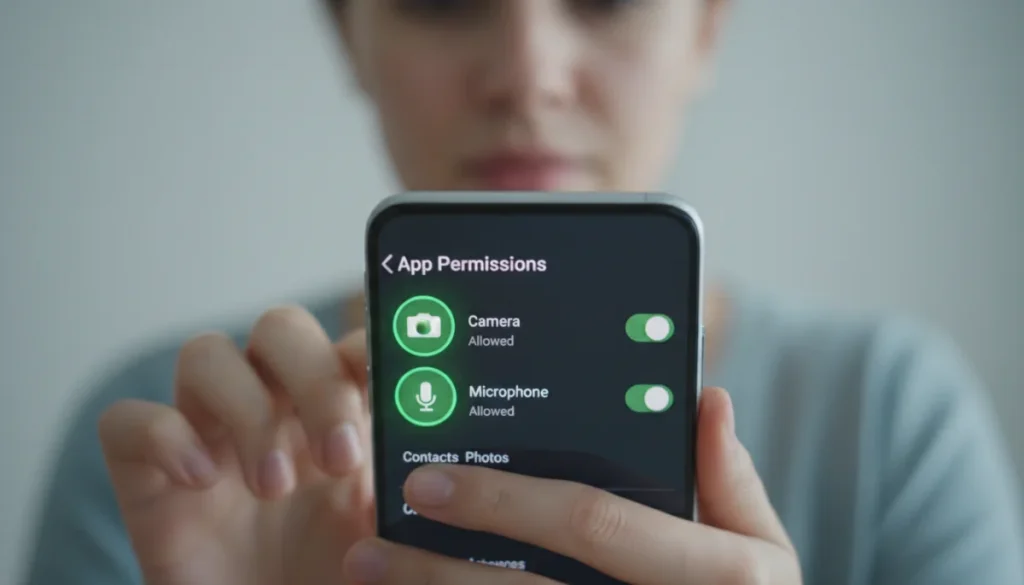
Effectively managing app permissions on your phone is crucial for safeguarding personal privacy, controlling data access, and preventing unauthorized use of your camera, microphone, and location data by various applications.
In an increasingly connected world, our smartphones have become extensions of ourselves, holding vast amounts of personal information. Understanding how to review camera, microphone, and location permissions on your phone is not just good practice; it’s essential for maintaining digital privacy and security. Many apps request access to these sensitive functions, often without users fully comprehending the implications. Taking control of these permissions can prevent unwanted data collection, protect your conversations, and ensure your whereabouts remain private.
Understanding the Importance of App Permissions
App permissions are the gates through which applications request access to various functions and data on your smartphone. While some requests are entirely legitimate and necessary for an app to function as intended, others can be overly broad or even malicious. Grasping the significance of these permissions is the first step toward a more secure and private mobile experience.
Every time you download a new app, you’re presented with a list of permissions it requires. It’s tempting to simply click ‘Allow’ to proceed quickly, but this habit can expose your personal data to unnecessary risks. A flashlight app, for example, might legitimately need access to your camera to turn on the flash, but why would it need your location or microphone? Scrutinizing these requests can reveal potential privacy infringements.
Why Permission Management Matters
Effective permission management is critical for several reasons:
- Data Privacy: Prevents apps from collecting sensitive personal data without your explicit knowledge or consent.
- Security Risks: Reduces the risk of malware or spyware using your phone’s features to record you or track your movements.
- Battery Life: Some permissions, like continuous location tracking, can significantly drain your device’s battery.
- Resource Control: Ensures that apps are not unnecessarily consuming your phone’s resources in the background.
By actively managing app permissions, you empower yourself to decide what information you share and with whom. This proactive approach helps build a stronger defense against potential privacy breaches and data misuse, making your digital life safer and more controlled. Ignoring these settings can leave you vulnerable to various forms of digital exploitation.
How to Review Camera Permissions on Your Phone
Your phone’s camera is a powerful tool, capable of capturing high-quality images and videos. However, unauthorized access to it can be a serious privacy concern, potentially allowing apps to record you without your knowledge. Regularly reviewing which apps have camera access is a fundamental step in securing your digital life.
Both Android and iOS offer straightforward ways to manage camera permissions. It’s a good idea to check these settings periodically, especially after installing new apps or updating existing ones, as permissions can sometimes be reset or altered during these processes.
Steps for Android Devices
For Android users, the process is generally consistent across different manufacturers, though exact menu names might vary slightly:
- Go to ‘Settings’ on your phone.
- Tap on ‘Apps’ or ‘Apps & notifications’.
- Select ‘Permission manager’ or ‘App permissions’.
- Find and tap on ‘Camera’. You will see a list of apps categorized by their camera access status (Allowed, Denied, or Ask every time).
- Review each app and toggle off access for any app that doesn’t genuinely need your camera.
Consider apps like social media platforms or photo editors that clearly require camera access. However, if a game or a utility app requests camera access without a clear function, it might be a red flag. Always question why an app needs a particular permission.
Steps for iOS Devices
iOS provides a centralized privacy control panel for camera permissions:
- Open the ‘Settings’ app.
- Scroll down and tap on ‘Privacy & Security’.
- Tap on ‘Camera’. This will display a list of all apps that have requested or been granted camera access.
- Toggle off the switch next to any app you no longer wish to grant camera access to.
iOS also indicates when an app is actively using your camera with a green indicator light on the status bar. This visual cue can alert you to unexpected camera activity, prompting you to investigate further and adjust permissions if necessary. Being vigilant about these indicators adds an extra layer of security.
Managing Microphone Access for Enhanced Privacy
Just like your camera, your phone’s microphone is a highly sensitive component that can capture private conversations and ambient sounds. Granting microphone access to apps means they could potentially listen in on your environment. Protecting your microphone permissions is vital to prevent unauthorized eavesdropping and maintain the confidentiality of your discussions.
Many apps, such as voice recorders, video conferencing tools, and voice assistants, legitimately require microphone access. However, other apps might request this permission for less obvious reasons, making it crucial to understand and manage these settings carefully. Regularly auditing these permissions ensures that your private audio remains private.
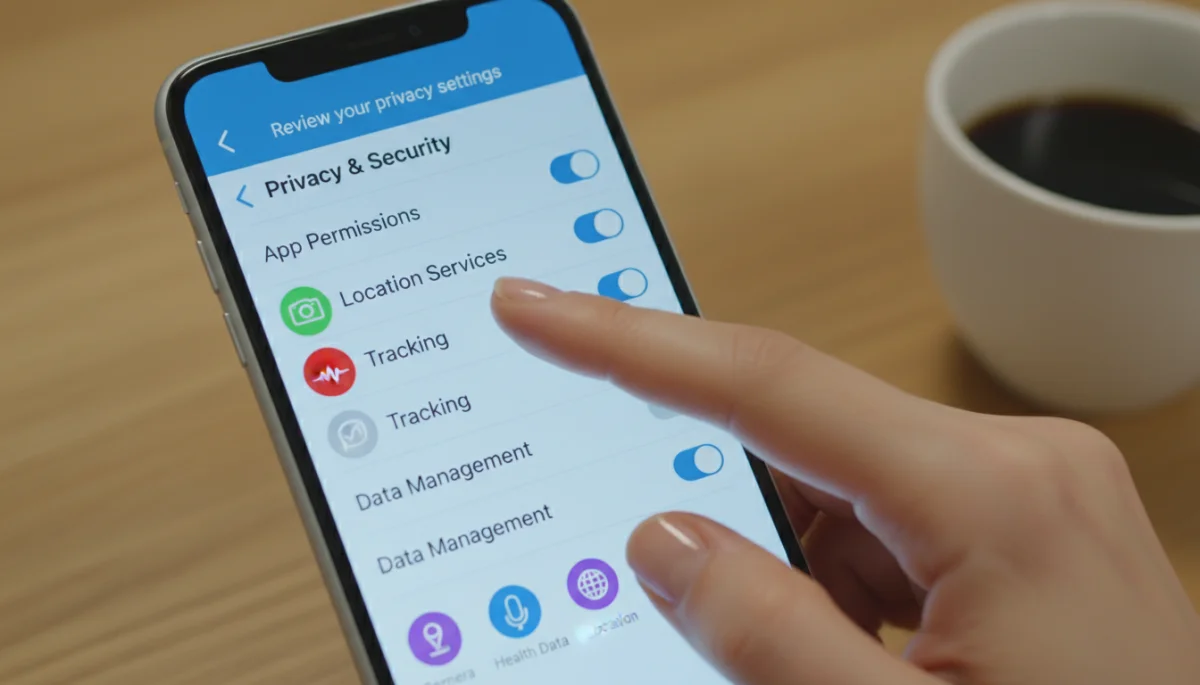
Controlling Microphone Permissions on Android
On Android, managing microphone access follows a similar path to camera permissions:
- Navigate to ‘Settings’.
- Select ‘Apps’ or ‘Apps & notifications’.
- Tap ‘Permission manager’ or ‘App permissions’.
- Choose ‘Microphone’ from the list. Here, you’ll find apps categorized by their microphone access.
- Disable microphone access for any apps that don’t absolutely need it to function.
Android also offers a privacy dashboard feature in newer versions, providing a quick overview of which apps have accessed your microphone (and other sensitive permissions) recently. This dashboard can be an invaluable tool for spotting suspicious activity and proactively managing your privacy settings.
Controlling Microphone Permissions on iOS
For iPhone users, microphone permissions are found in the same privacy hub:
- Open ‘Settings’.
- Go to ‘Privacy & Security’.
- Tap on ‘Microphone’. This will show you a list of apps that have requested microphone access.
- Toggle off access for any apps you don’t trust with your audio, or for those that don’t require it for their core functionality.
Similar to the camera, iOS provides an orange indicator light in the status bar when an app is using your microphone. This visual cue acts as a real-time warning, allowing you to identify and address any unauthorized or unexpected microphone usage promptly. Paying attention to these indicators can significantly enhance your privacy.
Reviewing and Restricting Location Permissions
Location data is one of the most sensitive pieces of information your phone can collect. It reveals where you live, work, and travel, painting a detailed picture of your daily routine. While location services are essential for navigation apps, ride-sharing, and weather forecasts, continuous or unnecessary location tracking by other apps can pose significant privacy risks.
Both Android and iOS have evolved to provide granular control over location permissions, allowing you to choose whether an app can access your location always, only while using the app, or never. Understanding these options is key to protecting your geographic privacy.
Android Location Settings
Android provides detailed controls for location access:
- Go to ‘Settings’.
- Tap on ‘Location’.
- Select ‘App permissions’ or ‘Location services’. You’ll see apps categorized into ‘Allowed all the time’, ‘Allowed only while in use’, and ‘Denied’.
- Review each app and adjust its location access. For most apps, ‘Allowed only while in use’ is sufficient. Deny access entirely for apps that have no legitimate reason to know your location.
Android also allows you to disable location services entirely, though this will impact the functionality of many apps. It’s often more practical to manage permissions on an app-by-app basis, granting access only when necessary and with the least intrusive option.
iOS Location Settings
iOS offers similar comprehensive control over location data:
- Open ‘Settings’.
- Tap ‘Privacy & Security’.
- Select ‘Location Services’. Here, you’ll see a list of apps and their current location access status.
- Tap on each app to choose between ‘Never’, ‘Ask Next Time Or When I Share’, ‘While Using the App’, or ‘Always’.
- For many apps, ‘While Using the App’ is the most balanced option, providing functionality without constant tracking.
iOS also features a purple arrow icon in the status bar when an app has recently used your location. A solid purple arrow means an app is actively using your location, while an outlined arrow indicates it might receive your location under certain conditions. These indicators are crucial for monitoring location access.
Best Practices for Maintaining Phone Privacy
Beyond simply adjusting permissions, adopting a set of best practices can significantly enhance your phone’s privacy and security. It’s an ongoing process that requires vigilance, but the peace of mind it brings is well worth the effort. Think of it as digital hygiene – regular maintenance keeps your data clean and safe.
These practices extend beyond just camera, microphone, and location, encompassing a holistic approach to how you interact with your device and the apps on it. By integrating these habits into your routine, you can build a more robust defense against privacy threats.
Key Habits for Digital Privacy
To proactively protect your data, consider these essential habits:
- Regular Permission Audits: Periodically review all app permissions, not just camera, microphone, and location. Uninstall apps you no longer use.
- Read App Reviews: Before downloading, check reviews for privacy concerns or excessive permission requests.
- Understand App Functionality: If an app’s permission request seems unrelated to its core function, question it.
- Keep Software Updated: Operating system and app updates often include crucial security patches.
- Use Strong Passwords/Biometrics: Secure your device with a strong passcode, fingerprint, or facial recognition.
These practices collectively create a stronger barrier against unauthorized access and data exploitation. It’s about being an informed user, making conscious decisions about what information you share, and understanding the tools available to protect yourself. Your digital footprint is a reflection of your online choices.
Tools and Features for Enhanced Privacy Control
Both Android and iOS have introduced advanced privacy tools and features to give users more control over their data. Leveraging these built-in functionalities can significantly bolster your privacy posture without needing third-party applications. These tools are designed to be user-friendly, making privacy management accessible to everyone.
From privacy dashboards that summarize app activity to individual toggles for specific data types, these features provide a comprehensive suite of options. Familiarizing yourself with them is an investment in your digital well-being, offering transparency and control over your personal information.
Android’s Privacy Dashboard and Indicators
Newer Android versions include a Privacy Dashboard:
- Access it via ‘Settings’ > ‘Privacy’ > ‘Privacy Dashboard’.
- It shows a timeline of which apps accessed your camera, microphone, and location in the last 24 hours.
- Green (camera) and orange (microphone) indicators appear in the status bar when these sensors are active, providing real-time alerts.
This dashboard is an invaluable resource for quickly identifying any unexpected or suspicious app activity, allowing you to take immediate action. It transforms abstract data access into tangible, visible information, making privacy management more intuitive and effective.
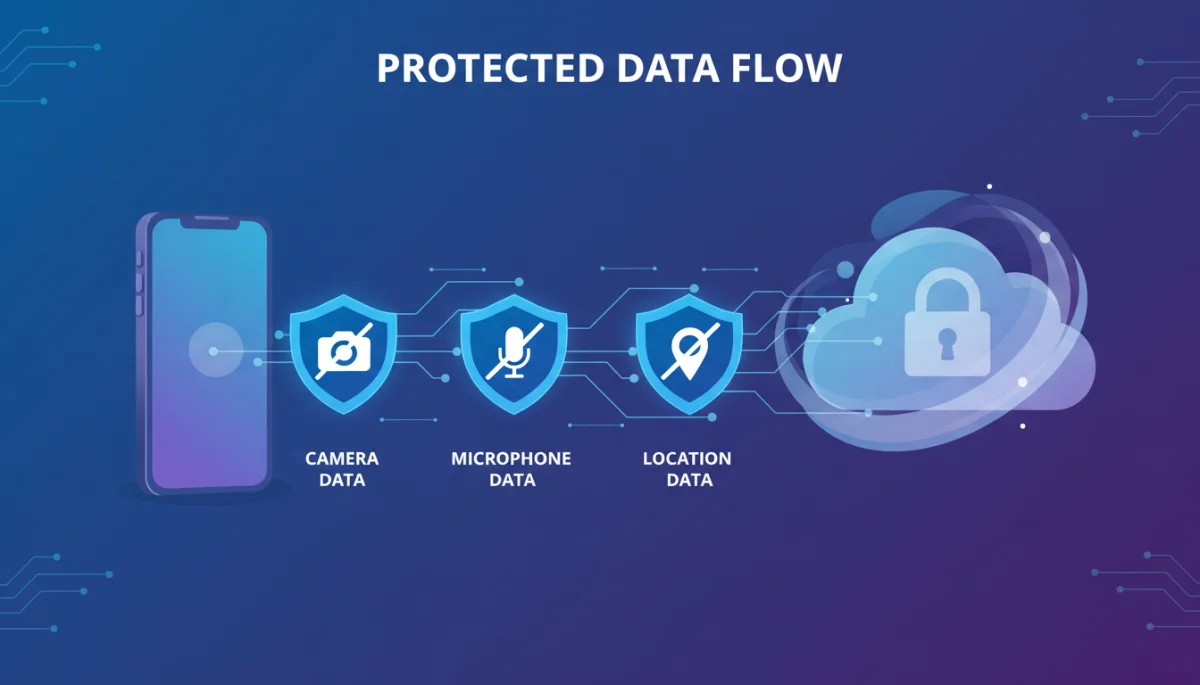
iOS Privacy Report and App Tracking Transparency
iOS offers the App Privacy Report and App Tracking Transparency:
- App Privacy Report: Found in ‘Settings’ > ‘Privacy & Security’ > ‘App Privacy Report’. This report details how apps access your data and network activity.
- App Tracking Transparency: Allows you to decide if apps can track your activity across other companies’ apps and websites for advertising purposes. Access via ‘Settings’ > ‘Privacy & Security’ > ‘Tracking’.
These features provide a deep dive into how apps handle your data and empower you to block unwanted tracking. The transparency offered by iOS gives users unprecedented control over their personal information, fostering a more secure and private mobile environment.
The Role of Operating System Updates in Privacy
Operating system (OS) updates are often perceived as bringing new features or interface changes, but their role in privacy and security is equally, if not more, critical. Both Android and iOS regularly release updates that include essential security patches, bug fixes, and enhancements to privacy controls. Staying up-to-date is a non-negotiable aspect of phone privacy.
These updates address newly discovered vulnerabilities that could be exploited by malicious actors, ensuring your device remains protected against the latest threats. They also frequently introduce more granular permission controls and clearer indicators of app activity, empowering you with better visibility and management capabilities.
Why Timely Updates are Crucial
Neglecting OS updates can leave your device exposed:
- Security Patches: Updates fix security flaws that could allow unauthorized access to your data or device functions.
- Enhanced Privacy Features: New OS versions often come with improved privacy settings, dashboards, and indicators.
- Bug Fixes: Resolves issues that might inadvertently compromise privacy or security.
- App Compatibility: Ensures your apps run securely and efficiently with the latest privacy protocols.
By keeping your operating system current, you’re not just getting the latest features; you’re actively participating in the ongoing effort to secure your digital life. Manufacturers and developers work continuously to fortify their systems against evolving threats, and installing these updates is your part in that crucial defense.
| Key Aspect | Description for Privacy |
|---|---|
| Camera Permissions | Control which apps can record video or take photos, preventing unauthorized visual surveillance. |
| Microphone Access | Manage apps that can listen to your surroundings, safeguarding private conversations. |
| Location Tracking | Limit access to your geographic data, protecting your physical whereabouts and routine. |
| OS Updates | Crucial for applying security patches and enhancing built-in privacy controls. |
Frequently Asked Questions
Regularly reviewing phone permissions is crucial because apps can update their permission requests, and new vulnerabilities might emerge. It ensures you maintain control over your personal data, prevent unauthorized access to sensitive phone features, and adapt to evolving privacy risks, safeguarding your digital life effectively.
While modern operating systems like Android and iOS have indicators (green/orange dots) to alert you when the camera or microphone is active, a malicious app could potentially bypass these or exploit vulnerabilities. Regular permission checks and OS updates are your best defense against such unauthorized use.
‘While Using the App’ grants location access only when the app is actively open and in use, limiting continuous tracking. ‘Always’ allows the app to access your location even when it’s closed or running in the background, providing constant tracking that should only be granted to essential services.
Consider the app’s core function. A mapping app needs location, a video call app needs camera and microphone. If a flashlight app requests microphone access, it’s a red flag. Read app descriptions, reviews, and question anything that seems irrelevant to its stated purpose.
Completely denying all permissions might cause an app to malfunction or become unusable if those permissions are essential for its core features. It’s better to selectively grant necessary permissions and deny only those that are excessive or unrelated to the app’s primary function, balancing privacy with usability.
Conclusion
Taking control of your phone’s privacy settings, particularly concerning camera, microphone, and location permissions, is a critical aspect of modern digital citizenship. By understanding how to review and adjust these settings on both Android and iOS devices, you empower yourself to protect sensitive personal data from unauthorized access and potential misuse. This proactive approach, combined with diligent app management, awareness of privacy indicators, and consistent operating system updates, forms a robust defense against evolving digital threats. Ultimately, a secure and private mobile experience lies in your hands, demanding continuous vigilance and informed decision-making.
