Organize Android Notifications: Never Miss Important Messages
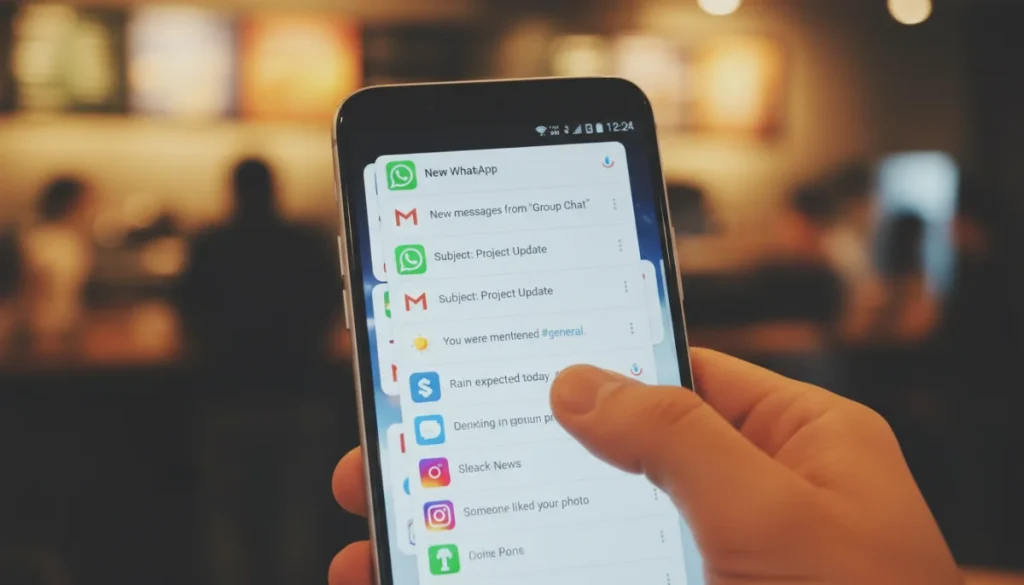
Effectively organizing app notifications on Android involves leveraging built-in settings to prioritize essential alerts and silence non-critical ones, ensuring important messages are never missed amidst digital noise.
In our increasingly connected world, smartphones have become extensions of ourselves, constantly buzzing with updates. For many, the challenge isn’t just receiving information, but managing the deluge. This guide will show you how to organize app notifications on Android without missing important messages, transforming your device from a source of constant distraction into a finely tuned communication tool.
Understanding the Android Notification Ecosystem
Before diving into specific strategies, it’s crucial to grasp how Android handles notifications. Unlike simpler operating systems, Android offers a highly granular control system, allowing users to customize alerts down to individual app categories. This flexibility, while powerful, can initially seem overwhelming. However, understanding its components is the first step toward effective management and ensuring your digital well-being.
Android’s notification system is designed to provide timely information while giving users the power to decide what gets their immediate attention. From subtle vibrations to persistent alerts, each notification type serves a purpose. The key is to distinguish between what truly requires your focus and what can wait, or even be silenced altogether. This distinction is fundamental to maintaining productivity and reducing digital fatigue, preventing essential communications from getting lost.
Notification Channels: The Core of Granularity
Introduced in Android Oreo, notification channels are a game-changer. They allow apps to categorize their notifications, giving you control over each category. For instance, a messaging app might have channels for ‘personal messages,’ ‘group chats,’ and ‘promotions.’ You can then individually adjust the sound, vibration, and visibility for each channel, rather than having an all-or-nothing approach for the entire app.
- Personal Messages: High priority, with sound and vibration.
- Group Chats: Medium priority, perhaps vibration only or a softer sound.
- Promotional Offers: Low priority, silent, and minimized.
This level of detail means you can silence promotional alerts from an app while ensuring you still receive critical updates from it. It’s about tailoring the experience to your needs, ensuring that your phone only interrupts you for what truly matters. Mastering notification channels is arguably the most impactful step in organizing your Android notifications effectively.
Notification Types: Visual and Auditory Cues
Android notifications come in various forms, each with its own impact. These include pop-up (heads-up) notifications, sound alerts, vibrations, notification dots on app icons, and lock screen visibility. Each type can be configured per app or per channel, giving you comprehensive control over how alerts are presented. Understanding these types helps in setting up a system that works for you.
By effectively managing these types, you can create a hierarchy of importance. For example, critical work emails might trigger a heads-up notification and sound, while social media likes might only show a notification dot. This thoughtful configuration minimizes unnecessary interruptions, allowing you to focus on tasks without the constant urge to check your phone. It’s about creating a notification strategy, not just reacting to every ping.
Prioritizing Essential Communications
The first rule of notification management is prioritization. Not all apps, nor all notifications from a single app, hold equal importance. Identifying your critical communications and giving them precedence is vital to ensure you don’t miss important messages. This involves a strategic approach to which apps get to demand your immediate attention and which ones can wait for a convenient moment.
Consider your daily workflow and personal life. What absolutely cannot be missed? Is it calls from family, urgent work emails, or specific alerts from a health app? Once you’ve identified these non-negotiables, you can begin to configure your Android device to highlight them, making them stand out from the noise of less critical alerts. This proactive approach saves time and reduces stress.
Identifying Your Critical Apps
Start by making a list of apps that are truly essential for communication or critical information. These might include your primary messaging apps, email clients, calendar apps, or security alerts. For these apps, you’ll want to ensure their notifications are always prominent and difficult to ignore. This forms the bedrock of your organized notification system.
- Work Communication: Slack, Microsoft Teams, Gmail.
- Personal Communication: WhatsApp, Messages, Phone.
- Critical Alerts: Banking apps, security cameras, emergency services.
For these apps, ensure that notification channels are set to high importance, allowing for sounds, vibrations, and even pop-up notifications. This way, when a notification from one of these apps comes through, you know it’s something that genuinely requires your attention. It’s about creating a clear signal for truly important alerts.
Leveraging Conversation Settings
Android 11 and later versions introduced enhanced conversation settings, allowing you to prioritize specific conversations within messaging apps. You can mark certain chats as ‘Priority,’ ‘Alerting,’ or ‘Silent.’ Priority conversations appear at the top of your notification shade, can bypass Do Not Disturb, and might even show a unique icon.
This feature is incredibly powerful for personalizing your messaging experience. For example, you can set your spouse or child’s messages as ‘Priority’ so you always see them immediately, even if other chats from the same app are silenced. This level of fine-tuning ensures that the people who matter most can always reach you, without you having to endure a constant barrage of less important messages.
Customizing Notification Settings for Each App
Once you understand the system and have prioritized your critical communications, the next step is to dive into the settings for each individual app. This is where the real work of organizing notifications happens, turning a chaotic stream into a well-managed flow. Android provides comprehensive controls, but you need to know where to look and what to adjust.
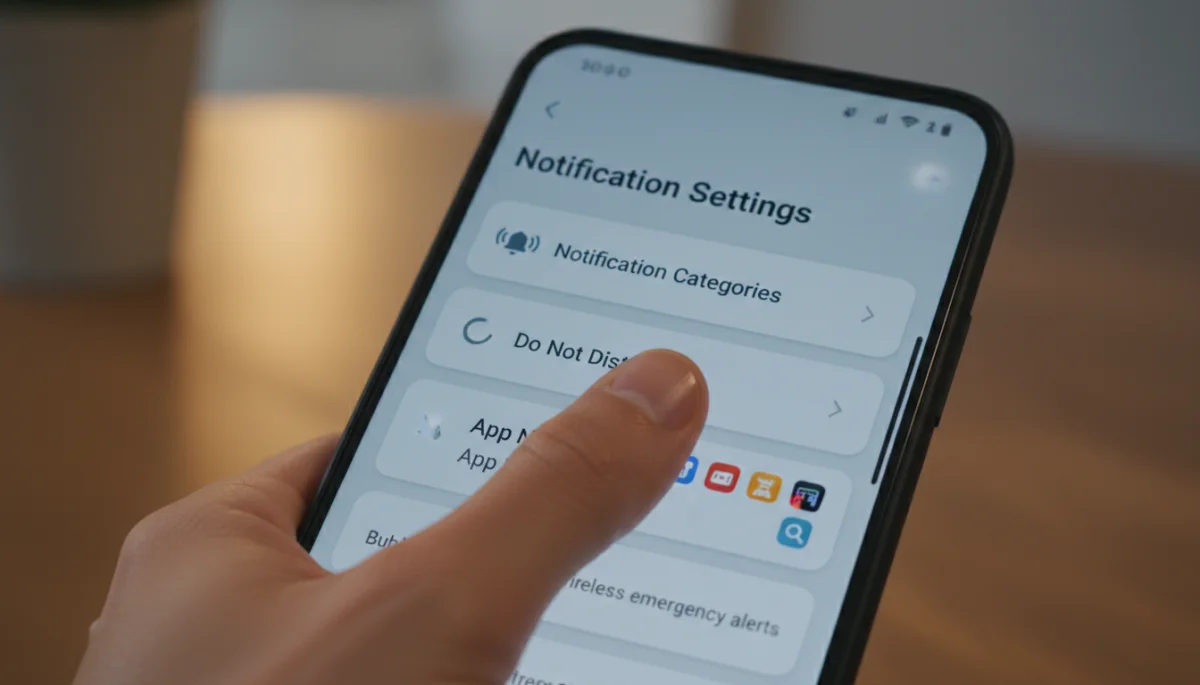
Accessing these settings is straightforward. Typically, you can long-press an incoming notification, or navigate through your phone’s main Settings app under ‘Apps & notifications’ and then select ‘Notifications.’ From there, you can manage notifications for all your installed applications. This granular control is what makes Android so powerful for personalizing your device experience.
Adjusting Notification Channels and Importance
For each app, review its notification channels. Consider what kind of alerts each channel provides and adjust its importance level accordingly. Android typically offers several importance levels:
- Urgent (Make Sound and Pop on Screen): For critical, time-sensitive alerts.
- High (Make Sound): Important but not necessarily urgent.
- Medium (No Sound): Information you want to see, but not be interrupted by.
- Low (Silently Display): Background information, news updates, etc.
- Off: Completely block notifications from this channel.
By systematically going through each app and its channels, you can silence the noise while preserving important alerts. This process might take some time initially, but the long-term benefits of a less distracting phone are well worth the effort. It’s about being intentional with your digital interactions rather than passively accepting every alert.
Disabling Unnecessary Notifications
Many apps, especially after initial installation, are overly eager to send notifications for every conceivable event. Take the time to identify and disable notifications from apps or channels that provide little to no value. Do you really need to be notified every time someone likes your post on a specific social media platform, or when a game reminds you to play?
Often, simply turning off entire notification channels or even disabling all notifications for certain apps (like shopping apps, games, or news feeds) can drastically reduce your daily notification count. Remember, you can always check these apps manually when you choose to, rather than being pulled in by their constant pings. This is a crucial step in reclaiming your focus and reducing digital overwhelm.
Leveraging Do Not Disturb and Focus Modes
Beyond individual app settings, Android offers system-wide tools to manage notifications, particularly when you need uninterrupted focus. Do Not Disturb (DND) and Focus Mode are powerful features that can significantly help you organize app notifications on Android, ensuring you have periods of calm without missing truly important calls or messages.
These modes are designed to give you control over when and how you receive alerts, allowing you to create boundaries between your digital life and your real-world activities. Implementing them effectively can dramatically improve your productivity during work hours and enhance your relaxation during personal time. They are essential tools for maintaining digital well-being.
Configuring Do Not Disturb (DND)
DND allows you to silence all notifications, calls, and alarms, or customize exceptions. You can set schedules for DND to activate automatically, for instance, during your work hours or while you sleep. Crucially, DND allows you to whitelist contacts or apps that can still get through, ensuring emergencies or urgent family messages are never missed.
- Scheduled DND: Automatically activates during specific times (e.g., 9 AM – 5 PM).
- Favorite Contacts: Allow calls/messages from starred contacts to bypass DND.
- Repeat Callers: Allow a second call from the same number within 15 minutes to ring through.
- App Exceptions: Select specific apps whose notifications can still appear.
This nuanced control means you can achieve silence without being completely cut off. For example, you can silence all work emails after hours but still allow calls from your children’s school. DND is not just an off switch; it’s a smart filter that respects your need for peace while keeping you connected to what truly matters.
Utilizing Focus Mode
Focus Mode, part of Android’s Digital Wellbeing suite, takes DND a step further by specifically pausing selected distracting apps. When Focus Mode is active, notifications from these chosen apps are muted, and their icons are grayed out, making them less appealing to open. You won’t receive notifications from them until you turn Focus Mode off.
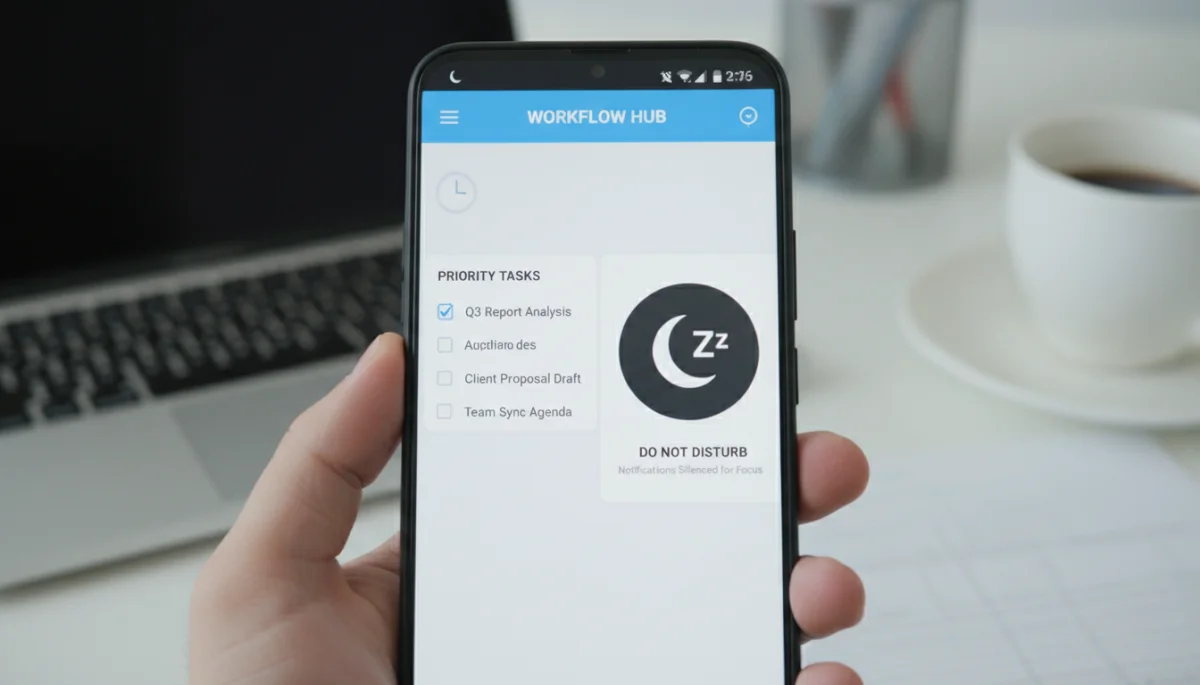
This is particularly useful for periods when you need deep concentration. You can select social media, news, or gaming apps as distracting, and Focus Mode will help you resist the urge to check them. It’s an active tool for managing your attention, providing a digital barrier against apps that tend to pull you away from your tasks. By integrating Focus Mode into your routine, you can create dedicated periods of uninterrupted work or relaxation.
Smart Notification Management Techniques
Beyond the core settings, there are several smart techniques and habits you can adopt to further refine your notification experience. These methods focus on ongoing management and proactive behaviors that prevent notification overload from creeping back in. It’s about developing a mindful approach to how your phone interacts with you.
Effective notification management isn’t a one-time setup; it’s an ongoing process. As you install new apps or your priorities shift, you’ll need to revisit your settings. Integrating these techniques into your routine ensures that your Android device remains a helpful assistant rather than a demanding master.
Reviewing Notification History
Android’s notification history feature (found in Settings > Apps & notifications > Notifications > Notification history) is an invaluable tool. It shows you all the notifications you’ve received recently, even those you might have dismissed without reading. This can be an eye-opener, revealing which apps are the biggest culprits for sending excessive or irrelevant alerts.
By regularly reviewing your notification history, you can identify patterns and pinpoint apps or channels that need their settings adjusted. It provides concrete data to inform your customization decisions, helping you to continuously refine your notification strategy. This proactive review prevents notification creep and helps maintain a streamlined experience.
Using Notification Snooze
For notifications that are important but not urgent, or those you want to address later, the notification snooze feature is incredibly useful. When a notification appears, you can often swipe it slightly to the side to reveal a snooze option, allowing you to temporarily hide it and have it reappear after a set period (e.g., 15 minutes, 1 hour).
This prevents important alerts from being forgotten while allowing you to defer them until a more convenient time. It’s a great way to manage tasks that come in via notifications without immediately interrupting your current activity. Snoozing helps maintain your flow while ensuring nothing falls through the cracks.
Maintaining Digital Well-being with Organized Notifications
The ultimate goal of learning how to organize app notifications on Android without missing important messages is to foster a healthier relationship with your device. Digital well-being isn’t just a buzzword; it’s about consciously managing your technology use to support your mental and physical health. A well-organized notification system is a cornerstone of this effort.
A constant barrage of notifications can lead to increased stress, reduced focus, and a feeling of being constantly “on call.” By taking control of your alerts, you reclaim your attention and reduce the cognitive load associated with managing digital interruptions. This leads to a more peaceful and productive digital experience, allowing you to be present where it matters most.
Reducing Screen Time and Distractions
By silencing non-essential notifications, you naturally reduce the urge to pick up your phone every few minutes. This, in turn, can lead to a significant reduction in screen time and a decrease in mindlessly checking your device. When your phone only alerts you for truly important matters, it becomes a tool that serves you, rather than a demanding master.
This mindful approach frees up mental space, allowing you to engage more deeply with your work, hobbies, and personal interactions. It’s about breaking the habit of instant gratification from every ping and instead choosing when and how you engage with your digital world. A quieter phone often means a calmer mind.
Enhancing Focus and Productivity
When you’re not constantly interrupted by irrelevant pings, your ability to focus on tasks dramatically improves. Organized notifications mean fewer context switches, which are known productivity killers. By setting clear boundaries for your apps, you create an environment conducive to deep work and sustained concentration.
Imagine working on a complex project without your phone constantly vying for your attention. This is the power of a well-managed notification system. It allows you to dedicate your full cognitive resources to the task at hand, leading to higher quality work and a greater sense of accomplishment. Your Android device becomes an enabler of productivity, not a detractor.
Advanced Tips for Notification Mastery
For those who want to take their notification organization to the next level, Android offers even more advanced features and third-party solutions. These tips are for users who have mastered the basics and are looking for even finer control over their digital environment. They can help you create a truly bespoke notification experience.
While Android’s built-in tools are robust, external apps and system-level tweaks can further enhance your control. Experimenting with these advanced options can lead to a notification system that perfectly aligns with your unique needs and preferences, offering unparalleled peace of mind and productivity.
Using Third-Party Notification Management Apps
While Android’s native controls are extensive, some third-party apps offer additional features for notification management. Apps like BuzzKill or FilterBox provide advanced filtering, custom rules, and even the ability to create notification summaries. These can be particularly useful for power users or those with very specific needs not fully met by stock Android.
- Custom Rules: Create complex rules based on keywords, sender, or time of day.
- Notification Summaries: Receive a digest of non-urgent notifications at specific times.
- Smart Silencing: Automatically silence certain notifications when you’re in specific locations or using certain apps.
These apps can automate many of the manual adjustments you might make, saving time and ensuring consistency. However, be mindful of granting them extensive permissions, as they will need access to your notifications. Always choose reputable apps and review their privacy policies before installation.
Automating Notification Profiles with Tasker
For the ultimate in customization, apps like Tasker allow you to create highly personalized automation rules for your notifications. You can set up profiles that automatically adjust notification settings based on location, Wi-Fi network, time of day, calendar events, or even the state of other apps. For example, your phone could automatically switch to silent mode when you enter your office and revert to normal when you leave.
Tasker’s capabilities are vast, allowing you to design a dynamic notification system that adapts to your life without constant manual intervention. While it has a steeper learning curve, the level of control it offers is unmatched. This automation ensures that your notification preferences are always aligned with your current context, providing a seamless and distraction-free experience.
| Key Aspect | Description |
|---|---|
| Notification Channels | Granular control over specific alert categories within each app, allowing tailored sounds, vibrations, and visibility. |
| Prioritization | Identifying and elevating critical app communications (e.g., family, work) while minimizing less important alerts. |
| Do Not Disturb (DND) | System-wide silencing with customizable exceptions for calls, messages, and scheduled quiet times. |
| Focus Mode | Temporarily pauses distracting apps and mutes their notifications to enhance concentration during specific periods. |
Frequently Asked Questions About Android Notifications
You can typically access notification settings by going to your phone’s ‘Settings’ app, then selecting ‘Apps & notifications,’ and finally ‘Notifications.’ Alternatively, long-press on any incoming notification and tap the gear icon to jump directly to that app’s notification controls.
Notification channels categorize alerts within an app, allowing you to control specific types of notifications (e.g., ‘personal messages,’ ‘promotions’) individually. They are crucial for fine-tuning your alerts, letting you silence irrelevant pings while ensuring important ones still come through.
Yes, by enabling ‘Do Not Disturb’ mode and configuring its exceptions. You can allow calls and messages from ‘Starred contacts’ or ‘Repeat callers’ to bypass DND, ensuring you only receive alerts from your most important connections during quiet periods.
Do Not Disturb silences all notifications system-wide with exceptions for calls/messages. Focus Mode specifically pauses notifications from a chosen list of distracting apps, graying out their icons to help you concentrate on productive tasks without interruption from those particular applications.
Absolutely. Android’s ‘Notification history’ feature, found in ‘Settings’ under ‘Apps & notifications,’ keeps a log of all recently received notifications. This allows you to catch up on any alerts you might have dismissed or overlooked, providing a comprehensive overview of your device’s activity.
Conclusion
Mastering how to organize app notifications on Android without missing important messages is an essential skill in today’s digital age. By understanding Android’s robust notification system, prioritizing your critical communications, and actively customizing settings, you can transform your smartphone into a powerful, yet unobtrusive, tool. Leveraging features like notification channels, Do Not Disturb, and Focus Mode empowers you to reclaim your focus, reduce digital distractions, and significantly enhance your overall digital well-being. This proactive approach ensures that your device serves your needs, allowing you to stay connected to what truly matters while enjoying periods of uninterrupted peace and productivity.
