iPhone Focus Settings: Set Boundaries on Social Apps
In today’s hyper-connected world, managing digital distractions is crucial for well-being and productivity. Learning how to use iPhone Focus settings to set boundaries around social apps can significantly transform your relationship with your device, allowing you to reclaim your time and attention.
Understanding iPhone Focus Modes
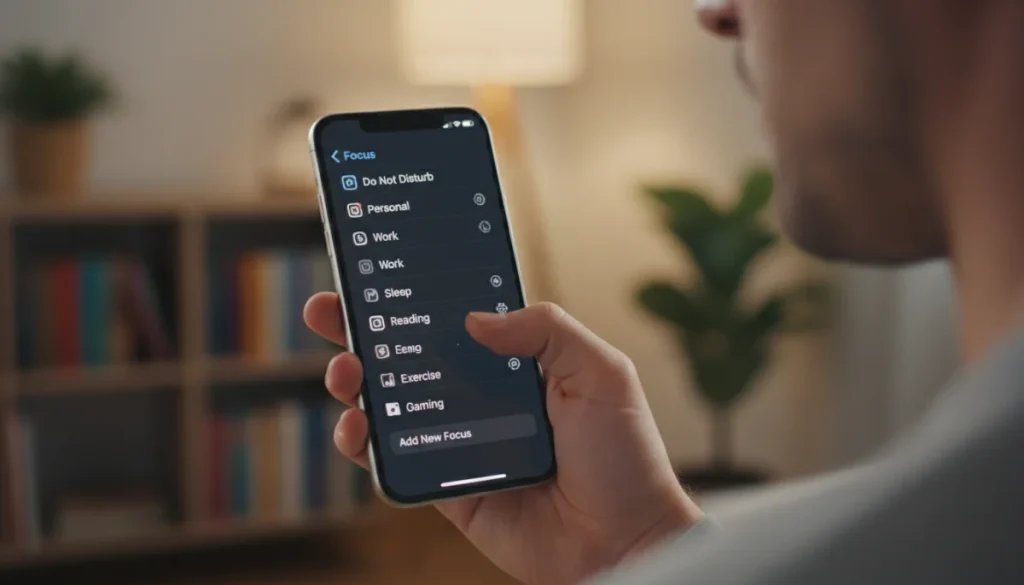
iPhone Focus modes, introduced with iOS 15, are powerful tools designed to help you minimize distractions and concentrate on what matters most. They build upon the foundational ‘Do Not Disturb’ feature, offering a more nuanced and customizable approach to notification management.
Instead of a simple on/off switch, Focus allows you to create tailored environments for different activities. This means you can have a specific set of rules for when you’re working, sleeping, driving, or simply want some personal time away from constant pings. The beauty lies in its flexibility, enabling you to define precisely who can reach you and which apps can send notifications during these periods.
The Evolution from Do Not Disturb
Before Focus, ‘Do Not Disturb’ was the primary method for silencing notifications. While effective, it was a blunt instrument, often leading to missed important calls or messages because it lacked granular control. Focus modes address this by allowing exceptions and context-specific configurations.
- Personalized Profiles: Create distinct profiles for different aspects of your life.
- App-Specific Control: Choose which apps are allowed to send notifications.
- Contact Exceptions: Specify individuals whose calls or messages can break through.
- Home Screen Customization: Tailor your home screen to show only relevant apps.
Why Focus is Essential for Social App Boundaries
Social media apps are designed to be engaging, often employing psychological triggers to keep you hooked. This constant demand for attention can disrupt workflows, reduce productivity, and even impact mental health. Focus modes provide a digital fence, enabling you to enjoy the benefits of social connectivity without succumbing to its addictive nature.
By consciously setting boundaries, you regain control over your digital consumption. It’s not about abandoning social media entirely, but rather about interacting with it on your terms, at times that suit you, rather than letting it dictate your schedule. This proactive approach fosters healthier digital habits and reduces the impulse to constantly check for updates.
In essence, Focus modes offer a sophisticated framework for managing your digital environment. By understanding their capabilities, you can move beyond simple notification silencing to create a truly personalized and productive iPhone experience, especially when it comes to taming the allure of social applications.
Setting Up Your First Custom Focus Mode
Creating a custom Focus mode is the cornerstone of managing your social app interactions effectively. This process allows you to define the parameters that best suit your needs, whether it’s for work, personal time, or specific tasks. It’s a straightforward setup that yields significant benefits in reducing digital clutter.
To begin, navigate to your iPhone’s Settings app and locate the ‘Focus’ option. Here, you’ll see a list of pre-existing Focus modes, but for precise social app boundary setting, creating a new, custom one is often the most effective approach. This ensures that every aspect is tailored to your unique requirements.
Step-by-Step Customization
When you tap the ‘+’ icon to add a new Focus, you’ll be presented with several options. Choosing ‘Custom’ gives you the most control. You’ll then be prompted to name your Focus mode, select an icon, and choose a color, making it easily identifiable in your Control Center.
- Name Your Focus: Choose a descriptive name like ‘Social Break,’ ‘Deep Work,’ or ‘Family Time.’
- Select Icon and Color: Personalize it for quick recognition.
- Choose Allowed Notifications: This is where you define who and what can interrupt you.
Allowing Notifications from Specific People
Within your custom Focus, you can specify which contacts are permitted to send you notifications. This is incredibly useful for ensuring that urgent communications from family, close friends, or colleagues still reach you, even when you’re trying to minimize distractions from other sources. You can select individuals or entire groups from your contacts.
It’s important to review this list periodically, adding or removing contacts as your priorities change. This flexibility ensures that your Focus mode remains relevant and effective over time. Consider who truly needs to reach you at any given moment, and don’t be afraid to be selective.
Selecting Allowed Apps for Notifications
This is arguably the most critical step for setting boundaries around social apps. In this section, you will explicitly choose which applications are allowed to send you notifications when this Focus mode is active. The key is to be restrictive here, especially with social media.
For a ‘Deep Work’ Focus, you might allow only communication apps like Slack or email, while completely blocking Instagram, Twitter, and Facebook. For a ‘Social Break’ Focus, you might allow only messaging apps and perhaps one preferred social platform. The goal is to consciously decide which apps deserve your attention during this specific period, helping you to effectively use iPhone Focus settings to set boundaries around social apps.
Managing Social App Notifications within Focus Modes
Once you’ve created your custom Focus mode, the next crucial step is fine-tuning how social applications behave within it. This involves not just blocking notifications but also understanding how to manage their visibility and impact on your overall digital environment. Effective management here is key to truly leveraging iPhone Focus settings to set boundaries around social apps.
The system provides a robust set of options to control notifications from specific apps. This granular control allows you to differentiate between essential updates and distracting pings, ensuring that your Focus mode serves its purpose without causing you to miss truly important information.
Silencing Specific Apps or Categories
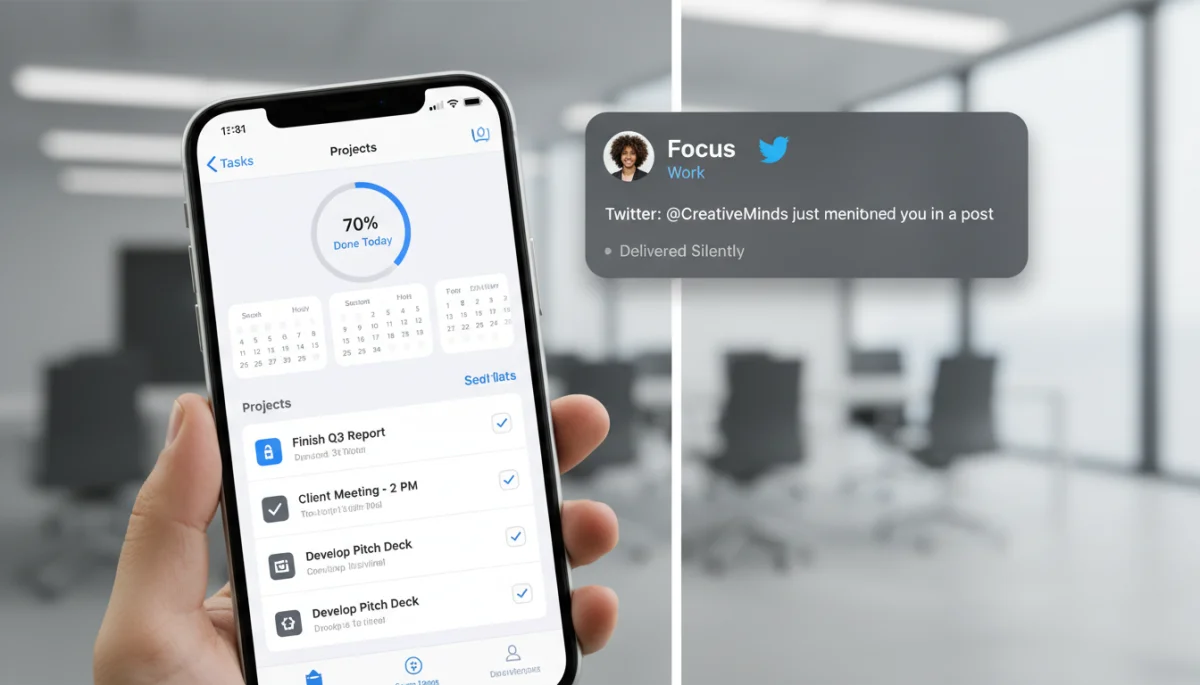
Within each Focus mode, you have the power to explicitly silence notifications from certain apps. This is where you’ll target your social media applications. You can choose to either silence them entirely or allow them to deliver notifications silently, meaning they’ll appear in Notification Center but won’t make a sound or vibrate.
- Completely Silence: No alerts, sounds, or vibrations from chosen apps.
- Deliver Silently: Notifications appear in Notification Center but don’t interrupt.
- Review App List: Regularly check which apps are permitted to send alerts.
For most social apps when you’re trying to focus, a complete silence is often the best approach. This removes the temptation to check your phone every time a new like or comment comes in, allowing you to stay immersed in your current task or activity.
Home Screen Customization for Focus Modes
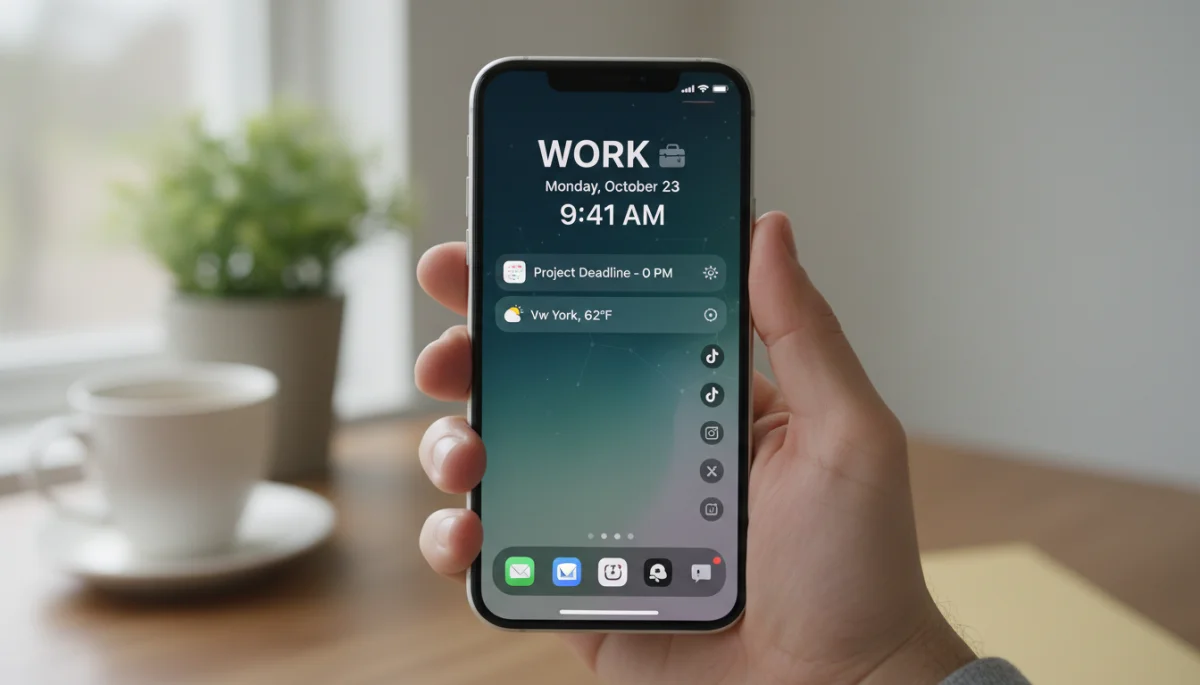
A powerful, yet often overlooked, feature of Focus modes is the ability to customize your Home Screen. When a specific Focus mode is active, you can choose to display only certain pages of your Home Screen, effectively hiding distracting social media apps from view. This reduces the visual clutter and the unconscious urge to tap on their icons.
Consider creating a dedicated Home Screen page for productivity apps, and another for social media. Then, when your ‘Work’ Focus is active, only show the productivity page. When your ‘Personal’ Focus is on, you might allow the social media page. This visual boundary reinforces your digital discipline and makes it harder to fall into old habits.
Lock Screen Appearance and Focus
Focus modes also allow you to control what appears on your Lock Screen. You can dim the Lock Screen, show or hide recent notifications, and even choose a specific Lock Screen wallpaper that corresponds to your active Focus. This visual cue can further reinforce the mode you’re in.
By minimizing the visual stimulation on your Lock Screen, you reduce the likelihood of being drawn into your phone just to clear notifications. This subtle but effective control helps maintain your chosen boundaries, providing a consistent experience across all aspects of your iPhone usage when a Focus mode is active.
Scheduling and Automating Your Focus Modes
The true power of iPhone Focus settings lies in their ability to be scheduled and automated. Manually activating a Focus mode each time you need it can become cumbersome and lead to inconsistencies. By setting up schedules, you ensure that your digital boundaries are consistently maintained, even when you forget to switch them on.
Automation takes this a step further, allowing your iPhone to intelligently activate Focus modes based on location, app usage, or even specific times of the day. This proactive management significantly reduces the mental effort required to maintain digital discipline, making it easier to use iPhone Focus settings to set boundaries around social apps.
Time-Based Schedules
The most common form of automation is time-based scheduling. You can set a Focus mode to turn on and off at specific times, every day or on selected days of the week. For example, you might schedule a ‘Work’ Focus to activate from 9 AM to 5 PM on weekdays, and a ‘Sleep’ Focus from 10 PM to 7 AM daily.
This ensures that during your designated working hours, social media notifications are automatically silenced, and during your sleep, your phone remains undisturbed. It’s a simple yet highly effective way to create consistent digital routines without constant manual intervention.
Location-Based Activation
Focus modes can also be triggered by your physical location. If you have a specific office or a quiet study spot, you can configure a ‘Work’ or ‘Study’ Focus to activate automatically when you arrive at that location and deactivate when you leave. This contextual automation is incredibly convenient.
Imagine your iPhone automatically shifting into a ‘No Social’ Focus as soon as you step into your workplace. This seamless transition helps you stay in the zone without having to remember to manually adjust settings. It’s an intelligent way to align your digital environment with your physical one.
App-Based Automation
Another powerful automation option is to link a Focus mode to specific applications. For instance, you could set up a ‘Creative’ Focus that activates whenever you open a design app or a writing tool. This ensures that while you’re engaged in creative work, other distracting apps, especially social media, are automatically silenced.
This type of automation is particularly useful for tasks that require deep concentration. By associating a Focus mode with the apps you use for these tasks, you create an instant, distraction-free bubble, making it much easier to maintain your flow and productivity without being pulled away by social alerts.
Advanced Focus Mode Features and Integrations
Beyond basic scheduling and notification management, iPhone Focus modes offer several advanced features and integrations that can further enhance your ability to set robust boundaries around social apps. Exploring these options allows for a more sophisticated and personalized digital environment, truly optimizing how to use iPhone Focus settings to set boundaries around social apps.
These advanced capabilities allow for greater control over who can reach you in emergencies, how your status is communicated to others, and how different Focus modes interact with each other. Understanding them can elevate your digital well-being strategy.
Focus Filters for App Customization
Introduced in iOS 16, Focus Filters allow apps to dynamically adjust their content or behavior based on the active Focus mode. For example, you could configure your Mail app to only show your work email inbox when your ‘Work’ Focus is active, hiding personal emails until your ‘Personal’ Focus is on.
While not directly for social media apps in terms of hiding content within the app itself (most social apps don’t support Focus Filters yet), this feature hints at future possibilities and can be used for other productivity apps to further reduce cognitive load when managing different aspects of your digital life. It compartmentalizes your digital world effectively.
Share Focus Status
When a Focus mode is active, you can choose to share your Focus status with others. This means that if someone tries to message you, they’ll see a small note indicating that you have notifications silenced. This helps manage expectations and reduces the need to explain why you might not be responding immediately.
- Manage Expectations: Inform contacts you’re currently focused.
- Reduce Pressure: Lessens the feeling of needing to respond instantly.
- Privacy Control: Choose who sees your Focus status.
This feature is particularly useful for setting boundaries with social contacts. They’ll understand you’re not ignoring them, but rather engaged in something important. It’s a polite and effective way to maintain your digital space without causing misunderstandings.
Smart Activation and Suggestions
Your iPhone can learn your habits and suggest Focus modes based on your activity, location, and time of day. Over time, it might suggest activating a ‘Reading’ Focus when you open a book app or a ‘Driving’ Focus when it detects you’re in a moving vehicle. This ‘Smart Activation’ can be incredibly helpful for maintaining consistency.
You can review and approve these suggestions, or turn them off if you prefer manual or strictly scheduled activation. This intelligent assistance makes it even easier to integrate Focus modes seamlessly into your daily routine, further solidifying your ability to use iPhone Focus settings to set boundaries around social apps.
Integrating Focus Modes with Digital Well-being Practices
While iPhone Focus settings provide the technical framework for setting boundaries, their true impact is realized when integrated with broader digital well-being practices. These settings are tools, and like any tool, their effectiveness depends on how they are used within a conscious strategy for healthier tech habits.
Combining Focus modes with mindfulness, scheduled breaks, and regular self-assessment can create a comprehensive approach to digital health. It’s about building a sustainable relationship with technology that supports your goals rather than detracting from them.
Mindful Usage and Intentionality
Focus modes empower intentionality. Before activating a Focus, take a moment to reflect on your purpose. Are you entering a ‘Work’ Focus to complete a specific task? Are you enabling ‘Personal Time’ to fully engage with family without social media distractions? This mindful approach reinforces the purpose of the Focus mode.
By consciously choosing your digital environment, you move away from reactive phone usage to proactive control. This shift in mindset is fundamental to breaking the cycle of compulsive social media checking and truly benefiting from the boundaries you’ve set.
Scheduled Digital Detoxes and Breaks
Use Focus modes to facilitate scheduled digital detoxes or short breaks throughout your day. For example, a ‘Lunch Break’ Focus could temporarily allow access to a favorite podcast app but completely block all social media, ensuring your break is genuinely restorative rather than another opportunity for endless scrolling.
- Define Purpose: What do you want to achieve during this break?
- Set Time Limits: Use Focus schedules for fixed break durations.
- Exclude Social Apps: Ensure social media doesn’t creep into your downtime.
These structured breaks, free from social media pressures, can significantly improve your mental clarity and reduce digital fatigue. They provide a vital reset button, allowing you to return to your tasks feeling refreshed.
Regular Review and Adjustment
Digital well-being is not a one-time setup; it’s an ongoing process. Regularly review your Focus mode configurations. Are they still serving your needs? Have your priorities changed? Perhaps a new social app has emerged, or you’ve found a new productivity tool that needs to be integrated.
Don’t be afraid to adjust your Focus modes. Experiment with different settings, try new schedules, and refine your allowed app lists. The goal is to find a balance that works best for you, one that allows you to harness the power of your iPhone without being overwhelmed by its potential for distraction, especially from social media.
Troubleshooting and Optimizing Your Focus Setup
Even with the best intentions, setting up and maintaining effective Focus modes can sometimes present challenges. It’s not uncommon to encounter situations where notifications still slip through, or a Focus mode doesn’t activate as expected. Understanding how to troubleshoot these issues and continuously optimize your setup is crucial for long-term success in using iPhone Focus settings to set boundaries around social apps.
A proactive approach to refining your Focus configurations ensures that they remain a powerful ally in your quest for digital balance, rather than becoming a source of frustration. Regular checks and minor adjustments can make a significant difference.
Common Issues and Solutions
One frequent issue is notifications still appearing despite an active Focus mode. This often stems from incorrect settings in the ‘Allowed People’ or ‘Allowed Apps’ sections. Double-check these lists to ensure no unintended exceptions have been made. Remember, if an app or contact is on the ‘Allow’ list, their notifications will bypass the Focus settings.
Another common concern is a Focus mode failing to activate or deactivate on schedule. Verify your time, location, or app-based triggers. Ensure location services are enabled for Focus if you’re using location-based automation. Sometimes, simply toggling the Focus mode off and on again can reset any minor glitches.
Refining Notification Delivery
If you find that certain app notifications are still too distracting even when delivered silently, consider going into the individual app’s notification settings (Settings > Notifications > [App Name]) and customizing them further. You might choose to turn off badges, sounds, or even entire alert types for social media apps, regardless of Focus mode.
- App-Specific Settings: Adjust notification types (banners, alerts, sounds).
- Badges: Turn off app icon badges to reduce visual cues of new activity.
- Critical Alerts: Ensure only truly critical alerts bypass all settings (rare for social apps).
This deep dive into individual app settings provides an additional layer of control, complementing your Focus modes and ensuring a truly peaceful digital environment during your focused periods.
Leveraging Focus for Cross-Device Consistency
If you use multiple Apple devices (iPad, Mac, Apple Watch), ensure that ‘Share Across Devices’ is enabled in your Focus settings. This synchronizes your Focus modes across all your devices, providing a seamless and consistent experience. When a Focus mode is active on your iPhone, it will automatically activate it on your other devices, preventing notifications from slipping through on a secondary screen.
This cross-device consistency is vital for comprehensive digital boundary setting. Without it, you might successfully silence your iPhone only to be distracted by a social media notification popping up on your iPad or Mac. By syncing, you create a unified, distraction-free ecosystem.
| Key Aspect | Brief Description |
|---|---|
| Custom Focus Modes | Tailor specific profiles to manage notifications from social apps based on your activity. |
| Notification Control | Silence or allow specific social apps to deliver notifications silently during focused periods. |
| Home Screen Customization | Hide distracting social app pages to reduce visual temptation during active Focus modes. |
| Automation & Scheduling | Set Focus modes to activate automatically based on time, location, or app usage for consistent boundaries. |
Frequently Asked Questions About iPhone Focus Settings
To create a new custom Focus mode, open the Settings app, tap ‘Focus,’ then tap the ‘+’ icon in the top right corner. Select ‘Custom,’ name your Focus, choose an icon and color, and then configure allowed people and apps for notifications. This allows precise control over your digital environment.
Yes, you can. When setting up or editing a Focus mode, go to ‘Customize Screens.’ Here, you can choose specific Home Screen pages to display, effectively hiding pages containing social media apps. This visual boundary helps reduce the temptation to open distracting applications during focused periods.
‘Share Focus Status’ informs others that you have notifications silenced when they try to message you. It helps manage expectations, so people understand you’re not ignoring them, but rather engaged in a focused activity. You can enable or disable this for each Focus mode under its settings.
Within each Focus mode’s settings, you can specify ‘Allowed People’ whose calls or messages will always come through. Additionally, you can enable ‘Emergency Bypass’ for specific contacts, ensuring their calls always ring even if they’re not on your allowed list. This balances focus with accessibility.
Yes, if ‘Share Across Devices’ is enabled in your Focus settings (Settings > Focus). When this option is active, activating a Focus mode on one Apple device, like your iPhone, will automatically activate it on your iPad, Mac, and Apple Watch, providing a consistent, distraction-free experience across your ecosystem.
Conclusion
Mastering how to use iPhone Focus settings to set boundaries around social apps is more than just a technical skill; it’s a strategic move towards reclaiming your digital peace and enhancing your overall well-being. By leveraging custom Focus modes, meticulously managing notifications, and automating their activation, you can transform your iPhone from a source of constant distraction into a powerful tool that serves your productivity and personal goals. Remember, digital boundaries are not about deprivation, but about intentionality and control. Regularly review and adjust your settings to ensure they continue to align with your evolving needs, fostering a healthier and more balanced relationship with your technology in the long run.
