Google Meet Guest Access: Essential Checks Before Inviting
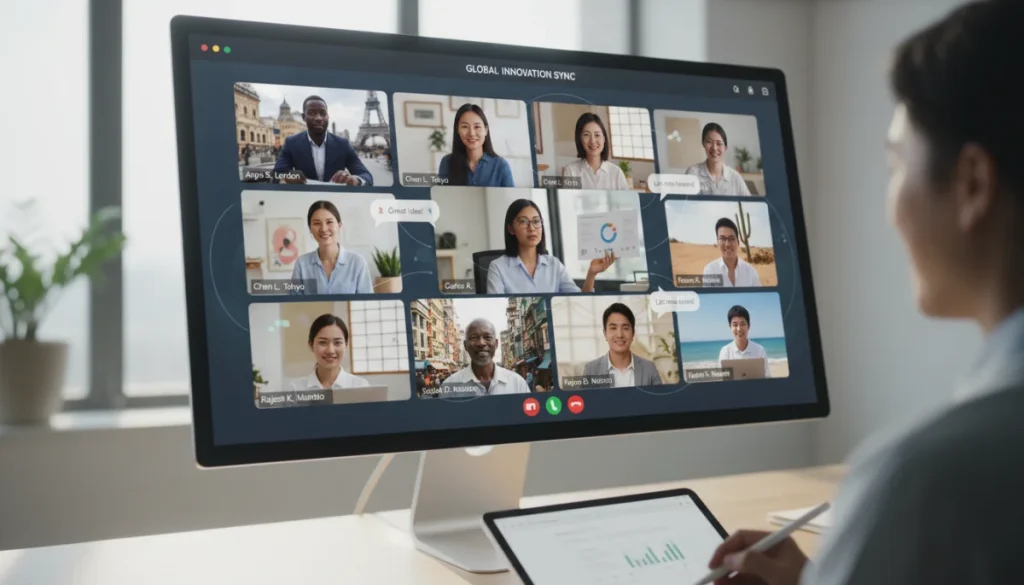
Before inviting external participants to Google Meet, ensure optimal guest access by verifying organizational settings, understanding security protocols, and preparing for a smooth, productive meeting experience.
Ensuring smooth and secure Google Meet guest access is crucial for effective collaboration with external partners, clients, or consultants. A little proactive checking can prevent frustrating delays and potential security vulnerabilities, making your virtual meetings productive and professional.
Understanding Google Meet Guest Access Fundamentals
Google Meet is a powerful tool for video conferencing, but its effectiveness, especially when involving external participants, hinges on a clear understanding of its guest access mechanisms. Unlike internal participants who are automatically authenticated through your organization’s Google Workspace, guests require specific considerations to ensure they can join without issues.
The fundamental principle behind guest access is a balance between ease of entry and security. Google Meet is designed to facilitate seamless connections, but it also provides administrators and meeting organizers with controls to manage who can enter a meeting and what they can do once inside. This dual focus means that while inviting a guest might seem straightforward, there are layers of settings and best practices that, if overlooked, can lead to disruptions.
How External Guests Join Meetings
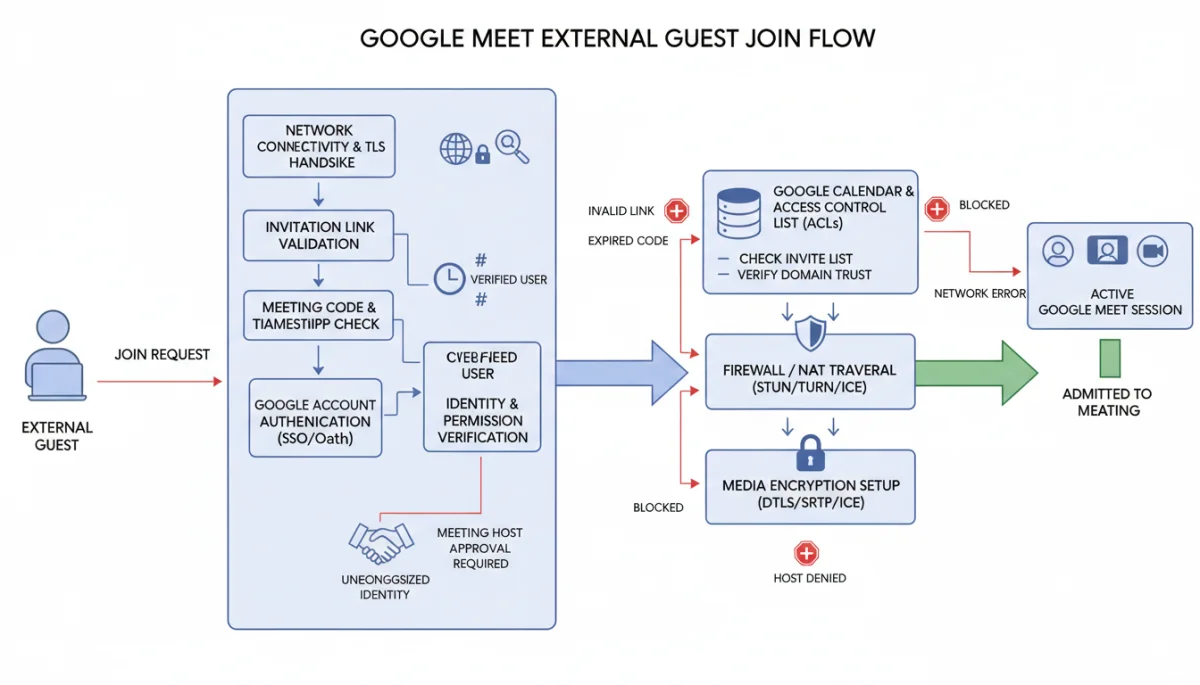
External guests typically join Google Meet meetings through an invitation link. When they click this link, they are usually directed to a waiting room, where the host or another authorized participant must admit them. This waiting room acts as a gatekeeper, allowing the host to verify the identity of the guest before granting full access to the meeting. This is a critical security feature, preventing uninvited individuals from disrupting private discussions.
- Invitation Link: The primary method for guests to join.
- Waiting Room: A default security measure requiring host approval.
- Google Account Requirement: Guests often need a Google account, though anonymous joining is sometimes possible depending on organizational settings.
The ability to join anonymously or without a Google account is a setting controlled by the Google Workspace administrator. For many organizations, requiring a Google account for guests adds an extra layer of traceability and security, as it links the participant to a known identity. However, this can also be a barrier for guests who do not have a Google account or prefer not to use one. Understanding your organization’s policy on this is the first step in preparing for external guests.
In conclusion, the foundation of successful Google Meet guest access lies in appreciating the interplay between convenience and security. By understanding how guests typically join and the initial hurdles they might face, meeting organizers can better prepare and troubleshoot potential issues before they arise, ensuring a smooth start to any collaborative session.
Pre-Meeting Checklist: Essential Permissions and Settings
Before sending out invitations to external participants, a thorough check of your Google Meet permissions and settings is paramount. This proactive approach can prevent common entry issues and ensure a secure meeting environment. These settings are often managed at the organizational level by Google Workspace administrators, but individual meeting organizers also have control over certain aspects.
The most critical element to verify is whether your organization’s Google Workspace allows external participants to join meetings. Some organizations, particularly those with stringent security policies, may restrict external access altogether. If this is the case, you’ll need to consult your IT department to understand the necessary procedures or alternative solutions.
Administrator-Level Controls for Guest Access
Google Workspace administrators have the ultimate control over guest access settings. They can configure policies that dictate:
- External Participant Access: Whether external users can join meetings at all.
- Anonymous Join: If users without a Google account can join meetings.
- Domain Whitelisting/Blacklisting: Specific external domains that are allowed or blocked.
- Chat and Screen Sharing for Guests: What features guests can use during a meeting.
It’s vital to confirm with your administrator that these settings align with your meeting’s requirements. For instance, if you plan to collaborate on documents via screen sharing, ensure that guests have the necessary permissions enabled by the administrator. Without these foundational settings correctly configured, even the most carefully planned invitation will fall flat.
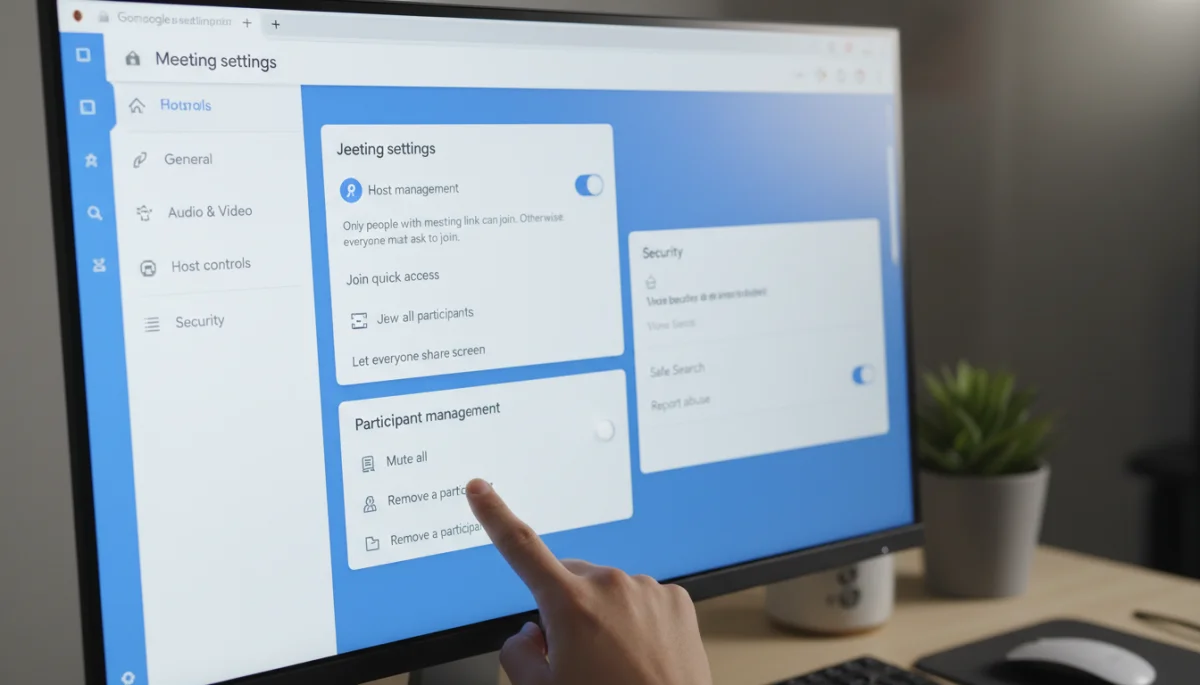
Beyond administrative settings, individual meeting organizers also have certain controls. When scheduling a meeting, you can often specify whether guests require host approval to join. While the waiting room is a default, some advanced settings might allow for direct entry, though this is generally not recommended for sensitive meetings with external parties.
In summary, a comprehensive pre-meeting checklist involves both organizational and individual settings. Communicating with your Google Workspace administrator about guest access policies and understanding your own meeting controls are key steps to guaranteeing a hassle-free experience for everyone involved. This diligence ensures that external participants can connect smoothly and securely, fostering productive collaboration.
Security Considerations for External Participants
Inviting external participants to a Google Meet meeting introduces a range of security considerations that must be addressed to protect sensitive information and maintain meeting integrity. While Google Meet offers robust security features, the responsibility also falls on the meeting organizer to utilize these features effectively and communicate best practices to guests.
The primary concern revolves around unauthorized access and data leakage. When external users join, they are essentially granted temporary access to a shared digital space. Without proper safeguards, this access could be exploited. Therefore, understanding and implementing Google Meet’s security options is not just good practice, but a necessity.
Protecting Your Meeting Space
Several features within Google Meet help secure your meeting:
- Host Controls: These allow the host to manage participants, including muting microphones, removing disruptive individuals, and ending the meeting for all.
- Quick Access: This setting, managed by the host, determines if people outside your organization can join without asking, or if they must wait to be admitted. For external guests, keeping Quick Access off is generally recommended.
- Screen Sharing Restrictions: Depending on admin settings, guests might be prevented from sharing their screen, which can limit potential data exposure.
It is always advisable to keep Quick Access off when external guests are expected. This forces all external participants into the waiting room, allowing the host to visually verify each individual before admitting them. This simple step significantly reduces the risk of uninvited attendees joining the conversation. Furthermore, educating guests on basic meeting etiquette, such as not sharing the meeting link with others, adds another layer of security through shared responsibility.
Another crucial aspect is the content shared during the meeting. If sensitive documents or screens are to be presented, ensure that only the necessary information is displayed. Remind participants, both internal and external, about confidentiality agreements if applicable. Google Meet’s recording feature also requires careful consideration; if a meeting with external guests is recorded, ensure all participants are aware and have consented, especially if the recording will be shared or stored.
In essence, securing your Google Meet session with external participants involves a combination of leveraging built-in controls, educating attendees, and maintaining vigilance throughout the meeting. By prioritizing these security measures, you can create a safe and productive environment for all collaborators, fostering trust and ensuring the integrity of your discussions.
Troubleshooting Common Guest Access Issues
Even with thorough preparation, external participants might occasionally encounter difficulties joining a Google Meet call. Being prepared to troubleshoot these common issues can save valuable meeting time and reduce frustration for both the host and the guest. Most problems stem from either incorrect settings, network configurations, or user error.
One of the most frequent issues is a guest being unable to enter the meeting despite having the correct link. This often points to an administrative setting that requires host approval, or a restriction on external access that was overlooked. Another common scenario involves audio or video problems once a guest has joined, indicating device or network issues on their end.
Resolving Entry Barriers and Technical Glitches
Here’s a quick guide to common troubleshooting steps:
- “Waiting for Host” Loop: If a guest is stuck in the waiting room, ensure the host is already in the meeting and actively admitting participants. Check that Quick Access is off, requiring explicit admission.
- “Cannot Join Meeting” Error: This could be due to organizational restrictions on external domains or anonymous users. Verify with your Google Workspace administrator if their policies prevent the guest’s specific access method.
- Audio/Video Not Working: Advise guests to check their browser permissions for microphone and camera access. They should also verify their default audio/video devices within Google Meet settings. Using headphones often resolves echo issues.
For guests encountering persistent issues, a simple first step is often to refresh their browser or try joining from a different browser (Chrome is generally recommended for Google Meet). Clearing browser cache and cookies can also resolve unexpected glitches. If the problem persists, asking the guest to try joining from a different device or network, if possible, can help isolate whether the issue is device-specific or network-related.
It’s also beneficial to have a backup communication method, such as a phone number or chat application, to communicate with guests who are struggling to join. This allows you to provide real-time assistance without disrupting the main meeting. By anticipating these common problems and having a clear set of troubleshooting steps, you can significantly improve the guest experience and ensure your meetings start on time and without unnecessary delays.
Optimizing the Guest Experience: Best Practices
Creating a positive experience for external guests in Google Meet goes beyond merely ensuring they can join the call. It involves thoughtful planning and communication that makes them feel welcome, informed, and capable of participating effectively. A smooth guest experience reflects positively on your organization and fosters better collaboration.
The goal is to minimize friction points and provide all necessary information upfront. This includes not just the meeting link, but also context, expectations, and any technical guidance they might need. A well-prepared guest is a productive guest, and a positive experience can enhance future interactions.
Enhancing Guest Participation and Engagement
Consider these best practices to optimize the guest experience:
- Clear Invitations: Send a comprehensive invitation including the meeting link, date, time (with time zone if applicable), agenda, and any necessary pre-reading materials.
- Pre-Meeting Instructions: Include simple instructions on how to join, what to do if they encounter issues, and perhaps a recommendation to test their audio/video beforehand.
- Welcome and Introductions: As the host, make an effort to welcome guests by name and facilitate introductions, helping them feel integrated into the discussion.
- Familiarize with Features: Briefly explain how guests can use essential features like chat, raising a hand, or screen sharing if those are relevant to the meeting.
Providing a brief agenda in the invitation helps guests understand the meeting’s purpose and how they might contribute. If there are specific discussion points where their input is crucial, highlight these. This allows them to prepare their thoughts and ensures their valuable time is used efficiently. Furthermore, consider starting the meeting a few minutes early to allow guests to settle in, test their connections, and address any last-minute technical hitches without feeling rushed.
During the meeting, actively encourage guest participation. Ask direct questions, invite their perspectives, and ensure they have adequate opportunities to speak. Be mindful of potential language barriers or cultural differences that might affect their comfort in speaking up. As a host, your role is to facilitate an inclusive environment where all voices are heard and valued.
Ultimately, optimizing the guest experience is about empathy and preparedness. By putting yourself in the guest’s shoes and anticipating their needs, you can transform a potentially stressful technical interaction into a seamless and engaging collaborative session, strengthening relationships and achieving better meeting outcomes.
Post-Meeting Follow-up and Feedback
The engagement with external guests in Google Meet doesn’t end when the meeting concludes. A thoughtful post-meeting follow-up is crucial for solidifying relationships, ensuring clarity on next steps, and gathering valuable feedback that can improve future interactions. This final stage is as important as the initial setup in creating a professional and efficient collaboration cycle.
Effective follow-up reinforces the meeting’s objectives and demonstrates your organization’s commitment to professionalism. It also provides an opportunity to address any lingering questions or technical issues that may have arisen, even if they were resolved during the call.
Ensuring Continued Collaboration and Improvement
Key aspects of post-meeting follow-up include:
- Summary of Action Items: Send a concise email summarizing key decisions, assigned tasks, and deadlines to all participants, especially external guests.
- Sharing Resources: Provide links to any shared documents, presentations, or meeting recordings (if applicable and consented to).
- Feedback Request: Politely ask guests for feedback on their meeting experience, particularly regarding their ability to join and participate.
Sending a meeting summary helps ensure everyone is on the same page and reduces misunderstandings. For external guests, this is particularly important as they may not have direct access to internal project management tools or communication channels. Make sure any shared resources are accessible to external users, checking permissions on Google Drive or other platforms before sharing links.
Gathering feedback from guests about their experience with Google Meet guest access is invaluable. A simple, brief survey or a direct question in the follow-up email can yield insights into areas for improvement. Did they find the instructions clear? Were there any technical hurdles? Their perspective can help refine your processes for future meetings. This continuous improvement loop is vital for maintaining high standards of virtual collaboration.
In conclusion, the post-meeting phase is an extension of the meeting itself. By providing clear summaries, accessible resources, and actively seeking feedback, you not only reinforce the outcomes of the current meeting but also lay the groundwork for more efficient and positive future collaborations with your external partners. This comprehensive approach to managing Google Meet guest access ensures a professional and productive experience from start to finish.
Advanced Guest Access Features and Future Planning
As organizations increasingly rely on virtual collaboration, understanding and leveraging advanced Google Meet guest access features becomes critical for scalability and specialized meeting needs. Beyond basic entry, Google Meet offers tools that can enhance security, manage large groups, and integrate with other services, all of which impact how external participants interact with your meetings.
Future planning for guest access involves anticipating evolving needs, staying informed about new Google Meet features, and regularly reviewing your organization’s security posture. This proactive stance ensures that your virtual meeting infrastructure remains robust and adaptable.
Exploring Enhanced Controls and Strategic Considerations
Some advanced features that impact guest access include:
- Breakout Rooms: While primarily for internal use, hosts can manage how guests are assigned and interact within breakout sessions if enabled.
- Polls and Q&A: These interactive features can be enabled for all participants, including guests, to boost engagement and gather real-time input.
- Live Streaming: For large-scale events, live streaming to a broader audience (including external guests) requires careful planning regarding access and privacy.
- Recording Controls: Advanced recording settings, such as automatic recording for specific events, need clear policies for guest consent.
For large public webinars or conferences involving numerous external guests, Google Meet’s live streaming capabilities can be invaluable. However, administrators must configure these settings carefully, considering audience access and data privacy. Similarly, utilizing interactive features like polls and Q&A can significantly enhance guest engagement, turning a passive viewing experience into an active participation opportunity. Ensure that guests are aware of how to use these features and that any collected data is handled in accordance with privacy policies.
Looking ahead, organizations should regularly review their Google Workspace settings related to guest access. As security threats evolve and Google introduces new functionalities, administrators should update policies and educate users. This might involve setting up specific security groups for different types of external collaborators or integrating Google Meet with other identity management solutions for enhanced authentication.
In conclusion, mastering Google Meet guest access goes beyond the basics. By exploring advanced features and engaging in strategic future planning, organizations can create highly secure, engaging, and scalable virtual meeting environments that effectively serve a diverse array of external participants, ensuring seamless and productive collaboration for years to come.
| Key Check | Brief Description |
|---|---|
| Organizational Policy | Verify if your Google Workspace administrator allows external guests to join meetings. |
| Meeting Host Controls | Ensure “Quick Access” is off to require host approval for external participants. |
| Guest Communication | Provide clear instructions, agenda, and troubleshooting tips to guests beforehand. |
| Security Awareness | Remind participants about confidentiality and secure sharing practices during the call. |
Frequently Asked Questions About Google Meet Guest Access
Whether guests need a Google account depends on your organization’s Google Workspace settings. Administrators can allow anonymous users or require a Google account for all external participants. Always check these settings, as they can vary widely between organizations, to avoid access issues.
The “waiting room” is a security feature where external guests wait until a host admits them. If “Quick Access” is off, all external participants will enter the waiting room, giving the host control over who joins the meeting and enhancing security.
Advise the guest to check their browser’s microphone and speaker permissions, ensure correct devices are selected in Google Meet settings, and try refreshing their browser. Using headphones often resolves common audio issues or echoes during the call.
Yes, external guests can typically share their screen or present, but this capability can be restricted by Google Workspace administrators or the meeting host. It’s good practice to confirm these permissions beforehand, especially if guest presentations are expected.
Include the meeting link, date, time (with time zone), agenda, and any pre-reading materials. Adding simple instructions on how to join, expected etiquette, and troubleshooting tips can significantly improve their experience and preparation.
Conclusion
Navigating the intricacies of Google Meet guest access is a vital skill for anyone facilitating virtual collaboration with external parties. By diligently checking organizational policies, understanding host controls, prioritizing security, and optimizing the guest experience, you can transform potential technical hurdles into seamless and productive interactions. A proactive approach to these considerations not only prevents disruptions but also fosters a professional and trustworthy environment, ultimately enhancing the effectiveness of your virtual meetings and strengthening valuable external relationships. Remember, successful collaboration begins long before the meeting link is clicked.
