Free Chat Media Storage: Keep Memories, Clear Space

To free chat media storage without losing important files, users should leverage cloud backups, selectively delete non-essential media, and utilize in-app storage management tools to archive or transfer cherished memories effectively.
Are you constantly battling a “storage full” notification on your phone or computer? If your chat apps are consuming a significant chunk of your device’s memory, you’re not alone. Learning how to free chat media storage effectively without losing precious photos, videos, and documents is a common challenge in our digital age. This guide will walk you through practical, step-by-step methods to reclaim that valuable space while ensuring your cherished files remain safe and accessible.
Understanding Chat Media Storage Consumption
Before diving into solutions, it’s crucial to understand why chat applications consume so much storage. Every photo, video, voice note, and document shared in your conversations, whether sent or received, is typically stored locally on your device by default. Over time, especially in active group chats or with frequent media sharing, these files accumulate rapidly, leading to significant storage drain.
Many popular messaging apps are designed for convenience, automatically downloading media to ensure quick access. While this is great for immediate viewing, it can quickly overwhelm your device’s capacity. Recognizing which apps are the biggest culprits is the first step toward effective management.
Why Your Device Fills Up Fast
Several factors contribute to the rapid consumption of storage by chat media. High-resolution images and videos are particularly data-intensive, and modern smartphones capture media at increasingly higher qualities. Additionally, the sheer volume of daily communication means that even small files add up quickly.
- Automatic media downloads in multiple chats.
- High-resolution photos and videos.
- Duplicated files from various sources or apps.
- Cached data from frequent app usage.
Understanding these underlying causes helps in formulating a targeted strategy to free up space. It’s not just about deleting; it’s about smart management and proactive measures to prevent future storage issues.
In essence, chat media storage consumption is a direct result of convenience features and the ever-increasing quality of digital content. By understanding this dynamic, users can better approach the task of optimizing their device’s storage without compromising their digital memories.
Leveraging Cloud Storage for Chat Media Backup
One of the most robust and reliable ways to free chat media storage without permanent deletion is by utilizing cloud storage services. Cloud platforms offer a secure, off-device location for your files, making them accessible from anywhere with an internet connection. This method ensures your memories are safe even if your device is lost, damaged, or upgraded.
There are numerous cloud storage providers available, each with its own set of features, pricing models, and storage capacities. Popular options include Google Photos, iCloud, Dropbox, and OneDrive. Most offer a free tier with a limited amount of storage, which can be a great starting point for backing up essential chat media.
Choosing the Right Cloud Service
Selecting a cloud service depends on your ecosystem and specific needs. If you’re an Android user, Google Photos offers seamless integration for photos and videos, often with automatic backup features. Apple users will find iCloud a natural fit for their devices. For cross-platform flexibility, Dropbox and OneDrive are excellent choices.
- Google Photos: Excellent for photos and videos, often with unlimited storage for ‘high-quality’ (slightly compressed) photos.
- iCloud: Deep integration with Apple devices, backing up almost everything including chat media.
- Dropbox/OneDrive: Versatile options for all file types and operating systems, good for documents and diverse media.
Once you’ve chosen a service, set up automatic backups for your media folders. This ensures that new photos and videos from your chats are automatically uploaded to the cloud, allowing you to safely delete them from your device once the backup is complete. Remember to verify that the backup process is successful before removing local copies.
Cloud storage is an indispensable tool in modern digital life, offering peace of mind and freeing up critical device space. Implementing a cloud backup strategy is a foundational step in effective chat media management.
In-App Storage Management Tools
Many popular chat applications have built-in tools designed to help users manage their storage. These tools are often overlooked but can be incredibly effective in identifying and removing large or unnecessary files directly within the app, allowing you to free chat media storage efficiently. Familiarizing yourself with these features is a smart way to maintain a lean digital footprint.
WhatsApp, Telegram, and Messenger, for instance, offer dedicated sections in their settings where you can review media, delete specific file types, or clear cached data. These tools provide a granular approach, letting you decide exactly what to keep and what to discard.
WhatsApp Storage Management
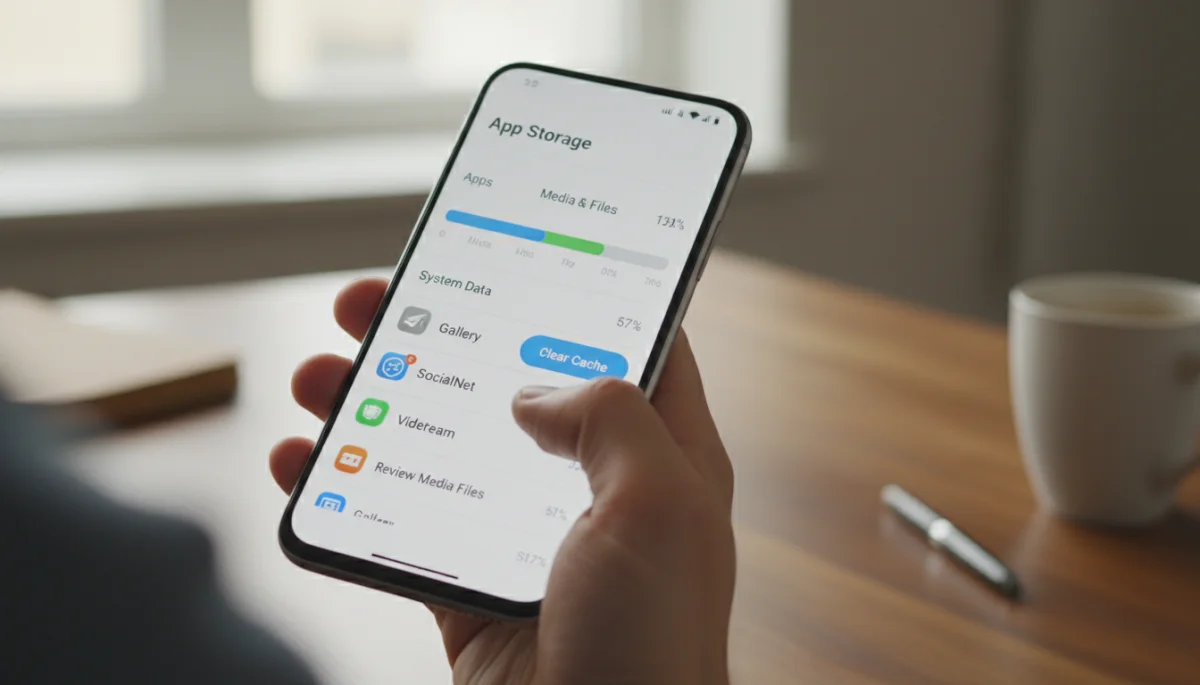
WhatsApp’s storage management tool is particularly robust. You can access it via Settings > Storage and Data > Manage Storage. Here, you’ll find a breakdown of how much space WhatsApp is using, categorized by chat. It highlights large files and frequently forwarded media, making it easy to spot and delete space hogs.
- Review and delete media larger than 5MB.
- Clear media from specific chats, especially large group chats.
- Delete forwarded media that may be duplicated.
This feature allows you to preview files before deleting, ensuring you don’t accidentally remove anything important. Regularly checking this section can prevent storage issues before they become critical.
Telegram and Messenger Options
Telegram offers similar options under Settings > Data and Storage > Storage Usage. You can set a media cache clear frequency (e.g., every week, month) or clear it manually. Messenger also allows you to clear cache and data through your device’s app settings, though it’s less granular than WhatsApp or Telegram’s internal tools.
Utilizing these in-app features is often the most direct way to manage chat media storage, as they are tailored to the specific app’s data structure. Regular use of these tools can significantly reduce the amount of space chat apps occupy on your device.
Selective Deletion and Archiving Strategies
While cloud backups and in-app tools are powerful, sometimes a more hands-on approach is needed. Selective deletion involves carefully reviewing your media and deciding what truly needs to be kept. Archiving, on the other hand, allows you to preserve conversations and media without keeping them actively on your device, an excellent way to free chat media storage.
This strategy requires a bit more time and attention but offers complete control over what stays and what goes. It’s about being intentional with your digital clutter, distinguishing between truly valuable memories and transient content.
Identifying Non-Essential Media
Start by identifying categories of media that are less critical. This often includes memes, temporary screenshots, duplicate photos, and videos that served a fleeting purpose. Many chat apps allow you to browse media chronologically or by type, making this review process easier.
- Memes and Viral Content: These often accumulate quickly and rarely hold long-term value.
- Duplicate Photos/Videos: Often arise from multiple shares or accidental downloads.
- Screenshots: Many are taken for temporary information and can be deleted after use.
- Outdated Documents: Old PDFs or temporary files that are no longer relevant.
Consider creating a “Keep” folder on your device or in the cloud for truly important items before you start deleting. This acts as a safety net and helps organize your essential media.
Utilizing Archiving Features
Many chat apps offer an archiving feature for conversations. While archiving a chat doesn’t delete its media, it removes the conversation from your main chat list, making your interface less cluttered. For media, archiving typically means moving it to a less accessible, but still preserved, location. Some apps, like Telegram, allow you to archive media within the cloud without keeping it on your device.
This two-pronged approach – selective deletion for truly unnecessary files and archiving for important but not immediately needed content – provides a balanced way to manage your storage. It ensures you maintain a clean device while still having access to your digital history.
External Storage and Device-Level Management
Beyond cloud solutions and in-app tools, there are device-level strategies and external storage options that can significantly help you free chat media storage. These methods involve managing your device’s overall storage and offloading media to physical backups, providing a robust solution for long-term data management.
External storage options are particularly useful for users with large media libraries or those who prefer to keep their data offline. Device-level management, on the other hand, focuses on optimizing how your smartphone or tablet handles its internal memory.
Using External Hard Drives and USB Sticks
For large volumes of media, transferring files to an external hard drive or a high-capacity USB stick is an excellent solution. This creates a physical backup of your chat media, allowing you to delete the files from your device and free up substantial space. It’s a particularly good option for videos and high-resolution photo albums.

- Connect your phone to a computer and manually transfer media files.
- Use a USB OTG (On-The-Go) adapter to connect a USB drive directly to your smartphone.
- Organize files into dated folders on your external drive for easy retrieval.
Remember to keep your external drives in a safe place and consider having multiple backups for critical data. While convenient, physical drives can be lost or damaged, so redundancy is key.
Device-Specific Storage Optimization
Most smartphones and tablets have built-in storage optimization features. For example, iOS devices offer “Offload Unused Apps” and “Optimize Photos” features, which can reduce the space taken by apps and store full-resolution photos in iCloud while keeping smaller versions on your device. Android devices often have a “Smart Storage” feature that automatically removes backed-up photos and videos.
Regularly checking your device’s storage settings can reveal other opportunities to free up space, such as clearing system cache or deleting large, rarely used apps. These device-level optimizations complement chat-specific strategies, creating a holistic approach to storage management.
Preventative Measures and Best Practices
Once you’ve successfully managed your existing chat media, implementing preventative measures is key to avoiding future storage woes. Proactive habits can help you maintain optimal device performance and ensure you never have to scramble to free chat media storage again. This involves adjusting app settings, regular maintenance, and mindful media consumption.
Developing these best practices will transform your digital habits, keeping your devices lean and your memories secure without constant manual intervention.
Adjusting Auto-Download Settings
The most impactful preventative measure is to disable automatic media downloads in your chat applications. Almost all messaging apps allow you to control when and how media is downloaded. You can set it to download only when connected to Wi-Fi, or even better, only when you manually tap on a file.
- WhatsApp: Settings > Storage and Data > Media auto-download.
- Telegram: Settings > Data and Storage > Automatic media download.
- Messenger: Media does not auto-download by default, but photos are saved to gallery; disable in app settings.
By preventing automatic downloads, you gain control over what gets stored on your device. You can then selectively download only the media you truly need, significantly reducing unnecessary clutter.
Regular Digital Decluttering
Just like your physical space, your digital space benefits from regular decluttering. Schedule a monthly or quarterly review of your chat media. This could involve revisiting the in-app storage management tools, reviewing your downloads folder, or checking your cloud backups to ensure everything is organized.
Consider the “one-in, one-out” rule for certain types of media. If you download a new meme, consider deleting an old one. Be mindful of what you share and receive, and don’t hesitate to delete transient content immediately after viewing it if it’s not important.
By adopting these preventative measures and best practices, you can maintain a healthy balance between convenience and storage efficiency. This proactive approach ensures your device remains optimized, and your valuable memories are always protected.
| Key Strategy | Brief Description |
|---|---|
| Cloud Backup | Move essential media to secure cloud services like Google Photos or iCloud to free local space. |
| In-App Tools | Utilize chat app features (e.g., WhatsApp storage manager) to identify and delete large or unwanted files. |
| Selective Deletion | Manually review and remove non-essential media like memes, duplicates, or temporary screenshots. |
| Disable Auto-Download | Adjust chat app settings to prevent automatic media downloads, gaining control over local storage. |
Frequently Asked Questions About Chat Media Storage
Most smartphones allow you to check app storage usage in the device settings. For instance, on Android, go to Settings > Apps > [App Name] > Storage. On iOS, navigate to Settings > General > iPhone Storage. This will show you a breakdown of data used by each application, including chat media.
Yes, clearing an app’s cache is generally safe. Cache consists of temporary files that help the app load faster. Deleting it will not remove your personal data or chat media. The app will simply rebuild the cache as you use it. It’s a quick way to reclaim a small amount of space.
No, simply moving media to cloud storage does not automatically delete it from your device. You must manually delete the files from your device *after* confirming they are successfully backed up to the cloud. Many cloud services offer an option to free up local space once content is uploaded.
For important conversations, many chat apps offer an ‘Export Chat’ or ‘Chat Backup’ feature. This typically allows you to save the chat history, including media, to a file that can be stored locally or uploaded to cloud storage. This ensures the entire context of the conversation is preserved.
The frequency depends on your usage, but a monthly or quarterly review is a good practice. If you are part of many active group chats or frequently share media, consider reviewing more often. Regularly checking helps prevent storage issues from becoming overwhelming and ensures efficient device performance.
Conclusion
Effectively managing your digital footprint, particularly the vast amounts of media accumulated through chat applications, is no longer just a good idea—it’s a necessity for optimal device performance and peace of mind. Learning how to free chat media storage without sacrificing cherished memories involves a multi-faceted approach, combining smart cloud utilization, diligent use of in-app tools, selective deletion, and proactive preventative measures. By implementing the strategies outlined in this guide, you can reclaim valuable storage space, keep your devices running smoothly, and ensure your digital memories are securely preserved for years to come. Take control of your chat media today and enjoy a clutter-free digital experience.
