How to Prepare a Useful Support Request for Communication App Problems

Preparing a useful support request for communication app problems involves gathering specific details about the issue, your device, and steps to reproduce the error, enabling support teams to diagnose and resolve it efficiently.
Encountering issues with your favorite communication app can be incredibly frustrating, disrupting your daily interactions and productivity. Knowing how to prepare a useful support request for a communication app problem is crucial for a swift and effective resolution, saving you time and headaches.
Understanding the Importance of a Detailed Request
When a communication app malfunctions, the first instinct might be to send a quick, vague message to support. However, this often leads to a lengthy back-and-forth, delaying the solution. A detailed support request acts as a comprehensive diagnostic report, providing the support team with all the necessary information upfront. This proactive approach significantly reduces the time it takes for them to understand, replicate, and ultimately resolve your issue.
Think of it as giving a doctor a full medical history rather than just saying, “I don’t feel well.” The more context and specific symptoms you provide, the faster and more accurately they can prescribe a remedy. This principle applies directly to app support, where precise details are the key to efficient problem-solving. It’s about empowering the support team to help you effectively from the very first interaction.
Why Vague Requests Fail
Many users make the mistake of submitting requests that lack crucial details. Phrases like “My app isn’t working” or “I can’t send messages” are common but unhelpful. Support teams receive thousands of such requests daily, and without specifics, they have no starting point for investigation. This forces them to ask follow-up questions, consuming valuable time for both you and them.
- Lack of actionable information.
- Increased response time.
- Frustration for both user and support agent.
- Delayed resolution of the problem.
By investing a little extra effort into your initial request, you can bypass these common pitfalls and set the stage for a much smoother and faster support experience. It’s a small investment that yields significant returns in terms of problem resolution.
In essence, a detailed request streamlines the entire support process. It minimizes ambiguity, reduces the need for clarifying questions, and allows support agents to focus directly on diagnosing and fixing the problem. This efficiency benefits everyone involved, leading to a more positive user experience and better resource allocation for the support team.
Gathering Essential Information Before Contacting Support
Before you even think about hitting that “send” button, take a moment to systematically gather all relevant information about your problem. This step is perhaps the most critical in learning how to prepare a useful support request for a communication app problem. The more data points you can provide, the clearer the picture will be for the support team, allowing them to pinpoint the root cause of the issue more quickly.
Start by documenting the exact nature of the problem, including when it started, how often it occurs, and any specific error messages you might have seen. Don’t rely on memory; jot down notes as you observe the issue. This meticulous approach will pay dividends in the long run, preventing unnecessary delays.
Key Details to Collect
Several pieces of information are universally helpful for app support teams. Having these readily available will make your request much more effective.
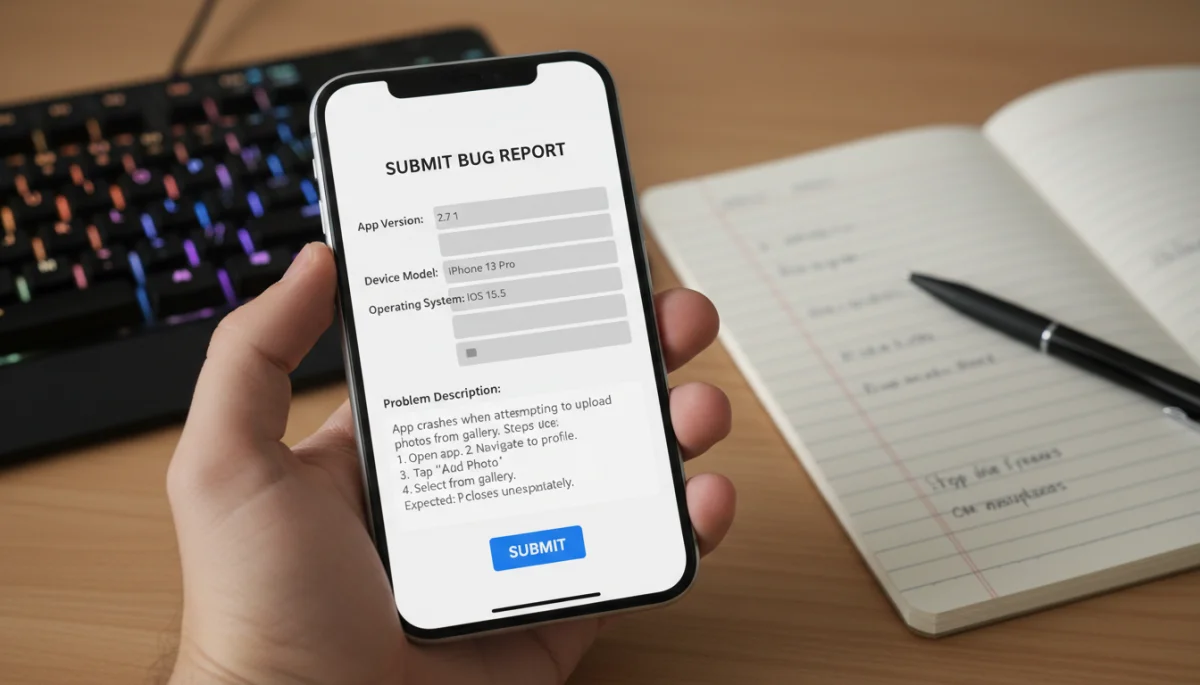
- App Version: Always include the exact version number of the communication app you are using. This is typically found in the app’s settings or “About” section.
- Device Model: Specify your phone or tablet model (e.g., iPhone 13, Samsung Galaxy S22).
- Operating System: Provide your device’s operating system version (e.g., iOS 16.5, Android 13).
- Internet Connection Type: Indicate if you’re on Wi-Fi, cellular data, or both, and if the issue persists across different connection types.
These technical specifications help support agents rule out common compatibility issues or known bugs affecting specific software versions or hardware. Without this information, they might suggest troubleshooting steps that are irrelevant to your setup, prolonging the process.
Beyond the technical details, consider the context of the problem. For instance, does the issue only occur when you’re on a specific network, or when you’re trying to communicate with a particular contact? Such nuances can provide critical clues for diagnosis.
Describing the Problem: Be Specific and Chronological
Once you have your technical details ready, the next step in learning how to prepare a useful support request for a communication app problem is to articulate the problem itself with utmost clarity. This involves describing what happened, what you expected to happen, and any error messages encountered. Avoid generalizations and focus on objective observations.
A chronological account of the events leading up to the issue can be incredibly powerful. Support agents often try to reproduce the problem on their end, and a step-by-step guide from you can significantly aid this process. Imagine you’re giving instructions to someone who has never used the app before.
Crafting a Clear Problem Description
A good problem description answers the “who, what, when, where, why, and how” of the issue. Don’t assume the support team knows your routine or your device setup. Every detail matters.
- What happened? Describe the exact behavior you observed. For example, “When I tried to send a photo, the app crashed.”
- What did you expect to happen? Explain the normal or desired outcome. “I expected the photo to be sent successfully to my contact.”
- When did it happen? Provide the date and time, especially if it’s an intermittent issue. “This occurred today, June 10th, at approximately 3:15 PM EST.”
- Where did it happen? Specify the section of the app or the context. “This happened in a private chat with John Doe, after selecting an image from my gallery.”
- Any error messages? Quote any error messages verbatim, including numbers or codes. “I received an error message: ‘Failed to upload image. Error code: 403’.”
It’s also beneficial to mention if you’ve recently updated the app or your device’s operating system, as these changes can sometimes introduce new bugs. The more specific you are, the less guesswork the support team has to do, leading to a faster resolution.
Consider including screenshots or screen recordings if the app allows. Visual evidence can often convey more information than pages of text, especially for visual bugs or UI glitches. Ensure any personal information is blurred or cropped out before sending.
Steps Taken to Troubleshoot the Issue
Before reaching out to support, most users attempt some basic troubleshooting steps. Documenting these steps is another crucial component of how to prepare a useful support request for a communication app problem. This prevents support from suggesting solutions you’ve already tried, moving them closer to advanced diagnostics.
Even if the steps you took didn’t resolve the issue, knowing what you’ve already attempted helps the support team narrow down potential causes. It shows you’ve done your due diligence and are actively trying to solve the problem, which can often expedite the support process.
Common Troubleshooting Steps and Their Importance
Here are some typical troubleshooting steps you might have tried, and why it’s important to list them:
- Restarted the App: Closing the app completely and reopening it. This often clears temporary glitches.
- Restarted the Device: A full device reboot can resolve many underlying system conflicts.
- Checked for App Updates: Ensuring you’re on the latest app version, as bugs are often fixed in updates.
- Checked for OS Updates: Verifying your device’s operating system is up to date.
- Cleared App Cache/Data: For Android, clearing cache and data can fix corrupted app files. For iOS, reinstalling the app serves a similar purpose. (Note: Reinstalling deletes app data, so ensure backups if applicable).
- Reinstalled the App: A fresh installation can often resolve deep-seated issues.
- Tested on Different Network: Confirming if the issue is network-specific (e.g., Wi-Fi vs. cellular).
For each step, briefly state whether it helped or not. For example, “I restarted the app, but the issue persisted.” This direct feedback is invaluable. If you tried clearing the cache, mention if you also cleared data, and if you had any data loss concerns.
By listing these steps, you’re not just telling them what didn’t work; you’re also providing a roadmap of what they don’t need to suggest, allowing them to focus on more complex solutions. This demonstrates your thoroughness and readiness to collaborate in resolving the problem.
Providing Screenshots, Videos, and Log Files
Visual evidence and technical logs can be game-changers when learning how to prepare a useful support request for a communication app problem. A picture truly is worth a thousand words, and a video can capture dynamic issues that are difficult to describe in text. Log files, while more technical, provide a backend view of what the app was doing when the error occurred.
Before attaching anything, ensure that any sensitive personal information is redacted or blurred. Privacy is paramount, and you don’t want to inadvertently share private chats or contact details with the support team, even if they are trusted.
The Power of Visuals and Logs
Different types of supplementary materials serve different purposes, but all aim to provide a clearer understanding of the problem:
- Screenshots: Ideal for static errors, UI glitches, or specific error messages. Capture the entire screen, if possible, to provide context.
- Screen Recordings: Excellent for demonstrating dynamic issues, such as app crashes, freezing, or features not behaving as expected during a user flow. Many devices have built-in screen recording features.
- App/Device Logs: Some apps or operating systems allow you to generate diagnostic logs. These are typically technical files that record app activities and errors. If an app has an option to “send feedback” or “report a bug” from within its settings, it often includes these logs automatically.
When attaching screenshots or videos, describe what they show. For example, “Screenshot 1 shows the app frozen on the contact selection screen,” or “Video demonstrates the app crashing immediately after I tap the ‘send’ button.” This contextualization helps the support agent interpret the visual evidence correctly.
Always check the file size limits for attachments in the support portal or email. If files are too large, consider using a cloud storage service and providing a shareable link, ensuring the link is accessible to the support team.

Crafting a Concise and Respectful Message
With all your information gathered, the final step in how to prepare a useful support request for a communication app problem is to compile it into a clear, concise, and respectful message. While it’s easy to get frustrated when an app isn’t working, remember that the support agent on the other end is there to help you. A polite and organized request is more likely to receive a prompt and thorough response.
Structure your message logically, starting with a brief summary of the problem, followed by the detailed information you’ve collected. Use clear headings or bullet points if the support system allows, to make the information digestible.
Structuring Your Support Request
A well-structured request guides the support agent through your issue efficiently:
- Subject Line: Make it descriptive and to the point. Example: “App Crashing When Sending Photos – [Your App Name] vX.X.X on [Your Device Model]”
- Opening: Briefly state the problem and what you’re seeking. “I am experiencing an issue where [App Name] crashes when I attempt to send photos. I would appreciate assistance in resolving this.”
- Detailed Problem Description: Provide the chronological steps and observations you noted earlier.
- Technical Information: List your app version, device model, and OS version.
- Troubleshooting Steps Taken: Detail what you’ve already tried and the outcomes.
- Attachments: Mention any attached screenshots, videos, or logs.
- Closing: Thank the support team for their time and assistance.
Avoid jargon unless you’re certain it’s appropriate for the context. Write in plain language, explaining technical terms if necessary. Keep paragraphs short and to the point, enhancing readability.
Remember to maintain a polite and professional tone throughout your message. Aggressive or demanding language can hinder the support process, as it may create a negative interaction. A respectful approach fosters a collaborative environment, leading to better outcomes.
Following Up and Maintaining Communication
After submitting your meticulously prepared support request, the next phase involves patience and appropriate follow-up. Knowing how to prepare a useful support request for a communication app problem isn’t just about the initial submission; it also encompasses how you manage the ongoing communication with the support team. Avoid bombarding them with multiple messages, but also don’t be afraid to gently nudge if too much time passes without a response.
Most support systems provide a ticket number or confirmation email. Keep this information handy, as it will be essential for any future communication regarding your issue. Referencing this number makes it easier for the support team to locate your case.
Best Practices for Follow-Up
Effective follow-up is about finding a balance between persistence and patience:
- Be Patient: Support teams often deal with high volumes of requests. Give them a reasonable amount of time to respond, typically 24-48 business hours.
- Reference Your Ticket Number: Always include your original ticket number in any follow-up emails or messages. This helps agents quickly access your case history.
- Provide New Information: If the problem changes or you discover new details, share them in a follow-up. “Since my last message, I’ve noticed the app also crashes when I try to record a voice message.”
- Avoid Duplicate Requests: Submitting multiple requests for the same issue can confuse the system and delay resolution. Stick to your original ticket.
- Be Clear and Concise: Just as with your initial request, keep follow-up messages clear and to the point.
If you receive a response asking for more information, provide it as quickly and thoroughly as possible. The faster you respond with the requested details, the faster the support team can continue their investigation. Sometimes, they might ask you to try additional troubleshooting steps; perform these carefully and report the results accurately.
Once your issue is resolved, it’s good practice to send a brief thank you message. This not only shows appreciation for their effort but also provides closure for the support agent, confirming the successful resolution of your problem.
| Key Aspect | Brief Description |
|---|---|
| Information Gathering | Collect app version, device model, OS, and connection type before contacting support. |
| Problem Description | Describe the issue specifically, chronologically, and include any error messages. |
| Troubleshooting Steps | List all attempts to fix the problem, indicating their outcome. |
| Visual Evidence | Attach screenshots or screen recordings to visually demonstrate the issue. |
Frequently Asked Questions About App Support Requests
The most important information includes your app version, device model, operating system version, and a clear, chronological description of the problem. Visuals like screenshots or videos are also highly valuable for diagnosing issues efficiently.
Yes, always attempt basic troubleshooting steps like restarting the app, restarting your device, or checking for updates. Documenting these efforts and their outcomes helps support agents avoid suggesting solutions you’ve already tried, speeding up the resolution process.
Response times vary by company and issue severity, but a reasonable waiting period is typically 24 to 48 business hours. If you haven’t heard back after this time, a polite follow-up referencing your ticket number is appropriate.
Both are useful. Screenshots are excellent for static errors or visual glitches. Videos are superior for dynamic issues like app crashes, freezing, or unexpected behavior during an interaction, as they capture the sequence of events. Use what best illustrates your specific problem.
Most apps have an “About” or “Settings” section where you can find the app version. Your device’s operating system version is usually in its main settings under “About Phone” or “General > About.” Try to find this information; it’s crucial for effective support.
Conclusion
Mastering how to prepare a useful support request for a communication app problem is a skill that empowers you to navigate technical difficulties with confidence and efficiency. By systematically gathering essential information, describing the problem clearly, documenting troubleshooting steps, and providing visual evidence, you transform a potentially frustrating experience into a streamlined process. This proactive approach not only accelerates the resolution of your issues but also fosters a more positive and productive interaction with support teams. Remember, a well-prepared request is a testament to your commitment to solving the problem, and it’s the fastest route back to seamless communication.
